
Orders
The Order card
The order's IDs, the kind of move, service and estimate, the size, and who the lead belongs to — and which changes re-price the order on the spot.
- 3 min read
- Checked against MoveBoard
- For sales, owners & admins
On this page
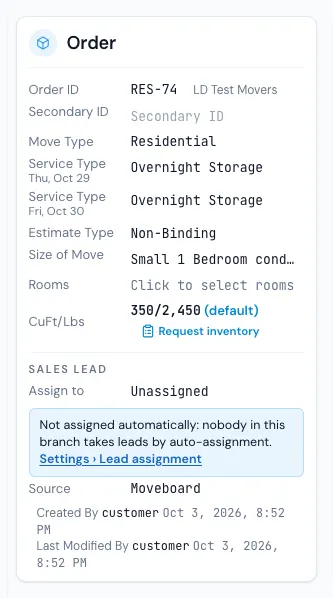
The Order card describes the move: what kind it is, which service, how it's estimated and how big it is. Under it, Sales Lead says who the lead belongs to and where it came from.
The rows
| Row | What it is | Saved |
|---|---|---|
| Order ID | The order number, with the branch beside it. | — |
| Secondary ID | Your own reference, such as a broker's job number (up to 256 characters). | With SAVE |
| Move Type | Residential, commercial or military — under your company's own names. | At once, re-priced |
| Service Type | The service of each day. On a multi-day move there's one row per day, with its date. | At once, re-priced |
| Estimate Type | Non-Binding, Binding or Flat Rate. | At once |
| Tariff Type | Long-distance days only: how the haul is priced. | With SAVE |
| Size of Move | The size from your company's list. | With SAVE |
| Rooms | Extra rooms added to the size. Choose a size first. | With SAVE |
| CuFt/Lbs | The cubic feet and pounds the move is priced at, and where they come from. | With SAVE |
Changing the move type
Pick another Move Type and the order is re-priced with that type's rates. The size follows by name; if the new type has no size with that name, a pop-up asks you to choose one, then Switch and re-price. Save or discard your other changes first — MoveBoard asks you to.
Changing the service
Pick another Service Type and the Move and Quote cards change at once, priced the new way; the inventory stays exactly as it is. Some switches ask a question first:
- To overnight storage — the Delivery day, when the goods come back, then Switch to overnight.
- Leaving a storage move whose linked order is booked — whether to cancel that order and move its deposit.
If an address change switched the day between local and long distance, the row shows Not saved yet: with the old and new service. See When a move becomes long distance.
The size
CuFt/Lbs shows the figures and, in brackets, where they come from: default (the size), inventory, custom, or not saved yet. When the order has an inventory, a new Size of Move or Rooms is only a label: the figures stay the inventory's — see Size, inventory or custom volume. Press the bracket to type a custom figure. While the size isn't from an inventory, Request inventory sits beside it — see Send the inventory link.
Sales Lead
- Assign to — the salesperson. Saved at once. Only people allowed to assign leads can change it.
- If the lead rules couldn't pick anyone, a gold note says why, with a link to the setting that fixes it. It goes once someone is assigned.
- Source — where the lead came from. Leads from an outside lead provider keep their source.
- Booked By, Created By and Last Modified By, with the date and time.
If something goes wrong
- Please select a size of move — the order has no size; pick one.
- Service type is not configured for this branch. Please select a valid service type. — the day's service was switched off; pick another.
- Save or discard the changes to this order first, then change the kind of move.
- Secondary ID must be at most 256 characters
- The service could not be changed. — with the reason when there is one; the old service stays.
Related guides
- OrdersThe order window, card by cardEverything on an order in one window — the top bar, the status, the truck schedule, the four cards, the addresses, the conversation — and how SAVE works.
- OrdersHow saving works in an orderWhat waits for SAVE, what is saved the moment you do it, the checks SAVE makes, and what happens if you close with changes.
- OrdersThe Move Details cardThe day of the move — date, arrival window, crew, trucks, rates and hours — and how a figure you set yourself sits beside the calculator's.
- Leads & salesAssign a lead to a salespersonGive a lead to a salesperson from the order, from the Orders list, or for many orders at once.
- Leads & salesWho gets each lead (assignment rules)The order MoveBoard follows to give each incoming lead a salesperson, how to set each person's rules, and what the "Not assigned automatically" notice means.
- InventorySend the inventory linkOne press emails and texts the customer a link straight to their inventory list, so you can price the move exactly.
Still stuck? A person will help.
Open a ticket from Support inside MoveBoard, or email us — we usually reply within one business day.