
Switch moving software and import your data: Bring your data over, and start where you left off.
Import brings your orders from the file your current software exports, then your customers, jobs, notes, payments, messages, inventory and documents. Every file is checked first, with your spreadsheet's own row numbers, and nothing you import sends a text or an email to a customer. You can export your company's data from MoveBoard at any time.
- kinds of data: customers, jobs, notes, payments, messages, inventory, documents
- 7kinds of data: customers, jobs, notes, payments, messages, inventory, documents
- texts or emails sent by an import
- 0texts or emails sent by an import
- fees for data migration, onboarding or training
- 0fees for data migration, onboarding or training
 Harbor & Pine MovingNew67°2
 EdPRPriya RamanCompany AdminPR
Settings · Sales & orders · Import orders
Your orders, then everything else
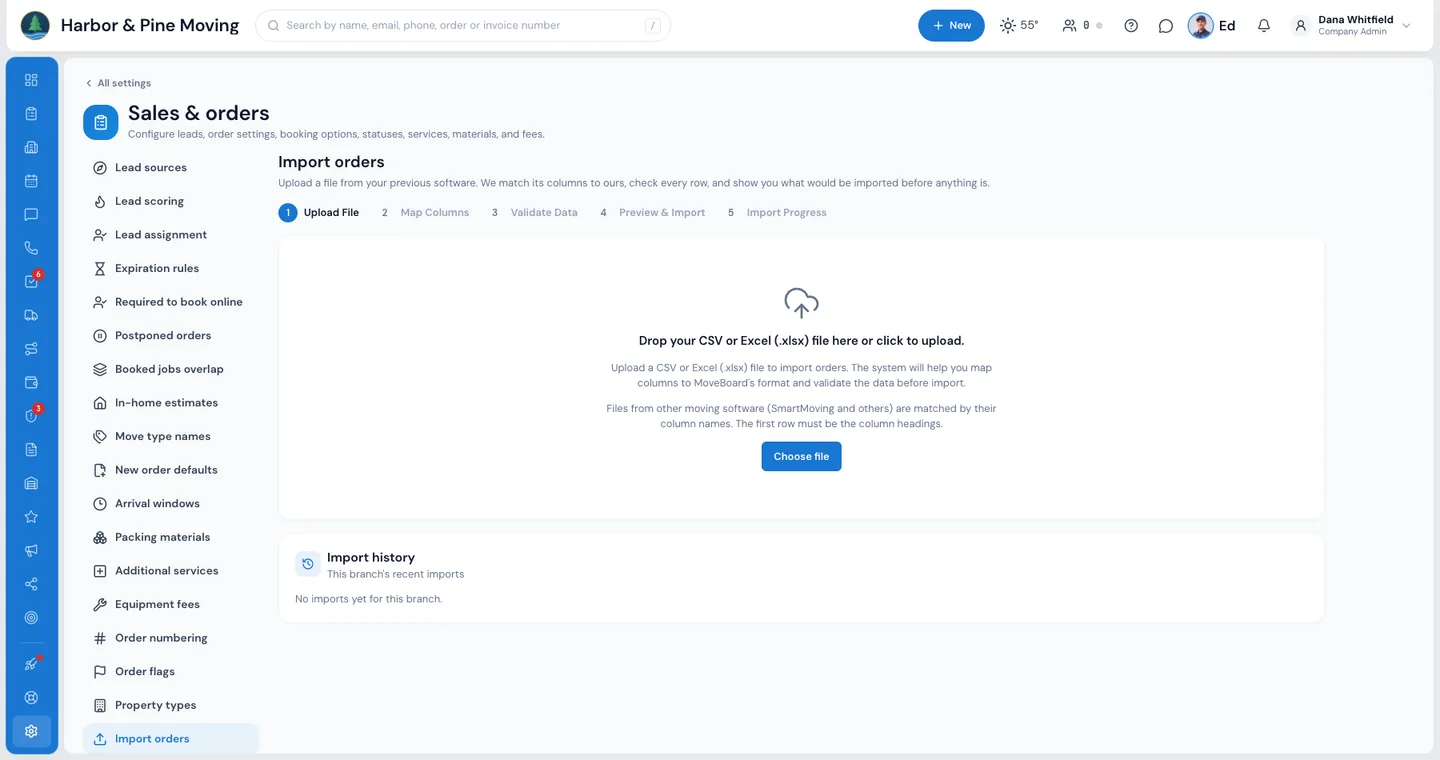
- OrdersAny system's orders file, .csv or .xlsx: Upload File, Map Columns, Validate Data, Preview & Import, Import ProgressTab
- From SmartMovingCustomers, jobs and notes, payments, follow-ups and messages, inventory, documentsTab
- Don't send any emails or texts for these ordersTicked, and nothing imported sends a text or an emailTicked
Import and export are included in every plan, with no add-on fee. Data migration, onboarding and training are free on both plans.
How do I switch moving software without losing my data?
Export your orders from your current software as a .csv or .xlsx file and import them in MoveBoard on Settings › Sales & orders › Import orders. MoveBoard matches the columns, shows every problem row before anything is imported, and then brings in the customers, jobs, notes, payments, messages, inventory and documents. Nothing imported texts or emails a customer.
What it fixes
The day before Switch to MoveBoard, and the day after.
Switching software means retyping years of customers, or losing them.
Import your orders from a file, then your customers and the rest, checked row by row before anything goes in.
An import floods old customers with reminders about moves that finished long ago.
Nothing imported sends a text or an email, and you can still message a customer yourself from the order.
Payments from the old system get charged again.
Imported payments are recorded as already paid. Nothing is charged again and no receipt is sent.
How it works
Switch to MoveBoard, screen by screen.
01 / Your orders
Upload the file, match the columns, import.
On the Orders tab you upload a .csv or .xlsx file, match its columns, fix problem rows, preview and import. Exports from SmartMoving, Moveworx, Supermove, Granot and HomeAdvisor are recognised by their column names. Each order comes in with its customer, addresses, move date, service, size, status, source, salesperson, prices and the notes, and the money already received.
- A status from another system, like Opportunity, Confirmed or Lost, becomes a MoveBoard status
- Type a fix straight into a cell, or download the problems to fix in your spreadsheet
- Importing the same file again skips what is already in
02 / Everything else
Customers, jobs, payments, messages, inventory and documents.
A second tab on the same page brings in the other files of the system you are leaving. For SmartMoving that is the From SmartMoving tab: customers, each one once; jobs and their notes; payments, recorded as already paid; follow-ups and messages, filed on the order's notes at their own date; inventory; and documents, from a .zip or a folder named by quote number. For another system, import its orders file on the Orders tab, and our team goes over the rest with you.
- A customer MoveBoard already has is kept, never doubled
- Imported notes are for your office only, never shown to the customer
- Documents are added to each order's documents, up to 20 MB a file
Harbor & Pine MovingNew67°2EdPRPriya RamanCompany AdminPRSettings · Sales & orders · Import orders
Your orders, then everything else
- OrdersAny system's orders file, .csv or .xlsx: Upload File, Map Columns, Validate Data, Preview & Import, Import ProgressTab
- From SmartMovingCustomers, jobs and notes, payments, follow-ups and messages, inventory, documentsTab
- Don't send any emails or texts for these ordersTicked, and nothing imported sends a text or an emailTicked
03 / Checked, then imported
Every file is checked first, then imported in the background.
You see how many rows are ready and every problem, with the row number your spreadsheet shows, before anything is imported. Then MoveBoard imports in the background and you can leave the page. Each import lists its progress, Stop pauses one, and Resume goes on from its next row. Problems lists the rows that were not imported and why, and downloads them.
- A template with the column names MoveBoard reads, for a file you make yourself
- A row that could not be imported says why, with its row number
- An import never stands still without a word
Harbor & Pine MovingNew67°2EdPRPriya RamanCompany AdminPRSettings · Sales & orders · Import orders · Imports
Checked first, then imported
- Customers · 1,204 rowsEvery customer once; one you already have is kept, never doubledCompleted
- Payments · 3,870 rowsRecorded as already paid. Nothing is charged again.Importing
- Documents · 412 filesAdded to each order's documents, not shown to the customerStopped · Resume
Each file is checked first with your spreadsheet's own row numbers. Stop and Resume carry on from the next row.
04 / Quiet by design
Nothing imported texts or emails a customer.
On the Preview & Import step, Don't send any emails or texts for these orders is ticked, so no reminder, status message, move confirmation or review request goes to an imported customer. The Customer card says so, and the office can still text and email that customer from the order. Imported payments are recorded as already paid: nothing is charged again and no receipt is sent.
- No notification goes to the salesperson an imported order is given to
- Untick the box only if you want those customers to get your automatic messages
- Price a few recent jobs in the test calculator to compare with your old prices
Harbor & Pine MovingNew67°2EdPRPriya RamanCompany AdminPRSettings · Sales & orders · Import orders
Your orders, then everything else
- OrdersAny system's orders file, .csv or .xlsx: Upload File, Map Columns, Validate Data, Preview & Import, Import ProgressTab
- From SmartMovingCustomers, jobs and notes, payments, follow-ups and messages, inventory, documentsTab
- Don't send any emails or texts for these ordersTicked, and nothing imported sends a text or an emailTicked
05 / Export any time
Your data stays yours.
In Settings › Advanced › Export data an admin picks what to export, orders, customers, storage, invoices, payments, payroll, claims, notes and order history, and texts, emails and calls, with the dates, and presses Start export. It is built in the background, with spreadsheet files, JSON as well if you want it, and the order documents and photos if you tick them.
- A notification and an email tell you when the download is ready
- Only admins can export
- Notes and order history and texts, emails and calls are in the full export
Harbor & Pine MovingNew67°2EdPRPriya RamanCompany AdminPRSettings · Sales & orders · Import orders · Imports
Checked first, then imported
- Customers · 1,204 rowsEvery customer once; one you already have is kept, never doubledCompleted
- Payments · 3,870 rowsRecorded as already paid. Nothing is charged again.Importing
- Documents · 412 filesAdded to each order's documents, not shown to the customerStopped · Resume
Each file is checked first with your spreadsheet's own row numbers. Stop and Resume carry on from the next row.
“Time relief, organization, all in one location of client files!”
By the numbers
0
Texts or emails sent by an import
Imported customers hear nothing from MoveBoard until you decide to message them.
How do I move my data into MoveBoard?
Export your orders from your current software as a .csv or .xlsx file and import them on Settings › Sales & orders › Import orders. Then bring in the rest, customers, jobs, notes, payments, messages, inventory and documents, as described on this page.
Which software's exports does MoveBoard recognise?
Exports from SmartMoving, Moveworx, Supermove, Granot and HomeAdvisor are recognised by their column names. For any other file, you match the columns yourself on the Map Columns step.
Does an import send texts or emails to my customers?
No. Nothing you import sends a text or an email: on the Orders tab, Don't send any emails or texts for these orders is already ticked when you reach Preview & Import, and the other files never send any. You can still text and email an imported customer yourself from the order.
Are imported payments charged again?
No. Each payment is recorded on its order as already paid, with its date, amount and method. Nothing is charged again and no receipt is sent.
Can I import the same file twice by mistake?
A row whose order was already imported is skipped, so you can safely upload the same file again after an import stopped half-way. To bring orders in a second time on purpose, tick Import again even if already imported.
Can I export my data from MoveBoard?
Yes, at any time. An admin opens Settings › Advanced › Export data, picks what to export and the dates, and presses Start export.
Does the switch cost anything?
No. Import, export, data migration, onboarding and training are free on both plans, with no add-on fee.
Do my pricing rules come over?
Your rates, crew-size rules, templates, documents and workflows are set up in MoveBoard rather than imported. Price a few of your recent jobs in the test calculator to compare.
Works with
Switch to MoveBoard hands the work to the next screen.
See your company on MoveBoard.
A live demo built around your own kind of moves: your service area, your pricing, your crews.