
Connect Claude and ChatGPT to your moving software: Ask your AI app. MoveBoard answers.
Connect Claude, ChatGPT or any app that speaks MCP to MoveBoard with one sign-in, then ask in plain words: how many moves did we book this week, what's on tomorrow's dispatch, who owes on storage. It answers from your real data, as you, with exactly your permissions and branch.
- read tools in 8 groups
- 40read tools in 8 groups
- sign-in: your MoveBoard account
- 1sign-in: your MoveBoard account
- passwords, cards or keys it can see
- 0passwords, cards or keys it can see
Your AI app
MoveBoard connectedHow many moves did we book this week, and who booked the most?
MoveBoard · bookings_summary
MoveBoard · sales_by_person
14 moves booked this week, worth $21,860, three more than last week.
Jenna Morales booked the most: 6 of the 14, from 11 leads.
What's on tomorrow's dispatch? Anything without a crew?
MoveBoard · dispatch_day
Tomorrow has 5 jobs on 4 trucks. Order 1193 (Victor Chen, 8–9 AM, Quincy → Braintree) still has no crew.
Off until a company admin turns it on. Answers follow each person's own permissions and branch.
What it fixes
The day before AI connections, and the day after.
A quick question about the business means opening three reports and adding them up.
Ask the AI app you already use, and it reads the answer straight from MoveBoard.
Exporting data to an AI tool means a spreadsheet nobody controls.
The app signs in as the person and sees only what they can see, in the branch they picked.
Nobody knows what an outside tool looked at or changed.
Admins see the last 100 questions, every change with Put back, and who is connected.
How it works
AI connections, screen by screen.
01 / Turn it on
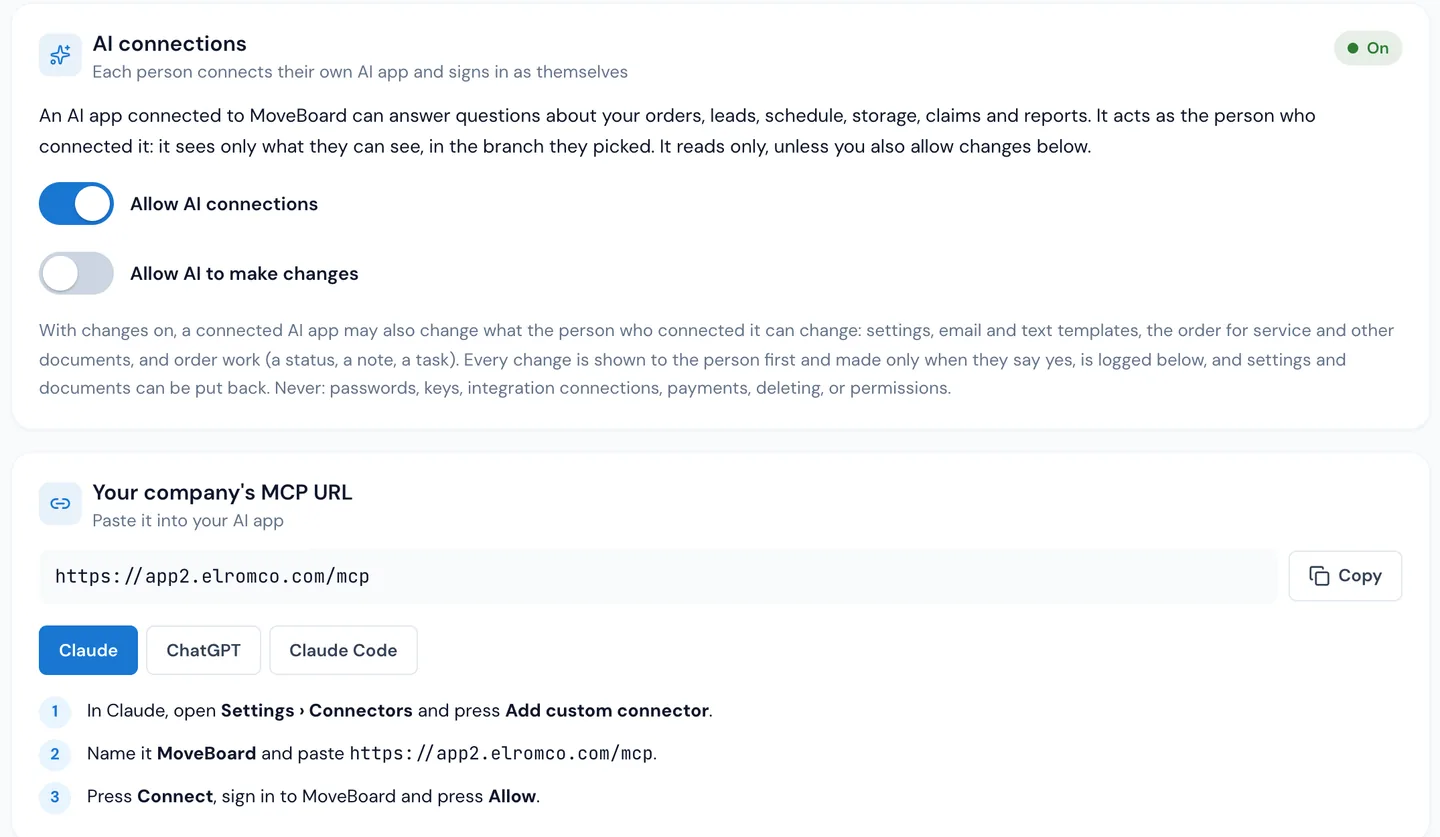
One switch, one address.
A company admin turns on Allow AI connections in Settings › Integrations › AI connections (MCP). Everyone then copies Your company's MCP URL into their own AI app, with step-by-step instructions on the page for Claude, ChatGPT and Claude Code. Turning the switch off stops every connected app at once.
- Off for every company until an admin turns it on
- Each person connects their own app and signs in as themselves
- Connections are kept while it's off, and work again when it's on
02 / Sign in
It acts as you, never more.
When the app connects, MoveBoard's own sign-in opens: the company ID, email and password, and the branch when the person works in more than one. Press Allow and the app reads as that person, with their permissions, in that branch. A salesperson who sees only their own orders gets only their own orders.
- Only office users can connect; customer and crew accounts are refused
- Removing someone from the branch cuts their connection
- An unused connection signs itself out after 30 days
- Disconnect any time from the profile menu › Connections
MMoveBoard
Connect an AI app
Your AI app wants to read your MoveBoard data as Jenna Morales at Harbor & Pine Moving.
Branch
Boston
- It sees only what you can see in MoveBoard
- Never passwords, card numbers or keys
Allow
Use another account
03 / What you can ask
Jobs, leads, money, in plain words.
The app uses the same lookups as Ed, MoveBoard's own assistant, with the same permission checks: bookings and the pipeline, an order's details and history, the day's schedule and dispatch, crews, long-distance trips, revenue and payments, storage, claims, your own leads and commission, workflows and the help center.
- Revenue and reports only for people allowed to see them
- Search customers, accounts and orders by name, phone or address
- "Where is that setting?" answered from the help center
What it can do
· 40 read-only toolsSales and leads7
bookings, leads, pipeline, sales by person
Orders and customers5
an order's details, activity and paperwork
Schedule and dispatch10
the day's jobs, dispatch, crews, trips
Money and reports3
revenue, payments collected, scheduled reports
Storage4
how full, who owes, where the goods are
Claims4
open claims, one claim, crew claim scores
Your own work4
my leads, bookings, schedule, commission
Workflows and help3
what ran on an order, help articles
04 / Changes, if you allow them
It shows the change. You say yes.
Out of the box an AI connection only reads. A company admin can also turn on Allow AI to make changes: then the app may change what the person could change themselves, settings, email and text templates and documents, an order's status, a note or a task. Every change is shown first, before and after, and made only when the person says yes.
- Settings and documents can be put back with one press
- Never through an AI app: passwords, keys, payments, refunds, deleting, permissions
- Integration connections, like card processing or QuickBooks, are never touched
In the booking confirmation text, change “arrival window” to “arrival time”.
Preview · nothing changed yet Waiting for your yes
before Your crew's arrival window is 8–9 AM.
after Your crew's arrival time is 8–9 AM.
Yes, go ahead.
Saved as you, logged under What AI apps changed, with Put back.
“The foundation and direction of this software puts it top of the class. I am impressed with the feature set from the beginning.”
By the numbers
100
Recent questions, open to admins
Settings shows who is connected, the last 100 questions AI apps asked (kept 30 days), what was refused by someone's permissions, and every change with Put back.
What is MCP?
MCP (Model Context Protocol) is the common way AI apps like Claude, ChatGPT and Claude Code connect to other software. MoveBoard has its own MCP server, so those apps can read your company's data when you ask them a question.
Which AI apps can I connect?
Any app that supports MCP connectors with a sign-in. The settings page has step-by-step instructions for Claude (claude.ai or the desktop app), ChatGPT and Claude Code.
Can the AI see everything in MoveBoard?
No. It signs in as the person who connected it and sees only what they can see in MoveBoard, in the branch they picked. It never sees passwords, card numbers or keys, and customer or crew accounts can't connect at all.
Can it change things?
Only if a company admin turns on Allow AI to make changes. Then it can change settings, templates and documents, and an order's status, notes and tasks, always showing the change first and making it only after the person says yes. It can never touch passwords, keys, integration connections, payments or refunds, delete anything, or change permissions.
How do I turn it off or disconnect an app?
An admin can switch off Allow AI connections to stop every app at once, or press Remove next to one connection. Each person can disconnect their own apps from the profile menu › Connections › AI apps.
Is there a limit?
Yes, to keep it fast for everyone: up to 60 questions a minute per person, and 60 confirmed changes an hour.
Works with
AI connections hands the work to the next screen.
See your company on MoveBoard.
A live demo built around your own kind of moves: your service area, your pricing, your crews.