
Moving company automation: Follow-ups that send themselves, one plain sentence each.
Every automatic email, text, document and task in MoveBoard is a workflow: when it starts, how long to wait, only if what is true, and what to do. You read each one as a sentence, try it on a real order before it runs, and see in the log why it sent or why it didn't.
- parts: When · Wait · Only if · Do
- 4parts: When · Wait · Only if · Do
- repeats at most, while it's still true
- 10repeats at most, while it's still true
- messages sent when you try one
- 0messages sent when you try one
Settings · Communication
Workflows, one plain sentence each
Workflows are sending
Quiet hours: 8:00 PM – 8:00 AM in your company's time zone
Booked confirmationBuilt in
When an order becomes Booked → right away → only if the order matches the template's move type → email “Your move is booked”
Deposit reminder
When an order becomes Reserved → delay 1 day (never at night) → only if the deposit is not paid → email “Hold your date”
Piano care
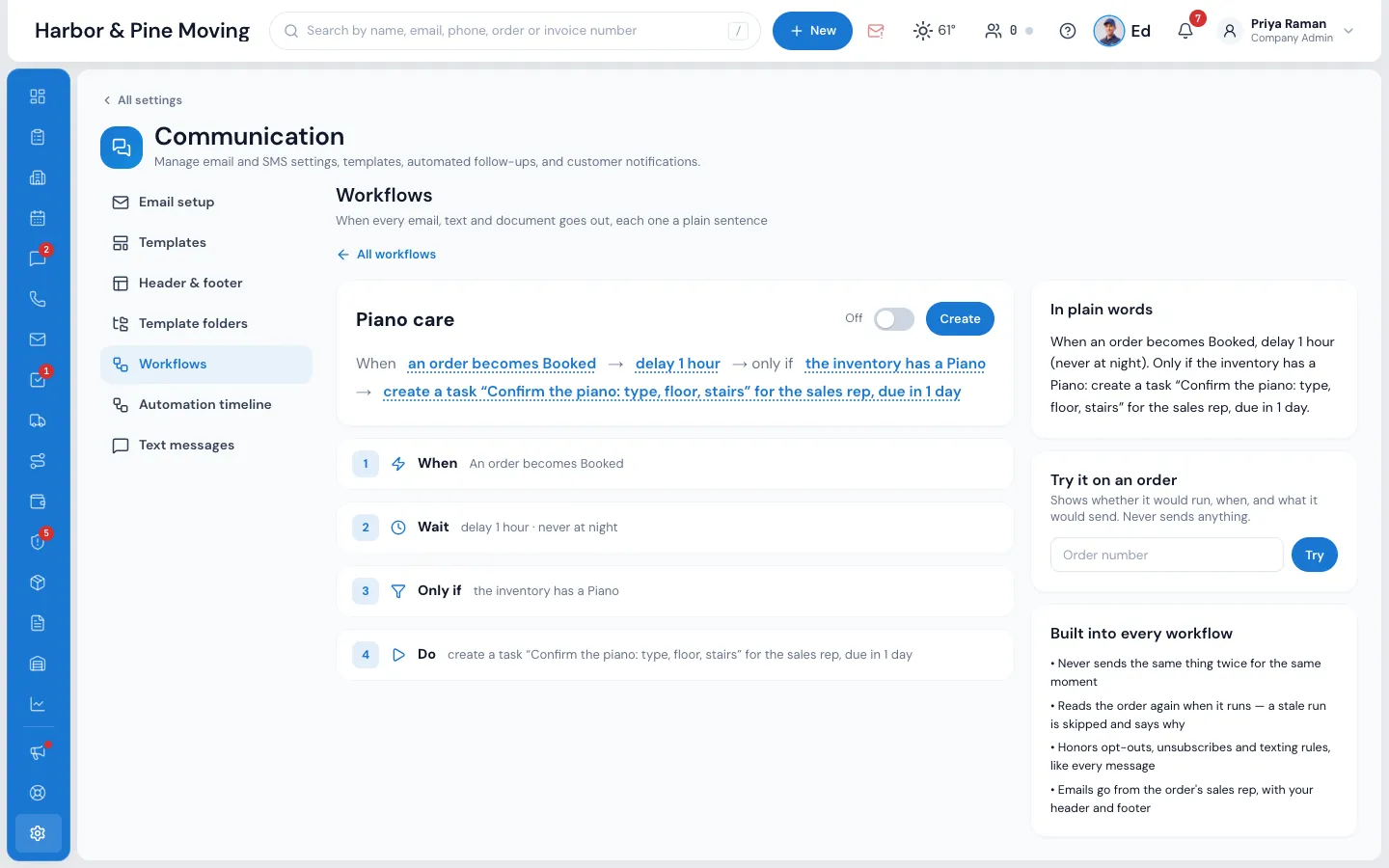
When an order becomes Booked → wait 1 hour → only if the inventory has a Piano → create a task for the sales rep
Day before the moveBuilt in · changed
When the day before a booked move → right away → text “See you tomorrow”
Workflows start off. Until an admin turns them on, the built-in rows show exactly what your templates and Automation timeline already send.
What it fixes
The day before Workflows, and the day after.
The “still thinking about it?” email goes out an hour after the customer booked.
Every run reads the order again first, and Stop by itself ends it once booked or paid.
A customer says they never got the reminder, and nobody can tell why.
The run log says sent, waiting, skipped or stopped, with the reason in plain words.
An automatic text wakes a customer at 11 PM.
Quiet hours hold it until 8 AM on the branch's clock, then check it still fits.
How it works
Workflows, screen by screen.
01 / When · Wait · Only if · Do
A rule you can read out loud.
Each workflow is four parts. When: something that happens, like an order becoming Booked or a deposit being paid, or a date on the order coming round. Wait: right away, a delay, a time of day or a date. Only if: what must be true about the order. Do: one or more steps, in order. In plain words says the whole rule back as one sentence.
- Press any underlined part to change just that part
- One workflow can start on several moments, and still sends once
- Steps: send an email or a text, the deposit or inventory link, a document to sign, a task, a note to a teammate, a status, a flag, a sales rep
- Save is refused, with what to fix, until the rule is complete
02 / Only if
The right orders, and it stops by itself.
Narrow a workflow by status, move type, service, branch, lead source, inventory, cubic feet, money, signed documents, open tasks, addresses, stairs, extra stops and more, with Match ALL or ANY and one level of groups. Stop by itself holds the conditions that end a waiting run, checked again just before it acts.
- “Contains an item” finds Baby grand piano when you type Piano
- Your own flags, services, lead sources and documents appear by themselves
- A condition MoveBoard can't answer counts as not true: it never acts on a guess
Workflows · Deposit reminder
Only the orders it's meant for
Only if
Status is Reserved
Reads: the order status is Reserved
Deposit paid is no
Reads: the deposit is not paid
Days until the move is more than 7
Reads: the move is more than 7 days away
+ Add a condition + Add a group
Stop by itself
Checked again just before each run
03 / Wait and repeat
The right moment, never the middle of the night.
Send right away, delay by minutes to months, wait until a time of day, or until a number of days before or after the move date, the delivery date or the storage billing date. Repeat while it's still true, up to 10 more times: a paid invoice gets no more reminders. Workflows you make keep quiet hours, 8 PM to 8 AM on the branch's clock.
- If the move date changes, a date reminder goes again for the new date
- A moment more than 12 hours old is dropped, never sent late
- Built-ins send at once, as they always have, until you tick quiet hours
Workflows · Invoice reminder
Wait, then never at night
Wait
How long to wait
3 days
Repeat while it's still true: again every 3 days, up to 10 more times
Never during the quiet hours in your company's time zone (8:00 PM – 8:00 AM)
In plain words: When the office sends an invoice, delay 3 days (never at night). Only if the invoice is still unpaid: send the email. Again every 3 days while the invoice is still unpaid, up to 10 more times.
04 / Try it
Test it on a real order, send nothing.
Type an order number in Try it on an order and MoveBoard answers: it would run, it would stop, or it would not run, with when, why and each step it would take. It checks your unsaved changes too. The eye on a row opens What the customer gets: the real email or text, filled in for an order.
- Try one order that should match and one that shouldn't
- Open full size shows the email with its subject, from and to
- Duplicate a workflow to try a variation, switched off
Workflows · Follow up a quote
Try it before it runs
Try it on an order
Shows whether it would run, when, and what it would send. Never sends anything.
Order RES-1146: it would run
When: Thu Oct 8, 10:15 AM
Why: the order status is Follow up
It would: create a task “Call about the quote” for the sales rep
Order RES-1150: it would not run
Why: not true: the order status is Booked
05 / The run log
Every run, with the reason.
Log on a workflow's row shows its last 100 runs: sent, done, waiting, skipped, stopped or failed, each with the order and the reason, like “stopped by itself: the deposit is paid” or “the customer has no mobile number that takes texts”. On an order, the Workflows button in the Order Log lists every workflow that ran on it.
- A run is kept per workflow, order and moment, so nothing goes twice
- Opt-outs, unsubscribes and texting rules are honoured, like every message
- Emails go from the order's sales rep, with your header and footer
Workflows · Run log
Why it sent, or why it didn't
#RES-1150sent 1Oct 6, 9:14 AM
email “Your move is booked” to megan.cole@example.com
#RES-1148waitinguntil Oct 7, 8:00 AM
waiting for the end of the quiet hours
#RES-1146stoppedOct 5, 1:02 PM
stopped by itself: the deposit is paid
#LD-2238skippedOct 5, 11:40 AM
the customer has no mobile number that takes texts
#RES-1139doneOct 4, 3:20 PM
created a task for the sales rep
Up to the last 100 runs. Opening a log never sends anything.
06 / The words
Every email and text, designed by clicking.
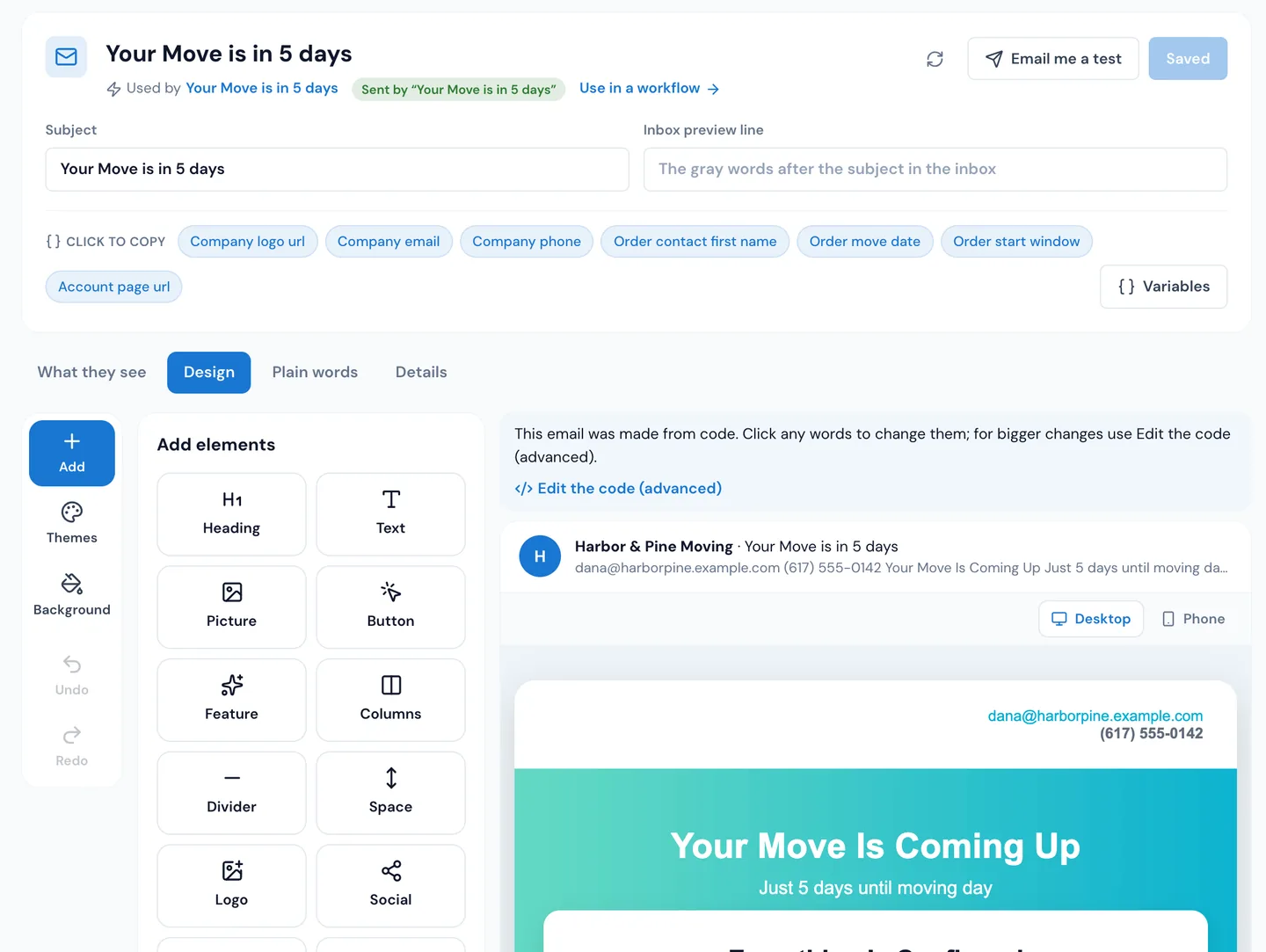
Settings › Communication › Templates shows every email and text as a card, with the workflow that sends it, whether that workflow is on, and how many it has sent. Open an email and design it in the live email itself: add headings, pictures, buttons and columns, drag parts to move them, pick a theme, click words to change them. Email me a test sends it to you, filled from your newest order.
- Start from Move booked, Your estimate, Move reminder or Thank you + review
- Edit the code (advanced): the code beside the live email
- What you see in the designer is exactly what the customer gets
- When an email goes is set in Workflows; the template holds only the words
07 / Start from an example
What you already send, plus ready-made ideas.
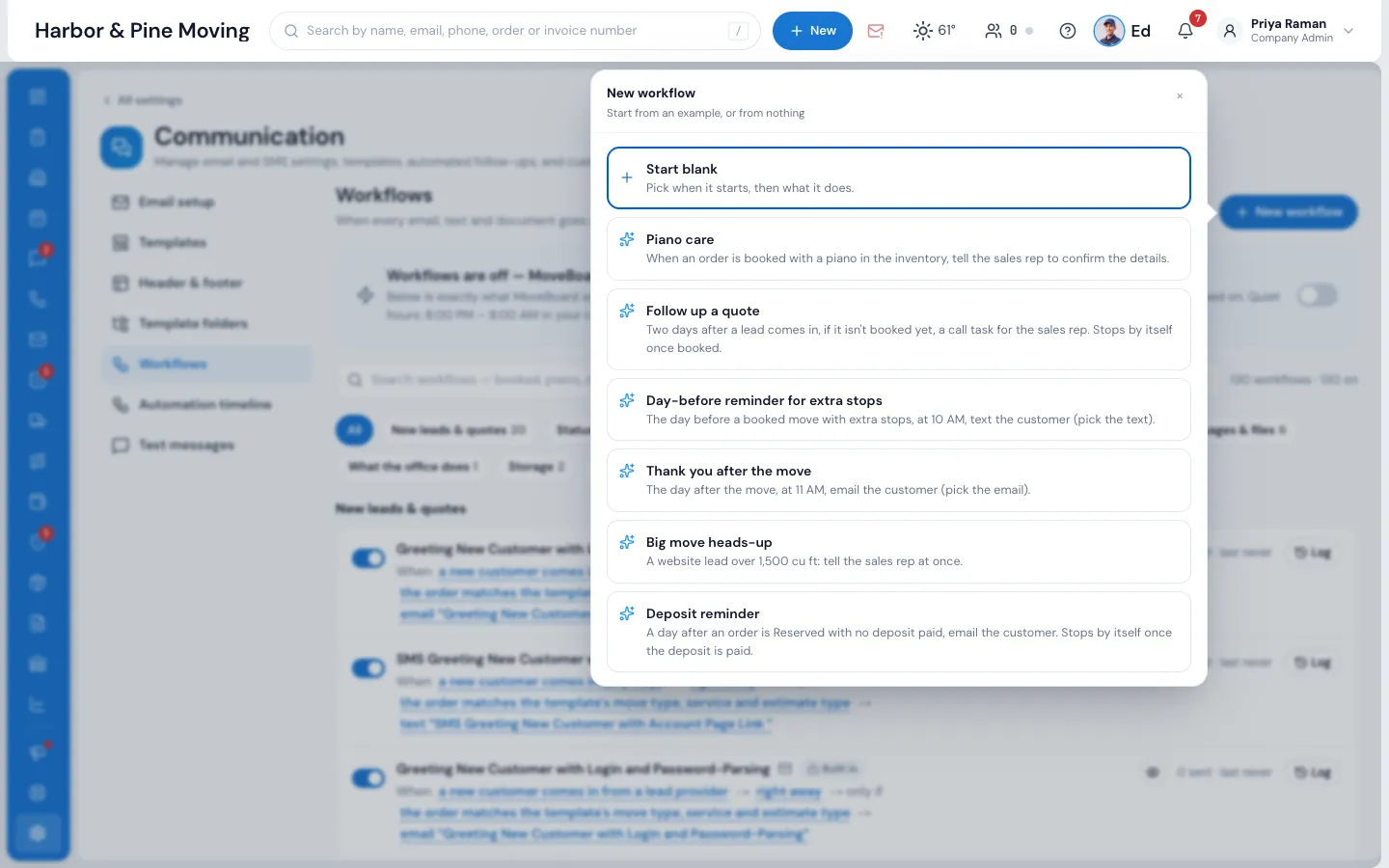
The messages your company already sends show as Built in rows: one per template set on a moment, one per Automation timeline row. Change one and it says Built in · changed; Reset puts it back. New workflow offers Start blank or an example: Piano care, Follow up a quote, Day-before reminder for extra stops, Thank you after the move, Big move heads-up and Deposit reminder.
- Templates hold the words, workflows decide when they go
- Switch a template off and every workflow that sends it stops
- Tasks can go to the sales rep, the dispatchers, every manager, a department or one person
“Mostly time, it's saves you all headache, everything is digital, invoices, booking and everything else.”
By the numbers
12
Hours, then a late moment is dropped
A message whose moment is more than 12 hours old is dropped rather than sent late, and quiet hours move workflow messages out of the night.
Can I design my own emails?
Yes. Every email template opens in a designer: add headings, text, pictures, buttons, columns, your logo and social links, drag parts to move them, choose a theme and a background, or edit the code beside the live email. Email me a test sends it to you first, and what you see is exactly what the customer gets.
Do I need technical skills to set up automations?
No. A workflow is four cards, When, Wait, Only if and Do, each picked from a searchable list. In plain words reads the whole rule back as one sentence, and Save tells you what's missing until it's complete.
What types of triggers are available?
Something that happens, grouped as New leads & quotes, Status changes, Reminders, Surveys, Payments & invoices, Crew & jobs, Messages & files, What the customer does, What the office does, Storage and Long distance. Or a date on the order: some days before or after the move date, the delivery date or the storage billing date, or some time after the order was created, booked or last touched.
Can automations send both SMS and email?
Yes. A workflow can have several steps in order, for example an email and a text, plus the deposit or inventory link, a document to sign, a task or a status change. Texts follow every texting rule and need your texting balance and registration.
How do I prevent duplicate or unwanted messages?
A workflow never sends the same thing twice for the same moment. Before it acts it reads the order again and checks Only if and Stop by itself on what is true then, so a customer who booked or paid in the meantime gets nothing. Opt-outs and unsubscribes are always honoured.
Can I see which automations have fired and their results?
Yes. Log on a workflow's row lists its last 100 runs with the order, the outcome and the reason. On an order, the Workflows button in the Order Log shows every workflow that ran on it.
Do I have to build every automation from scratch?
No. The messages your company already sends appear as built-in workflows you can change, switch off or reset, and New workflow offers ready-made examples like Follow up a quote and Deposit reminder.
Can automations notify my crew, not just customers?
Workflows can start when someone is put on a job, a crew changes, the crew is on the way or a job is completed. Their steps can create a task for a person, the dispatchers, every manager or a department, or tell teammates in the office by bell, email or text.
Can I try a workflow before it goes live?
Yes. Try it on an order says whether it would run, when, why and what it would do, without sending anything. Workflows also start off for the company until an admin turns them on.
Works with
Workflows hands the work to the next screen.
See your company on MoveBoard.
A live demo built around your own kind of moves: your service area, your pricing, your crews.