
Moving company calendar & scheduling: The month, truck by truck.
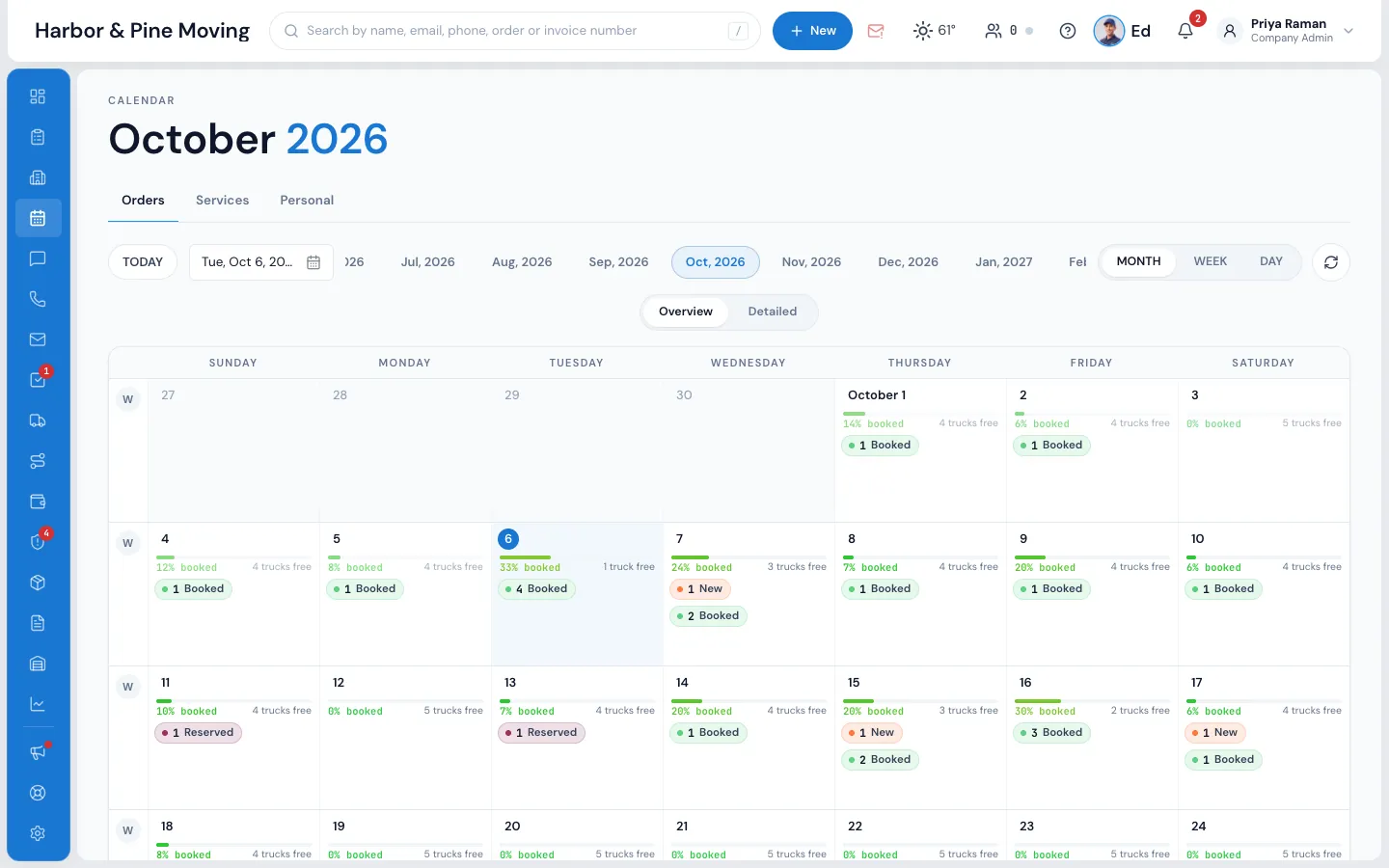
MoveBoard's Calendar shows your orders by month, week or day: how many are new, booked or reserved each day, how full the fleet is and how many trucks are still free. Open a day for its truck schedule, or the Services tab for your estimators' visits.
- views: month, week and day
- 3views: month, week and day
- bar a day: % booked, trucks free
- 1bar a day: % booked, trucks free
- minute buffer around each job, by default
- 30minute buffer around each job, by default
What it fixes
The day before Calendar, and the day after.
Sales promises a Saturday without knowing the trucks are gone.
Every day says how full the fleet is and how many trucks are free.
A quote and a booked move end up on the same truck at the same hour.
Booked and reserved jobs never share a truck beyond the overlap you allow.
Estimate visits live in someone's phone, not the company's schedule.
The Services tab shows every in-home and virtual visit, by estimator.
How it works
Calendar, screen by screen.
01 / The month
Overview for the busy days, Detailed for the trucks.
Overview gives each day a chip per status, such as 6 Booked or 34 New. Detailed shows how many are Can Book Online, Reserved and Booked, then a thin line for each truck on the road with a bar per job at its time. Under every day, a bar says how full the fleet is.
- The day number opens that day's truck schedule
- The W at the start of a row opens the week
- Pick a service in the Service Type Legend to see only its jobs
- Jobs with no truck sit on their own No truck line
Calendar
October 2026
19
100% booked · 0 trucks free
20
75% booked · 1 truck free
21
68% booked · 2 trucks free
02 / Week and day
Every truck's day, hour by hour.
The week and day views put a row per truck and the hours across, each job on the trucks it holds. Time held for an order shows as a band with its reason: held for a booked order, or pencilled in until the order is booked. Double-click a job to open its order.
- Quotes may pile up on a truck until one of them books
- When an order books, the quotes in its way go to New-Truck
- A long day holds its truck only until midnight of its own day
- Customer names show only on orders you're allowed to see
Calendar · Day view · Wed, Oct 21
The trucks, hour by hour
Quotes may sit on the same truck until one books. Booked and reserved jobs never pile up beyond your allowed overlap. Double-click a job to open its order.
03 / Services
Estimate visits on their own calendar.
The Services tab shows in-home and virtual estimate visits. The month lists each day's visits under the estimator doing them; a card with one visit opens that order. The week and day give each estimator a row with the hours across.
- Kept apart from the moving schedule
- Visits with nobody on them sit under No estimator
Calendar · Services · Thu, Oct 15
Estimate visits, by estimator
04 / Work a list
Press a chip, then act on the lot.
A day's chip opens its orders in that status, each with a tick box. Tick the ones you want and change their status, assign a sales person, add a flag, send a mass email or a mass text, or export them, all at once.
- Each customer's own name, date and price filled into the message
- Up to 100 orders at a time, each message kept on its order
Calendar · Sun, Oct 11 · New
34 New, worked together
05 / Trucks free
Count a free truck the way your yard does.
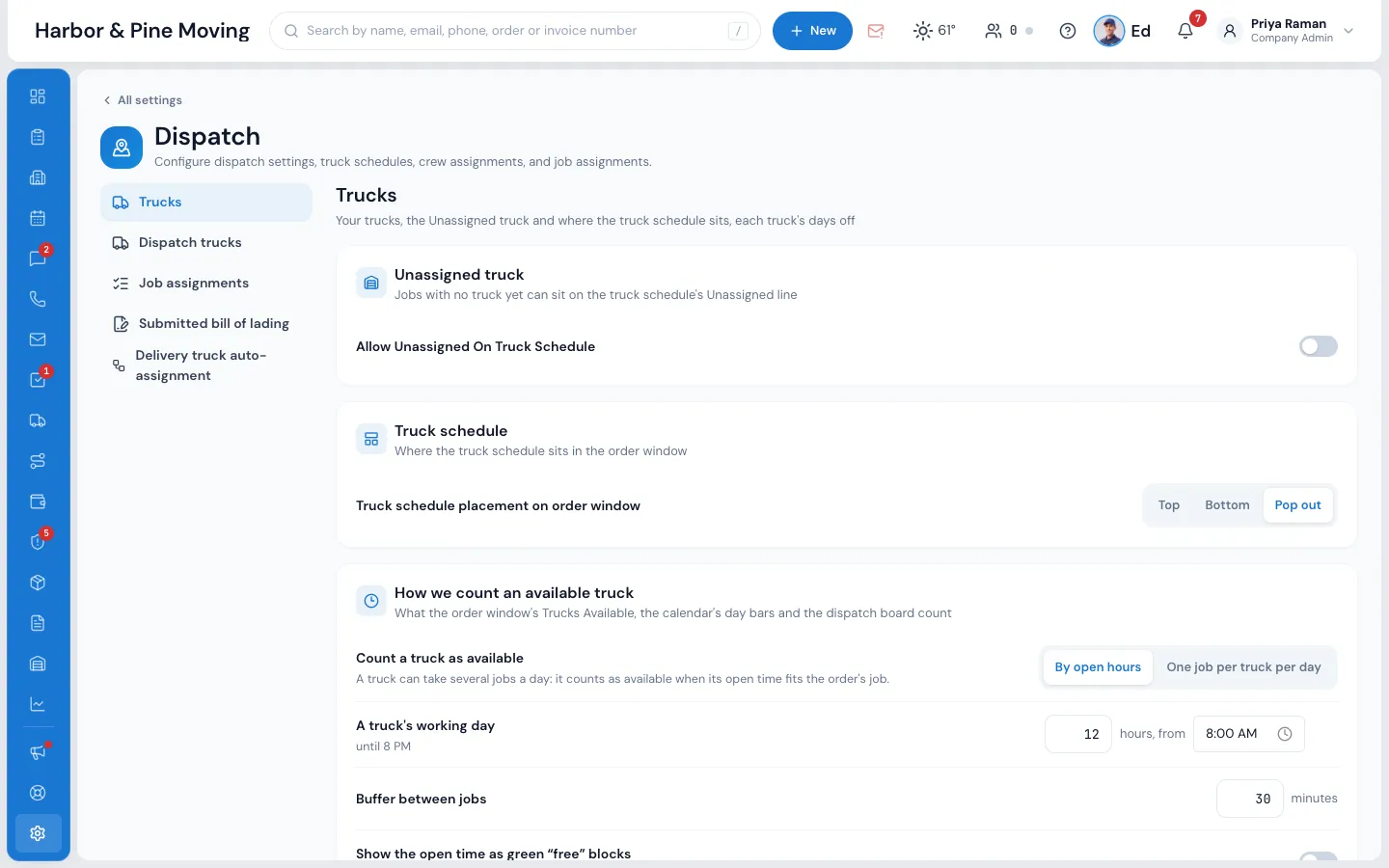
You choose how MoveBoard counts an available truck, and it answers the same way on the Calendar, in the order window and on the Dispatch board. By open hours, a truck can take several jobs a day while its open time fits. Or one job per truck per day, if that's how your trucks run.
- A truck's working day: 8 AM to 8 PM unless you change it
- A 30-minute buffer before and after each job
- Open time leaves out blocked and held time
“The team behind the software is very responsive. Any questions we had were answered and fixed very fast.”
By the numbers
30
Minutes kept free around every job
Counted by open hours, a truck's day runs 8 AM to 8 PM with a 30-minute buffer before and after each job, unless you set your own.
What calendar views are available?
Month, week and day. The month has two looks: Overview, with a chip per status on each day, and Detailed, with Can Book Online, Reserved and Booked counts and a line per truck. The week and day show the truck schedule, a row per truck with the hours across.
How do crew notifications work?
Crews are built and sent from Dispatch, not the Calendar. On the Crew Schedule, Send Notification texts everyone not told yet their crew and report time. They confirm in the Mover's Portal, and each name turns green for confirmed, red for declined, or stays yellow while waiting.
How does the calendar prevent scheduling overlaps?
Booked and reserved jobs never share a truck beyond the overlap you allow for that move type (none unless you set one). MoveBoard refuses and says which order is in the way, on which truck and when. Quotes can pile up until one books; the others then go to New-Truck.
Is there a separate calendar for estimates and assessments?
Yes. The Services tab shows in-home and virtual estimate visits by estimator, by month, week or day, apart from the moving schedule.
Can the calendar handle multi-day moves?
Yes. Each day of a multi-day order is its own job on its own date, with its own trucks and crew. A long day holds its truck until midnight; if the truck won't be back, hold time on the next day from the order so nobody else books it.
Does the calendar integrate with dispatch and CRM?
It reads the same orders. New leads from your website and quotes show as chips the day they're for, booked moves fill the trucks, and the truck count matches the order window and the Dispatch board. Double-click a job to open its order.
See your company on MoveBoard.
A live demo built around your own kind of moves: your service area, your pricing, your crews.