
Movers App for moving crews: Your crew's day, on their phone.
The Movers App is MoveBoard's app for your foremen, drivers and helpers. They confirm their days, text the customer an arrival time, work the job from one screen, ask for time off, and keep working when the signal drops. The office and the customer follow the truck on a live GPS map.

 Coming soon
- crew members, on both plans
- Unlimitedcrew members, on both plans
- phone signed in per person
- 1phone signed in per person
- of jobs, today and tomorrow, kept on the phone
- 2 daysof jobs, today and tomorrow, kept on the phone
Thursday, October 15th, 2026
Welcome, Marco!
The office is waiting for your answer
Fri, Oct 16 · Start At: 7:00 AM
1
Today
4
Assigned
38
Completed
Today's jobs
Order ID: RES-1146Assigned
Residential Local Move · 8:00 – 9:00 AM
What it fixes
The day before Movers App, and the day after.
Dispatch phones every mover the night before to check they're coming.
Each mover presses CONFIRM, and their name turns green on the Crew Schedule at once.
Customers call the office asking where the crew is.
EN ROUTE texts the customer the arrival time with a link to a live map of the truck, and the office sees the same map. If the text can't go out, the crew and the office are told to call.
A basement with no signal, and the morning's signatures are gone.
Today's jobs are saved on the phone, and every change to the bill waits there until it can be sent.
How it works
Movers App, screen by screen.
01 / The schedule
Confirm the day, ask for a day off.
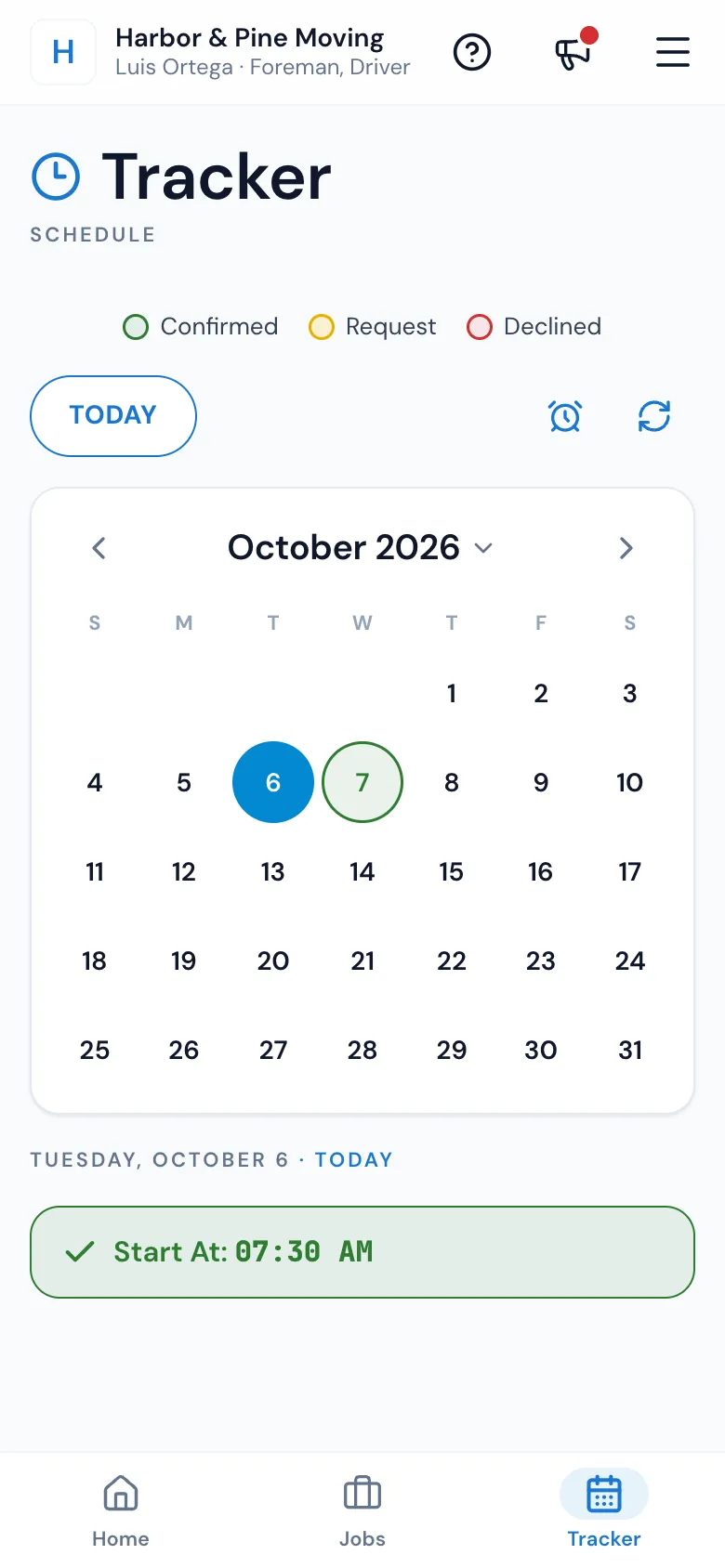
When dispatch sends a crew, everyone on it gets a text with a link to their schedule in the Movers App. They answer on Home or on the Tracker with CONFIRM, or DECLINE if your company allows it, and the Crew Schedule shows it at the same moment. The Tracker circles each day: green confirmed, yellow waiting, red declined, grey off.
- Before answering, a mover sees only the day and the start time
- Ask for a whole day, a morning, an afternoon or certain hours off
- The office approves or declines right on the Crew Schedule
02 / Before you leave
Everything about the job, then the ETA text.
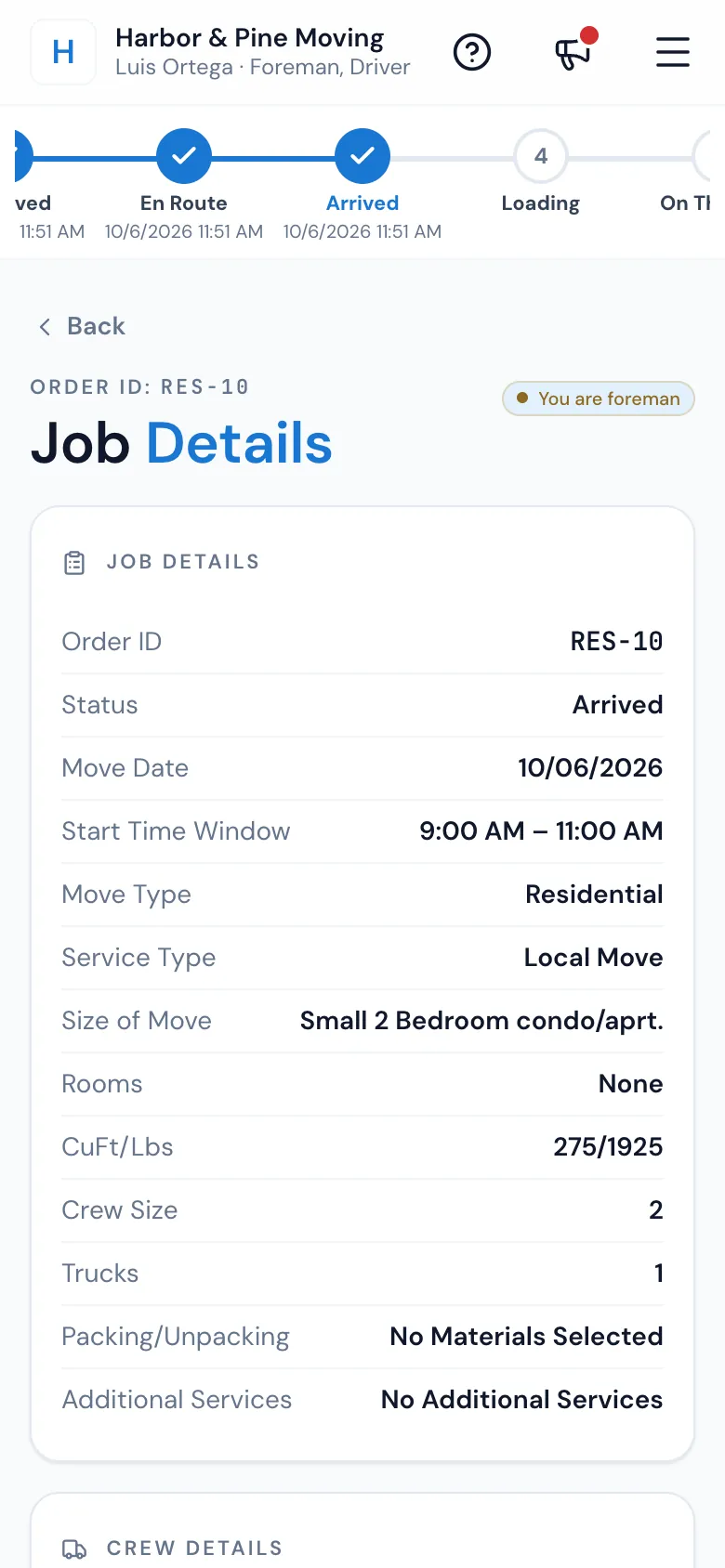
A foreman's job opens on Job Details: the move, the size and cubic feet, the crew and trucks, the materials sold, the customer and the office's notes. EN ROUTE opens the arrival time, filled in from the drive, and Send SMS texts the customer from your Movers on the way template before the job moves to En Route.
- Tap CuFt/Lbs for the customer's inventory, item by item
- Tap an address for Google Maps, Waze or Apple Maps
- No text out? Everyone on the crew sees Call the customer
03 / At the door
One screen for the whole job.
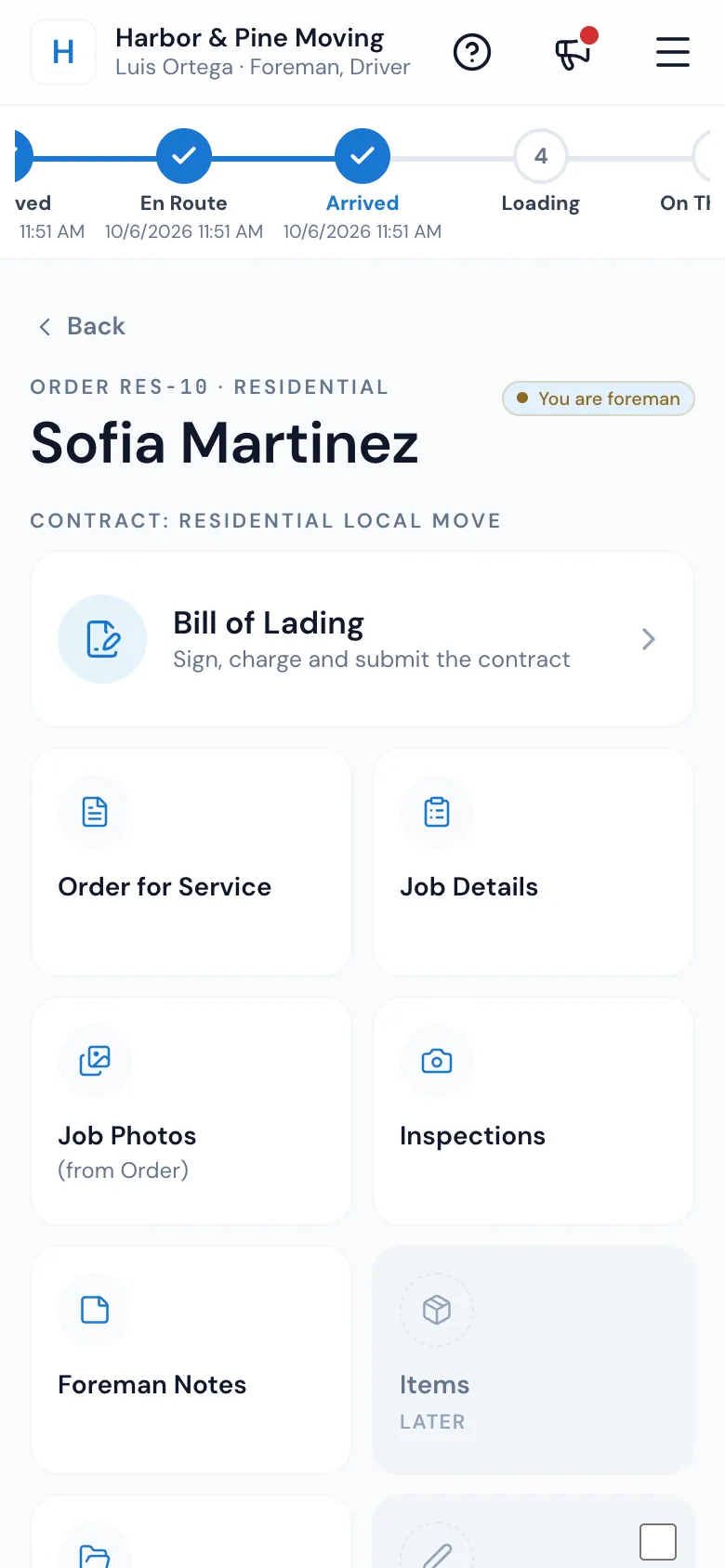
ARRIVED opens the job on its tiles, with the status chain across the top. The Bill of Lading comes first: times, signatures, materials, payment and the submit. Around it are the Order for Service the customer signed, Job Details, the office's Job Photos, Inspections, Foreman Notes, Release Forms, the Storage Agreement and Change Orders.
- A green edge and a tick when a tile is done
- The job opens where the crew left off
- The customer pays on the bill: card through Stripe or Authorize.net, cash or check
04 / Photos and forms
Proof of the condition, taken on site.
An inspection is a set of photos marked Pre-move, During Move or Post Move, with any damage, its type and where it is. The camera stays open to shoot many in a row, and photos upload in the background. The customer signs release forms for risky work and change orders for anything added, right on the phone.
- Pins on a photo mark the damage
- Photos not uploaded yet stay on the phone
- The office sees a green icon on the job's card
Back
Inspections
New Inspection
Image Taken
Damage Occurred
Type Of Damage: Scratch · Location: Dresser top
05 / Reviews
A review competition on every job.
The gold-star Review tile on every job opens on your company's review competition for this pay period: the podium with each leader's rating, five-star reviews and bonus. When the job is done the foreman taps Show QR to customer and hands over the phone: the customer sees your card with his QR code, and one scan opens your review page.
- The QR code is the job's foreman's, made automatically
- The customer can't get back to the podium until the crew taps Back to crew view
- Each scan is noted with the foreman and the job, so the review is credited to the crew
Review competition · Oct 16–31
This pay period
2nd
Luis R.
4.9★ · 11 × 5★
$135
1st
Marco D.
5.0★ · 14 × 5★
$240
3rd
Andre P.
4.8★ · 9 × 5★
$115
Ranked by rating, then 5★ count — top 3 win the bonus. Updated 2:14 PM
06 / Drivers on a trip
The road, stop by stop.
A driver or crew on a long-distance trip gets a Trips tab: the stops by day, each with Navigate, Call and the customer's Bill of lading. Once the office starts the trip, each stop is marked Arrived, Done or Skip. Expenses go in with a photo of the receipt, paid by company card, their own money or their advance.
- Loads for other companies say what to collect before unloading
- Advance given to you shows on the trip
- A route the office changes shows up within a minute
Trip #T-0412 · In Transit
Boston to Florida run
Day 5 · Tue, Oct 20
Delivery · LD-2238 Next
Lina Park · 210 Bay Rd, Savannah, GA
Oct 19 – Oct 22 · 1,000 cu ft · 7,000 lbs
Delivery · RES-1139
Greg Moss · Jacksonville, FL
Expenses
+ AddFuelCompany card$412.60
TollsMy advance$38.25
Advance given to you$600.00
07 / No signal
Built for basements and back roads.
The app reads ahead today's and tomorrow's jobs when it opens, when it comes back to the front and when the signal returns. With no signal, a bar says how many changes are saved on the phone, the jobs read ahead still open, and every change on the bill is kept and sent in order. A submit with no signal goes as soon as the signal is back.
- Weak signal — tap to retry, instead of a blank screen
- Changes made with no signal go to the office in the order they were made
- The ETA text, ARRIVED and card payments wait for signal
Jobs you are foreman on
Jobs
Order ID: RES-1146Arrived
Residential Local Move · Oct 15 · 8:00 – 9:00 AM
Ready offline
Order ID: LD-2241 PickupAssigned
Residential Long Distance · Oct 15 · 1:00 – 2:00 PM
Ready offline
Order ID: RES-1152Assigned
Commercial Local Move · Oct 16 · 7:00 – 8:00 AM
Not saved offline
Live GPS tracking
See your movers on the map, in real time.
From the moment the foreman presses En Route until the bill of lading is submitted, the foreman's phone reports where the truck is, also while the screen is locked. Only the foreman's phone is followed, and only on the job, never a helper's.
For the office
Every crew, live on one map
Dispatch › Crew tracking puts every crew on duty on a live map: the truck, its route to the next stop and its arrival time. Press a crew to focus it, or open its map from the crew strip on the Dispatch board and from the order window while the crew is out.
- Counts for En route, On the job, Late, At risk and No signal: press one to see only those crews
- Each crew shows its foreman, truck, order, where the job has got to, arrival time, speed and when the phone last reported
- Late and At risk follow the order's arrival window; a phone silent for 10 minutes shows No signal
- History replays any past day, part by part: the drive to the customer, loading, the drive, unloading, with the miles
For your customer
Know when the movers will arrive
When the foreman presses En Route, the arrival-time text carries a link, Follow your crew live, that opens on your own website in your colours. The customer sees the truck, its route and a live arrival estimate, the way they follow a ride or a delivery, and the map updates by itself every few seconds.
- The estimate reads like 12 min, arriving about 10:42 AM, with the move's stops lettered A, B, C
- About 5 minutes before the crew reaches each stop, the customer gets one text with the map link
- The foreman's first name shows, Mike is your foreman, with a Message Mike button for the job chat with the foreman and your office
- In the customer's portal, Track your movers shows the route before the day and the live map on the day
- When the bill of lading is submitted the map says Your move crew has finished
“Time relief, organization, all in one location of client files!”
By the numbers
2
Days of jobs kept on the phone: today and tomorrow
Read ahead whenever the app opens, comes back to the front or the signal returns, so the jobs open in a basement.
Where do crew members get the Movers App?
The Movers App is on Google Play for Android: search Movers App by Elromco, or use the button at the top of this page. The iPhone app is coming soon to the App Store. Until then, the link in the texts the office sends about their jobs opens their schedule in the phone's browser.
Does the Movers App track the crew's location?
Yes, the foreman's phone, and only on the job: from En Route until the bill of lading is submitted, also while the phone is locked. A helper's or driver's phone is not tracked. The office sees the truck on Dispatch › Crew tracking, and the customer sees it on the live map link in the arrival-time text. The phone asks the foreman to allow the app to use its location.
Can customers see the movers on a map?
Yes. The arrival-time text the foreman sends at En Route carries a link to a live map with the truck, its route and the arrival estimate, on your own website. About 5 minutes before the crew reaches each stop the customer gets one more text, and in their portal Track your movers shows the route before the day and the map on the day. The customer sees the foreman's first name and can message the foreman and your office from the map page.
How do crew members sign in?
With your Company ID, their email or username, and their password. Face ID or a fingerprint can sign them back in, it's one phone per person at a time, and a forgotten password is reset by email.
What does the foreman get on the job?
Job Details with directions and the office's notes, the ETA text, the Bill of Lading (times, signatures, materials, payment and submit), the signed Order for Service, Job Photos, Inspections, Foreman Notes, Release Forms, the Storage Agreement and Change Orders.
Can I see which crew members confirmed their shift?
Yes. On the Crew Schedule each name turns green when they confirm and red when they decline, the moment they answer. Dispatch can set the answer for them or press Resend.
Does the Movers App work without internet?
Yes, for the job. Today's and tomorrow's jobs are saved on the phone to read, and every change on the bill of lading is kept and sent when the signal is back. The ETA text, ARRIVED, confirming a day and card payments need signal.
Do regular movers get the same access as the foreman?
No. Drivers and helpers see Home and the Tracker: their days, start times and time off. Foremen also get the Jobs tab and every job screen, and anyone on a long-distance trip gets the Trips tab.
How does the crew ask for a review?
On the job's Review tile the foreman taps Show QR to customer. The customer sees your logo, Scan to leave a Google review, the foreman's name and his QR code; the scan opens your review page and tells MoveBoard which foreman and job it was, so the review is credited to that crew in Reputation.
Can the foreman collect the final payment on site?
Yes. PAY on the bill of lading charges a card on file or a new card through your Stripe or Authorize.net account, or records cash, a check or your own payment types, and the customer signs for it.
Works with
Movers App hands the work to the next screen.
Get the app
Put the Movers App in every crew's hands.
Crew members download the Movers App from Google Play and sign in with your Company ID. The iPhone app is coming soon to the App Store.
Coming soonSee your company on MoveBoard.
A live demo built around your own kind of moves: your service area, your pricing, your crews.