
Inventory
Send the inventory link
One press emails and texts the customer a link straight to their inventory list, so you can price the move exactly.
- 2 min read
- Checked against MoveBoard
- For sales, owners & admins
When the customer lists their items, the price follows their real inventory instead of a guess from the move size. Request inventory asks them for it in one press.
Send it
- Open the order.
- In the Order card, find the CuFt/Lbs row.
- Press Request inventory.
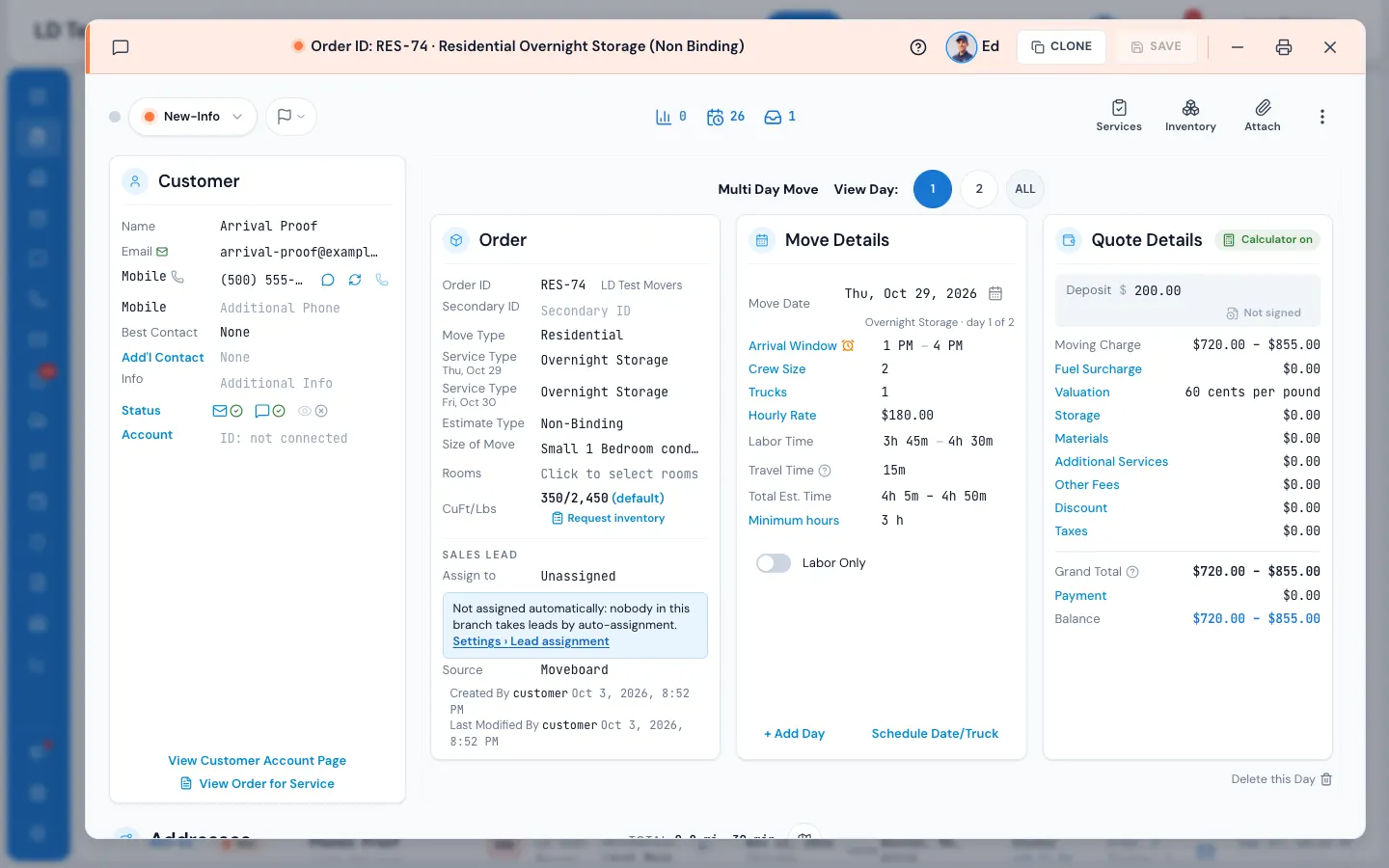
That's it — there's no confirmation. The link says Sending…, then Sent. If only part of it went (say the email went but the text couldn't), the line under it says what happened in plain words.
What the customer gets
An email and a text, each with their own signed-in link to the Inventory page of their portal — no password needed. The link uses your company's website address.
- The email is the template Inventory link (sent from the order), with a List my items button.
- The text is Inventory link text (sent from the order).
Change the words, or switch either one off, in Settings › Communication › Templates (folder Inventory). Your company's email header and footer wrap the email.
Both messages appear in the order's conversation, and the Order Log notes who sent the link.
When you won't see it
- Request inventory shows while the order is sized by the move size or a typed volume. Once the order is sized from the customer's inventory, it hides — the inventory is already there.
- It's greyed out when the order has no email address and no mobile number. Hover over it to see why.
Related guides
- OrdersThe order window, card by cardEverything on an order in one window — the top bar, the status, the truck schedule, the four cards, the addresses, the conversation — and how SAVE works.
- Booking & paymentsText the deposit linkText the customer their secure link to reserve the move with a deposit — straight from the Deposit row.
- Workflows & automationSet up a Workflow (the piano example)Build a When · Wait · Only if · Do rule — here, a task to confirm the piano whenever an order with a piano is booked — and try it on an order before it ever runs.
Still stuck? A person will help.
Open a ticket from Support inside MoveBoard, or email us — we usually reply within one business day.