
Workflows & automation
Set up a Workflow (the piano example)
Build a When · Wait · Only if · Do rule — here, a task to confirm the piano whenever an order with a piano is booked — and try it on an order before it ever runs.
- 3 min read
- Checked against MoveBoard
- For owners & admins
On this page
A workflow is one sentence: when something happens, wait if you like, check only if something is true, then do something. Templates hold the words; workflows decide when they go.
Find them in Settings › Communication › Workflows.
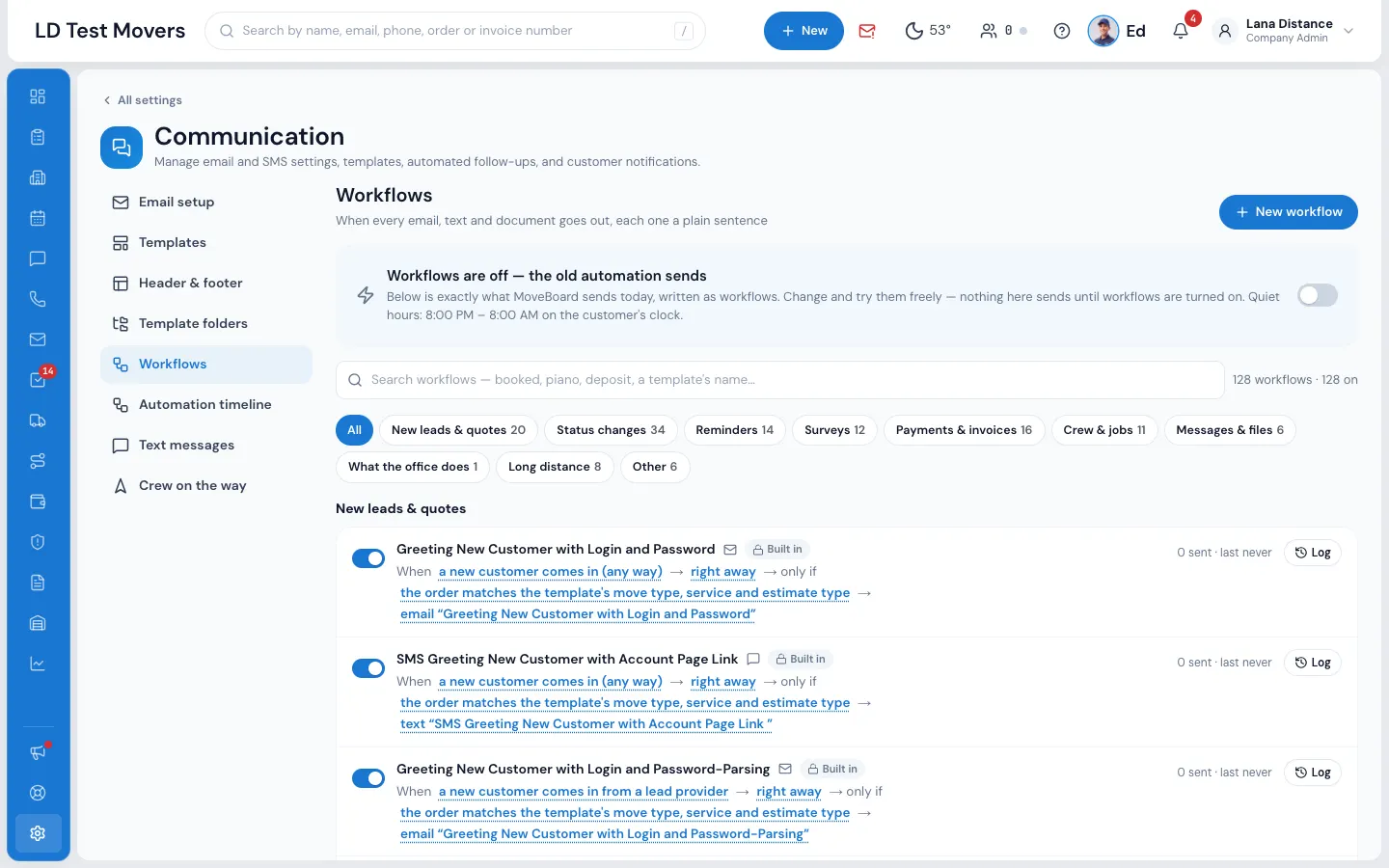
What you'll build
When an order is booked with a piano in the inventory, give the sales rep a task to confirm the piano's type, floor and stairs — an hour after booking, never at night.
1. Start from the example
- Press New workflow.
- Pick Piano care.
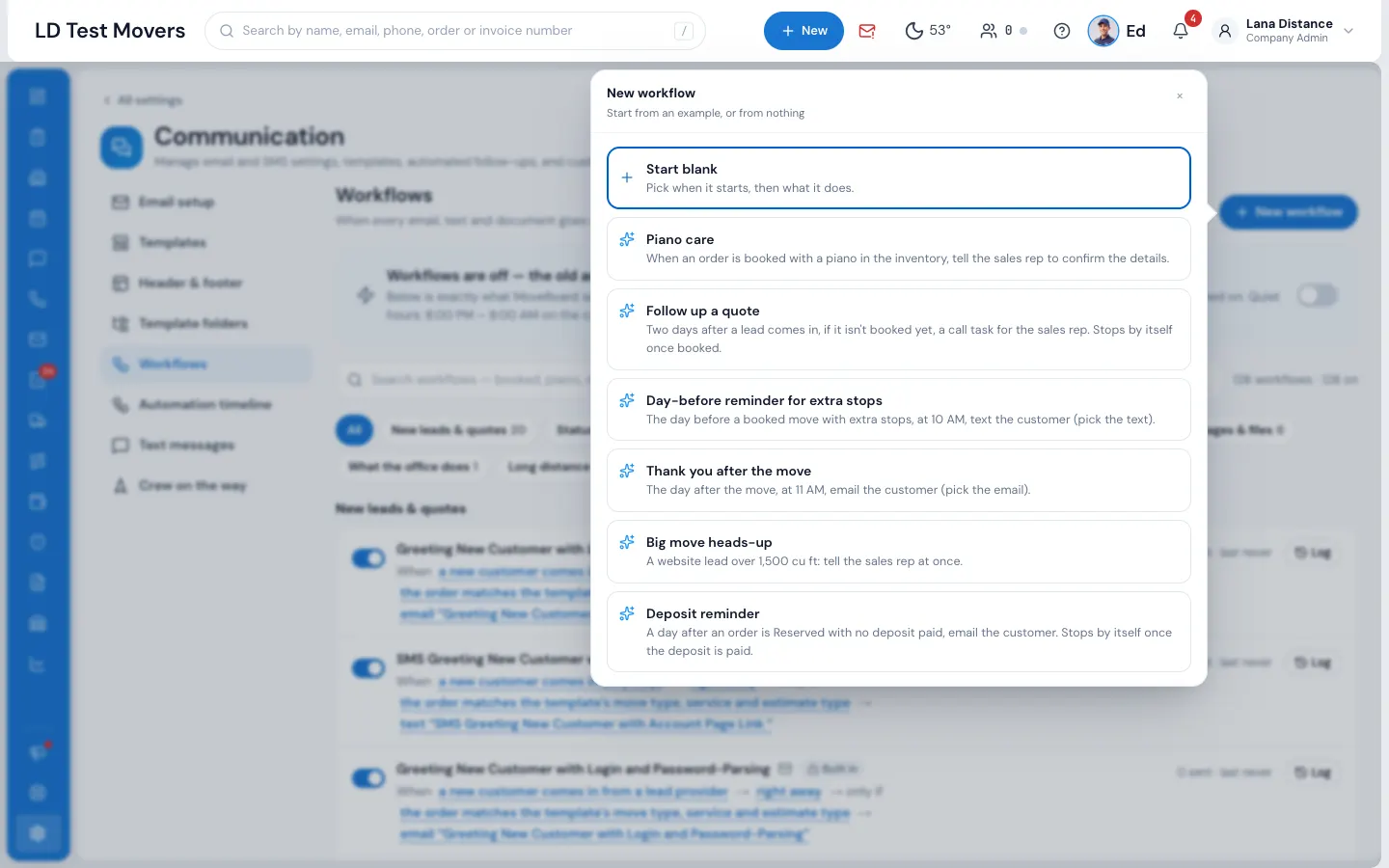
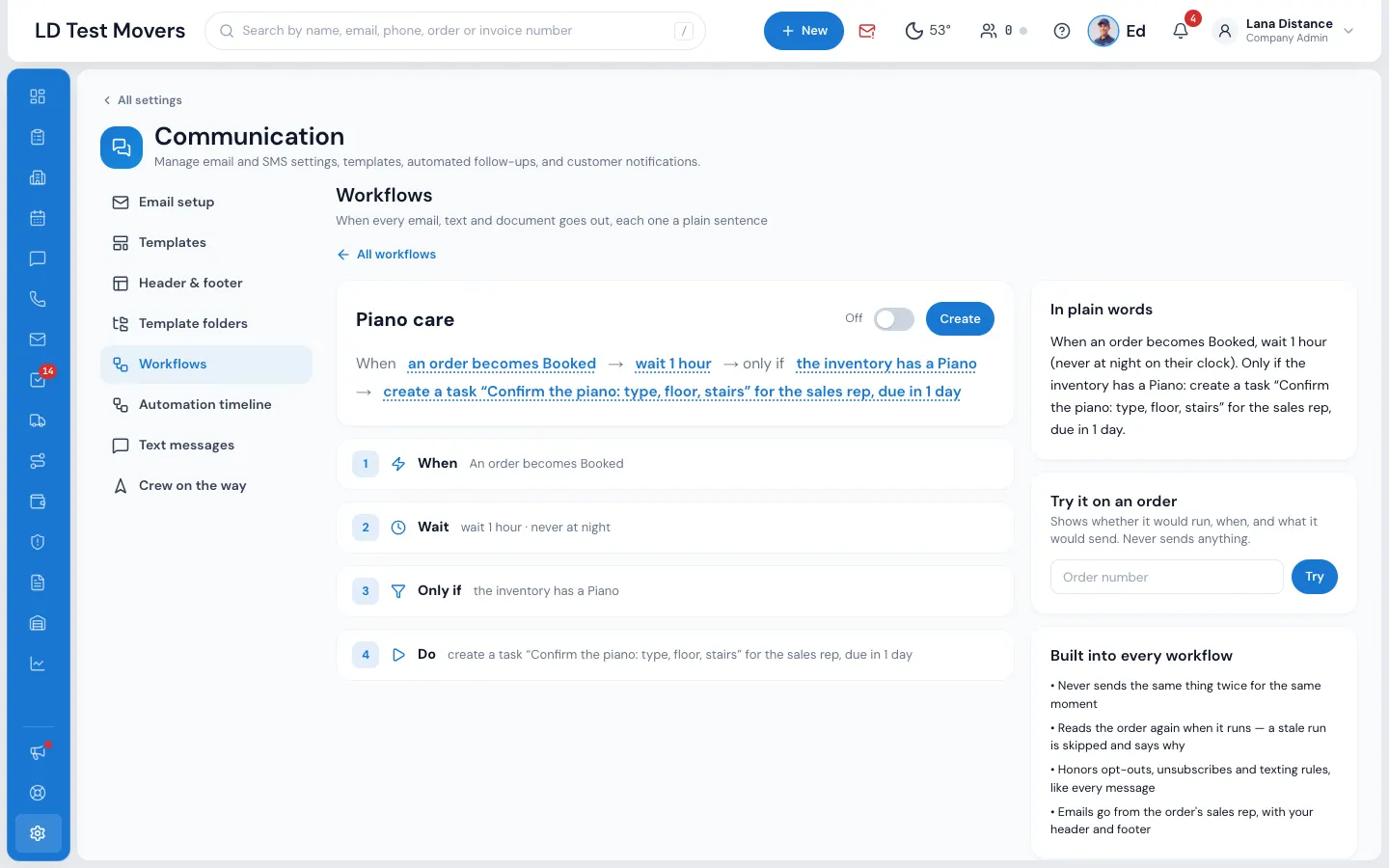
The example fills in all four parts for you:
- When — an order becomes Booked
- Wait — 1 hour, and never during the quiet hours in your company's time zone (8 PM – 8 AM)
- Only if — the inventory contains Piano
- Do — Create a task "Confirm the piano: type, floor, stairs" for the sales rep, due in one day
2. Make it yours
- When — search for any moment ("booked", "deposit", "signs"…) or a date on the order (the move date, the day it was booked…) with days before or after and a time.
- Wait — right away, a while, until a time of day, or until a date on the order.
- Only if — Add a condition: status, service, lead source, inventory items, cubic feet, money, documents, addresses and much more. Choose ALL of these or ANY of these. Stop by itself lists what cancels a waiting run — checked again just before it runs.
- Do — Add a step: send an email or a text, send the deposit link or the inventory link, send a document to sign, create a task, tell a teammate, change the status, flag the order, or give it to a sales rep. Steps run in order.
For the piano, you could add Tell a teammate → the dispatchers, so dispatch knows too. (Teammates hear through their own notification settings.)
3. Try it, then switch it on
- In Try it on an order, type an order number. MoveBoard shows whether the workflow would run, when, and what it would send. It never sends anything.
- Read In plain words — the whole rule as one sentence.
- Switch the workflow On and press Create.
Check what ran
Press Log on a workflow to see every run: what was sent, what was skipped and why, what's waiting and until when. On an order, the Order Log's workflow button shows the same for that order.
Related guides
Still stuck? A person will help.
Open a ticket from Support inside MoveBoard, or email us — we usually reply within one business day.