
Orders
The order window, card by card
Everything on an order in one window — the top bar, the status, the truck schedule, the four cards, the addresses, the conversation — and how SAVE works.
- 4 min read
- Checked against MoveBoard
- For sales, dispatchers, owners & admins
On this page
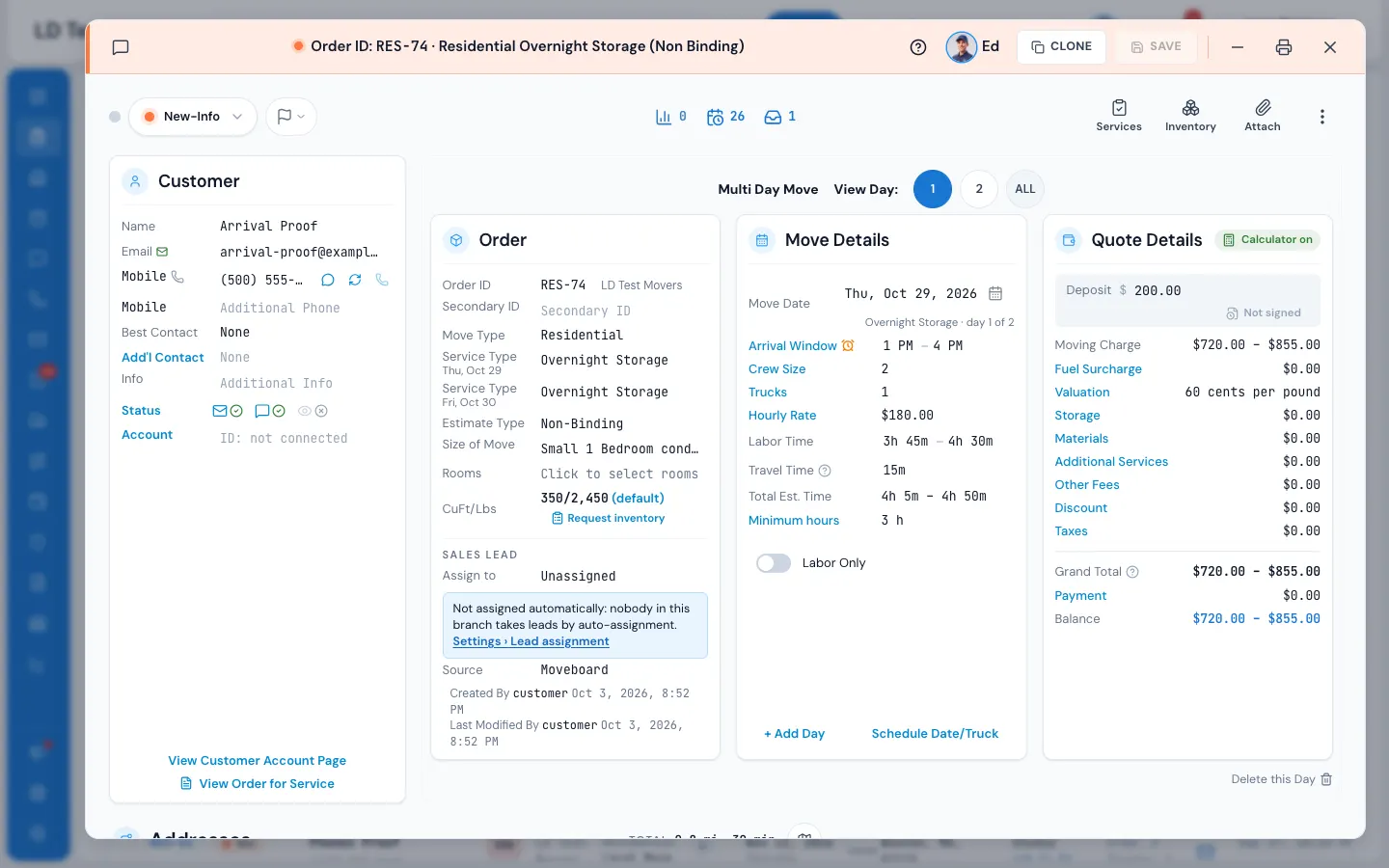
Every order opens in a window: the customer, the move, the price, the addresses and every message, on one screen. Changes stay a draft until you press SAVE.
The top bar
The top bar takes the colour of the order's status. From left to right:
- Messages — jumps to the conversation with the customer, with the number unread.
- Order ID and the move type. If a teammate is editing the order, it says LOCKED and RELEASE takes the place of SAVE — see Someone else is in this order.
- ? — this guide. Ed — ask about this order.
- Discard (only when you have changes), CLONE (copies the order — save or discard first), SAVE.
- Minimise, Print, Close.
The strip under it
- The dot shows whether the customer has their portal open right now.
- Status — press it to move the order to another status. The customer and the team hear about it when you save.
- Flags, then the counters: the lead score (when your company uses it), the days until the move, and the customer's total orders.
- On the right: Services (book an in-home or virtual visit), Inventory (with the cubic feet and any special items), Attach, and the ⋮ for Tasks, Invoices, Storage, Change orders, Documents, Claims and Settings. An item comes out of the ⋮ when it has something in it.
The truck schedule
The trucks for the move day, with every booked and reserved job on them and this order standing out. Depending on your company's settings it sits above the cards, at the bottom of the window, or opens from Schedule Date/Truck in Move Details. See The truck schedule in the order.
The four cards
Customer
Name, email and phones, the portal dot, whether they're subscribed to messages, Best Contact (way and time), Add'l Contact, extra Info, Status switches for email, text and portal, the business Account the order belongs to, and the links View Customer Account Page and View Order for Service. More in Customer card.
Order
Order ID and branch, Secondary ID, Move Type, Service Type, Estimate Type, Tariff Type (long-distance days), Size of Move, Rooms and CuFt/Lbs — with Request inventory beside it (see Send the inventory link). Under Sales Lead: Assign to, Source, and who booked, created and last changed the order. If a lead couldn't be assigned, the reason and a link to fix it show here. More in Order card.
Move Details
Move Date, Arrival Window, Crew Size, Trucks, Hourly Rate, Labor Time, Estimated Travel Time, Total Est. Time and Minimum hours, with + Add Day at the foot. The calculator is always on: when you set a value yourself it shows in red, with an arrow that puts the calculator's own figure back. More in Move Details card.
Quote Details
The Deposit row (the amount, what's paid, Text link on orders that can be booked online, and whether the customer has signed), then every charge — moving or labor, travel, fuel, valuation, storage, materials, additional services, other fees, discount, taxes — the Grand Total, Payment and the Balance. More in Quote Details card.
Addresses
Each stop is a card with a letter. Press + to add a stop — a ZIP code alone is enough to save it. The map pin opens directions on Google Maps. Distances and times show between the stops. If an address change turns a local move into a long-distance one (or back), MoveBoard asks you right away.
Communication and the Order Log
At the bottom: every text, email, portal message, call and note with this customer on the left, and the Order Log — who did what and when — on the right. Filter the log with Display, and see what each workflow did or is waiting to do.
How SAVE works
- Make your changes anywhere in the window. SAVE lights up and Discard appears as soon as something is changed.
- Press SAVE. If something is missing for the status you chose — a truck, a street address, the customer's details — MoveBoard says what and stops.
- The Order Updates window lists every change, for example "Status: Reserved to Booked".
- If you changed the status, the messages that go with the new status show as chips. Press the eye to preview one, its name to change the words, or ✕ to not send it.
- Press Save. Your changes are written, then the messages go.
The details are in How saving works in an order.
Related guides
- OrdersHow saving works in an orderWhat waits for SAVE, what is saved the moment you do it, the checks SAVE makes, and what happens if you close with changes.
- OrdersThe Customer cardWho the customer is and how to reach them — names, email, phones, best contact, the additional contact, the message switches and the account.
- OrdersThe Order cardThe order's IDs, the kind of move, service and estimate, the size, and who the lead belongs to — and which changes re-price the order on the spot.
- OrdersThe Move Details cardThe day of the move — date, arrival window, crew, trucks, rates and hours — and how a figure you set yourself sits beside the calculator's.
- OrdersQuote Details cardEvery line of the price — deposit, charges, fees, discount, taxes, total, payments and balance — and how to change each one.
- OrdersAddresses and stopsAdd, change, reorder and remove the stops of a move, and set the details that change how long it takes.
Still stuck? A person will help.
Open a ticket from Support inside MoveBoard, or email us — we usually reply within one business day.