
Orders
Send a document to sign from the order
Send one of your custom documents to the customer by email or text, follow it from Sent to Opened to Signed, and find the signed copy.
- 3 min read
- Checked against MoveBoard
- For sales, dispatchers, owners & admins
The Documents panel sends the customer one of your company's own documents to sign — a damage waiver, a stairs release, anything you wrote — and shows where each one stands.
Before you start
- Write the document first in Settings › Documents & bill of lading › Custom documents. A document only shows on an order when it is in use, belongs to the order's branch, and is set for the order's services and move types.
- To send by email the order needs an email address; to send by text, a phone number that can take texts.
Send a document
- Open the order and press the ⋮ at the right of the strip under the title bar.
- Press Documents.
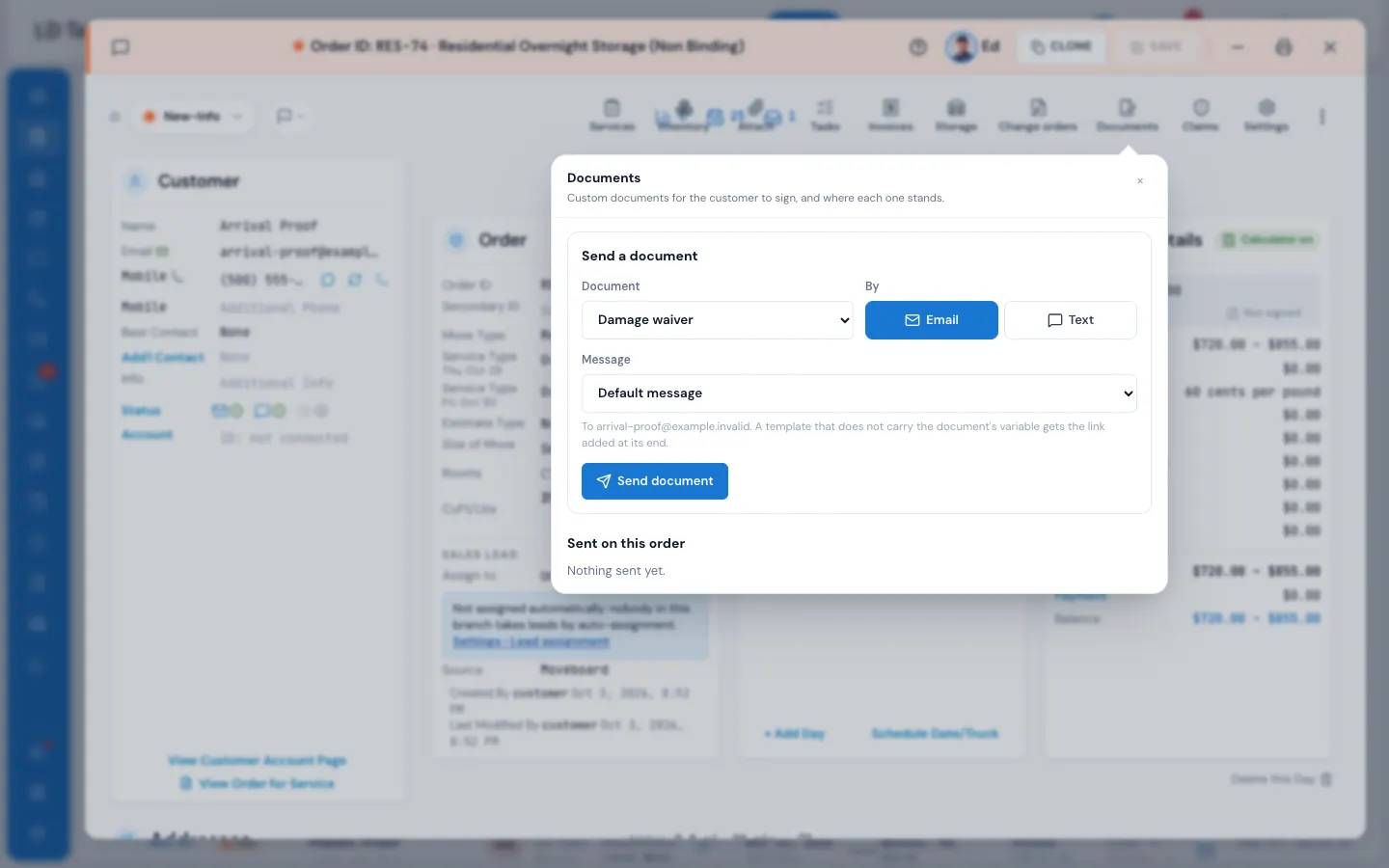
- Under Send a document, pick the Document.
- Under By, choose Email or Text.
- Under Message, keep Default message or pick one of your templates.
- Press Send document. It says "Sent to" and the address it went to.
Follow it
Sent on this order lists every document sent from this order. Each one shows three steps with their times: Sent, Opened, Signed. The list updates by itself the moment the customer opens or signs — no need to refresh.
You'll also see where it went, how many reminders have gone, or "signed on the crew's device" when the crew had the customer sign it on the job.
- Signed copy opens the document exactly as the customer signed it.
- Cancel (only before it's signed) stops it. MoveBoard asks "Cancel this document? Its link will say it is no longer needed." and the customer's link then says just that.
Sending the same document again uses the same link. Once it's signed, it can't be sent again.
What happens next
- The customer gets the email or text with their own link. They read the document, fill in the fields and sign.
- The Order Log notes who sent which document and how. Reminders are logged too.
- When they sign, a PDF copy goes into the order's Attachments under Signed documents. Until it lands, the panel says "The PDF copy is on its way to Attachments."
- Reminders for unsigned documents follow the company-wide reminder in Settings › Documents & bill of lading › Custom documents (off until you turn it on), or the document's own reminder if you set one.
If something goes wrong
- The order has no email address. / The order has no phone number. — add it to the Customer card and save, then send.
- That document is not in use. — it was switched off in settings.
- That template is gone, or is not for this kind of message. — pick another template, or the default message.
- The customer already signed this document. — open Signed copy instead.
- Only a document not signed yet can be cancelled.
- A text can also be refused because the customer replied STOP or texting isn't set up for your company; the panel shows the reason.
Related guides
- OrdersThe order window, card by cardEverything on an order in one window — the top bar, the status, the truck schedule, the four cards, the addresses, the conversation — and how SAVE works.
- OrdersAttach files and photos to an orderAdd photos and documents to an order, share them with the customer or the foreman, and find the signed paperwork.
- Booking & paymentsOrder for Service and estimate signingThe documents a customer signs to book — which one fits which move, how to edit them, and where the signed copy goes.
- OrdersThe order logEverything that happened to an order — what changed, who did it, and when, to the second.
Still stuck? A person will help.
Open a ticket from Support inside MoveBoard, or email us — we usually reply within one business day.