
Orders
Attach files and photos to an order
Add photos and documents to an order, share them with the customer or the foreman, and find the signed paperwork.
- 3 min read
- Checked against MoveBoard
- For sales, dispatchers, owners & admins
Everything on paper or in pictures lives in the order's Attachments: the photos you add, the documents you upload, and the paperwork the customer and the crew signed.
Add files
- Open the order and press Attach in the strip under the title bar (on a smaller screen it's inside the ⋮). The number on it is how many files the order has.
- Drag files onto Drag photos or documents here or Upload, or press it and choose them. You can add several at once.
- Each file shows with a spinner while it goes up, then appears in the list.
- Press Done when you're finished.
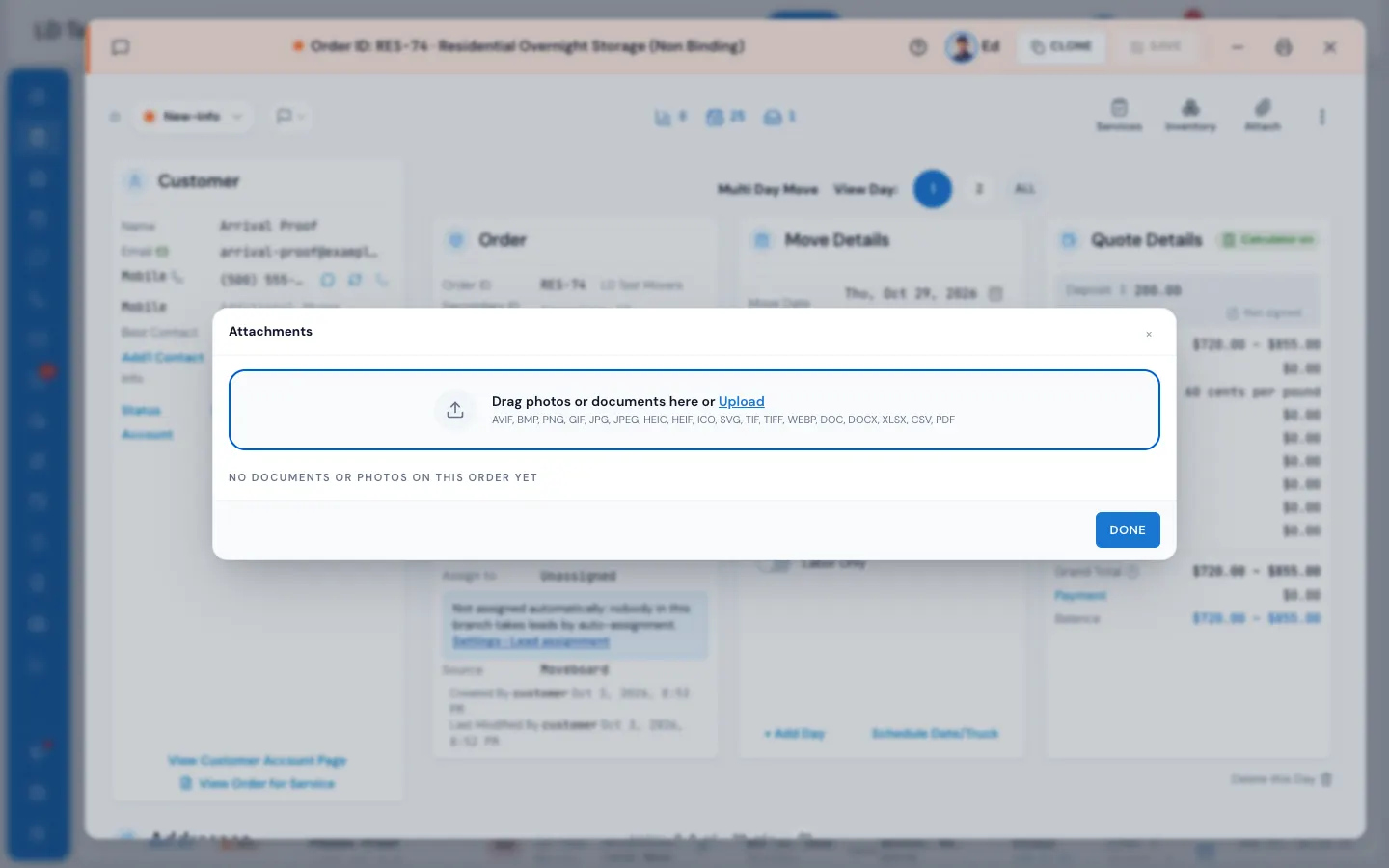
Photos can be AVIF, BMP, PNG, GIF, JPG, JPEG, HEIC, HEIF, ICO, SVG, TIF, TIFF or WEBP. Documents can be DOC, DOCX, XLSX, CSV or PDF. Photos are made smaller before they go up, so even big phone pictures upload quickly.
What's in the list
The files are grouped:
- Photos — newest first.
- Documents — your uploads plus the order's paperwork, labelled by kind: Bill of lading, Order for service, Storage agreement, Receipt, Change order.
- Signed documents — the custom documents the customer signed (see Send a document to sign).
Each card shows who added it and when. A Shared tag means the customer can see it in their portal; Needs signature means it's waiting to be signed. Signatures themselves aren't listed — they stay on the document they were signed on. The crew's inspection photos are under INSPECTION on the closing side, not here.
Press a file's name to open it in a new tab, where you can also save it.
Share a file
Each card has its own switches:
- Show to Customer — the customer sees it in their portal.
- Show to Foreman on BOL (photos only) — the foreman sees the photo with the job's bill of lading on their phone.
They take effect at once. If MoveBoard can't make the change, the switch goes back and the reason shows.
Describe or delete a file
Press the ⋯ on a card. You get:
- Open
- Show to the customer / Hide from the customer
- Show to Foreman on BOL (photos)
- Edit description — a note that shows under the file name. Press Save when done.
- Delete — MoveBoard asks "Do you really want to delete this file?" Press continue to delete it.
The customer's signed Order for Service can't be deleted: the panel says "This is the customer's signed order, so it is kept."
If something goes wrong
- … is not an accepted format (…) — the file type isn't one of the ones above. Save it as a PDF or a picture and try again.
- Unable to compress the file. Please choose a file of a different size. — the photo couldn't be prepared; try another copy of it.
- (file name): could not be added. — the upload didn't finish; add it again.
- That could not be done. — a share or delete didn't go through; try again.
Related guides
- OrdersThe order window, card by cardEverything on an order in one window — the top bar, the status, the truck schedule, the four cards, the addresses, the conversation — and how SAVE works.
- OrdersSend a document to sign from the orderSend one of your custom documents to the customer by email or text, follow it from Sent to Opened to Signed, and find the signed copy.
- Booking & paymentsOrder for Service and estimate signingThe documents a customer signs to book — which one fits which move, how to edit them, and where the signed copy goes.
- Mover's PortalThe Mover's Portal homeWhat foremen and movers see when they open MoveBoard on their phone — the jobs waiting for an answer, today's jobs, and where everything else is.
Still stuck? A person will help.
Open a ticket from Support inside MoveBoard, or email us — we usually reply within one business day.