
Orders
Change the service of a day
Switch a day from one service to another — the price, the stops and the cards follow at once; the inventory stays as it is.
- 4 min read
- Checked against MoveBoard
- For sales, owners & admins
Each day of an order has a service — local move, loading help, packing day, moving & storage, overnight storage, long distance and so on. You change it on the Order card, and the order is re-priced on the spot.
Before you start
The services you can pick are your branch's, set in Settings › Services & packing › Services. A day whose job has started, or that is completed, can't change its service (see Why some fields are locked).
Change it
- Open the order and find Service Type on the Order card. On a multi-day order there is one per day, with the day's date under the label.
- Pick the new service.
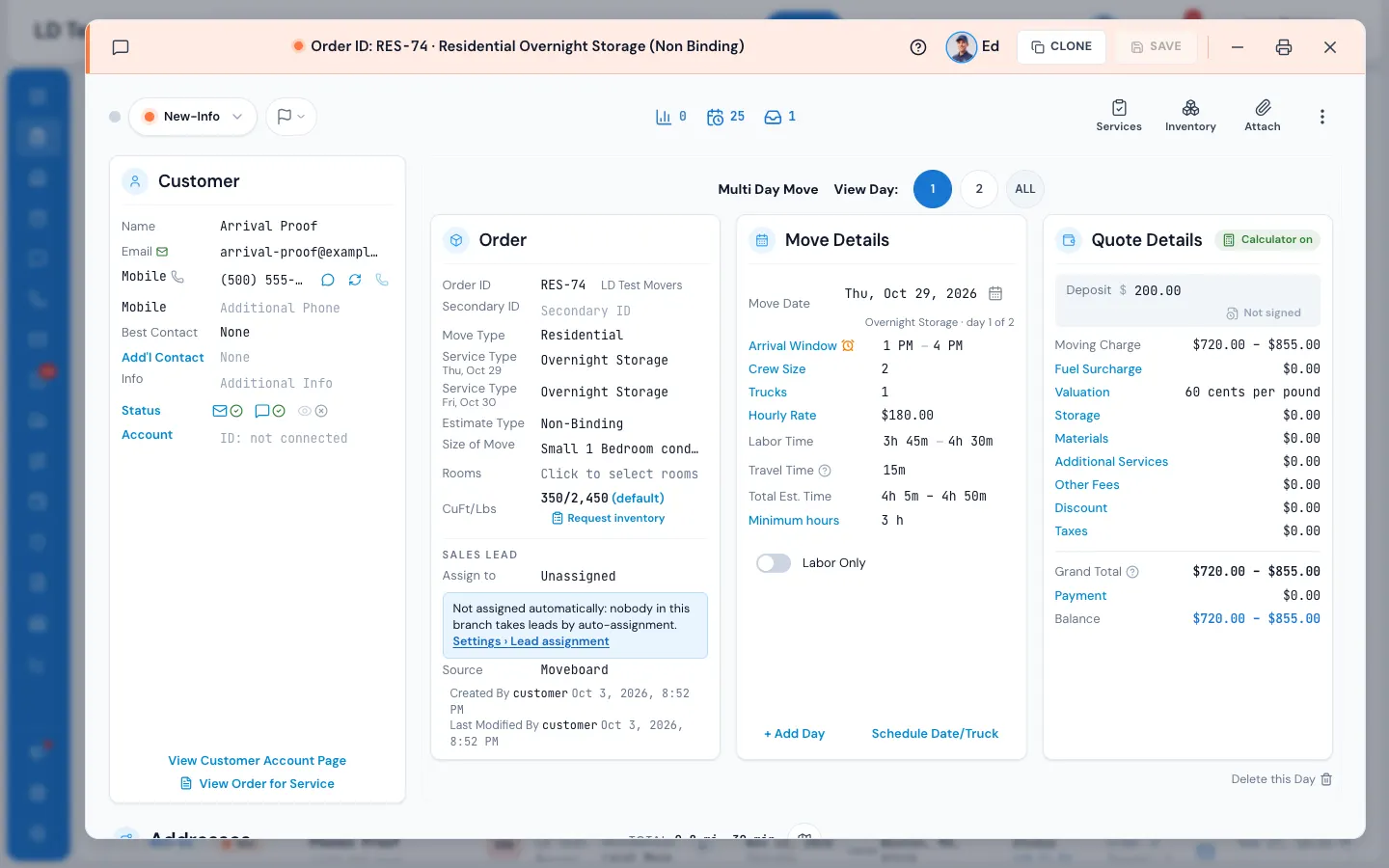
That's all — the switch is written straight away; it doesn't wait for SAVE. Move Details and Quote Details show the new price at once, worked out by the same calculator as always.
What changes with the service
- The stops. A service that only works at the start (loading help, packing day, moving & storage, overnight storage) hides the destination from the day's route; one that only works at the destination (unloading help) hides the start. If the new service needs a loading or unloading address the day doesn't have, MoveBoard adds one from the other end of the move.
- The day's own extra fees are cleared, since they belonged to the old service.
- Long distance. Picking a long-distance service prices the line haul from your tariff; the price shows as soon as it's worked out.
Switching to overnight storage
An overnight storage move has a second day, when the goods come back. When you pick it, a Delivery day pop-up asks for the Second day (the day after is filled in). Press Switch to overnight. Switching an overnight day back to another service takes the second day away and brings its delivery address into the first day.
Switching to or from moving & storage
- On a booked order, switching a day to moving & storage makes the order's storage tenant. If the move type is set to make a move-out order automatically (Settings › Storage › Moving & storage), the move-out order is made too.
- Switching to moving & storage prices the storage exactly as an order made as moving & storage: your default storage facility's price and minimum, and your Include Price in Quote and Display on Customer Account Page switches from Settings › Storage › Moving & storage. The storage card appears in the destination's place at once (it says Working out storage… for a moment) and then shows the monthly fee and Included in total. The automatic move-out order belongs to the same customer and account, so the customer's name and details reach both orders.
- Switching away from moving & storage takes the storage out of the quote, as on any order without storage.
- Switching a day away from moving & storage removes a tenant that hasn't moved in yet. If a linked move-out order exists, MoveBoard asks first: - Order #… is Booked. It will be Cancelled. Are you sure? — Yes, cancel it or No (No leaves everything as it was). - Move the $… deposit from order #… to this order? — Yes, move it or No, keep it there.
See Moving & storage and overnight days for the storage side.
If something goes wrong
The service goes back to what it was and the reason shows on the card:
- Storage tenant #… is in storage. Move it out or unlink it in the storage tenant window first.
- The delivery day must come after the pickup day.
- This branch has no parking address to route from. — add the branch's parking address in Settings › Company & branches › Branches.
- This job is completed — reopen it to make changes. / The contract is signed, so sales are locked. Nothing on the sales side can be changed now.
- Service type is not configured for this branch. Please select a valid service type. — the day's service was removed from your list; pick another.
- The service could not be changed. Check the connection and try again.
Related guides
- OrdersThe Order cardThe order's IDs, the kind of move, service and estimate, the size, and who the lead belongs to — and which changes re-price the order on the spot.
- OrdersMoving & storage and overnight daysHow a moving & storage day shows on the order, linking the move-in and move-out orders, the storage tenant made at booking, and overnight days.
- OrdersWhen a move becomes long distanceWhat MoveBoard asks when an address change turns a local move into a long-distance one (or back), and what each answer does.
- Estimates & pricingOvernight movesHow MoveBoard charges for a truck kept loaded overnight between the pickup and the delivery.
- OrdersWhy some fields are lockedOnce the crew starts the job, the sold quote and the schedule lock — here's what locks, why, and where to make changes instead.
Still stuck? A person will help.
Open a ticket from Support inside MoveBoard, or email us — we usually reply within one business day.