
Orders
Order settings
The settings for one order — how its volume is worked out, the not-to-exceed percent, COD or invoice on delivery, and when card fees apply.
- 3 min read
- Checked against MoveBoard
- For sales, owners & admins
Settings on an order holds the choices that apply to this one order only. Your company settings stay as they are.
Open it
- Open the order.
- Press the ⋮ at the right of the strip under the title bar.
- Press Settings.
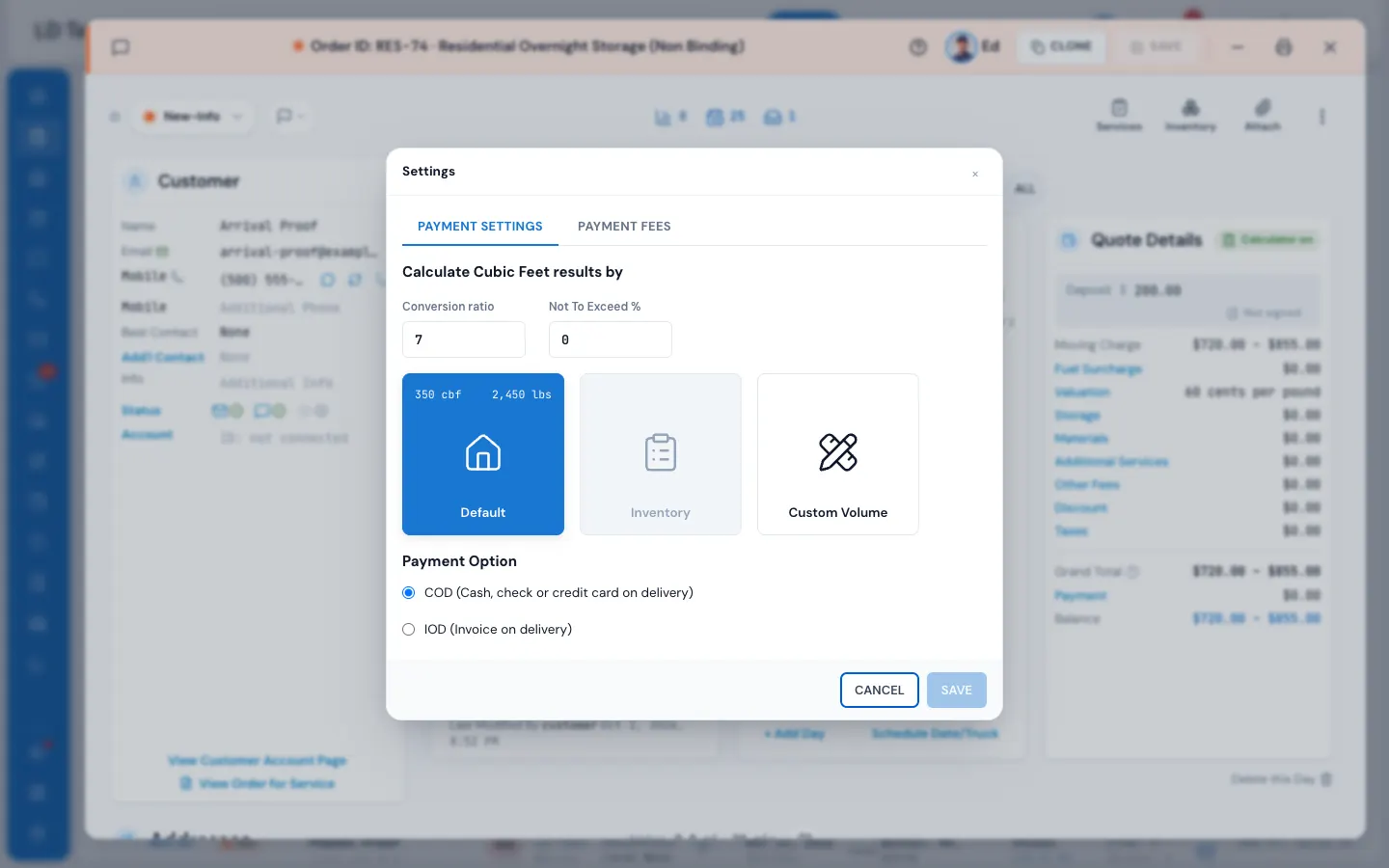
It has two tabs: Payment settings and Payment fees.
Payment settings
Calculate Cubic Feet results by
Choose what the price is worked out from:
- Default — the move size picked on the order (its cubic feet and pounds show on the tile).
- Inventory — the inventory built for this order. Greyed until the order has one.
- Custom Volume — type the Cubic Feet or the Pounds yourself; the other follows.
Conversion ratio is how many pounds one cubic foot counts as on this order (it can't be changed while Inventory is chosen). Not To Exceed % is this order's not-to-exceed contingency.
See Size, inventory or custom volume for how the three ways of sizing work.
Payment Option
- COD (Cash, check or credit card on delivery) — the crew takes payment on the bill of lading.
- IOD (Invoice on delivery) — the bill has no payment step; the crew sees Invoice on delivery — the office will send an invoice, the balance stays open, and the office gets an Invoice to send task when the job is completed.
A new order starts as its business account's payment option when it has one, else as your company's Pay on Delivery / Invoice on Delivery switches say for the move type (Settings › Documents & bill of lading › Payments on the bill of lading). Change it here for this one order. See Payments on the bill of lading.
Payment fees
Under Charge processing fees for payments made:, five switches decide when a card processing fee is added to a payment on this order:
- Deposit on both customer account page & order window
- Payments taken on sales tab on order window
- Payments taken on closing tab on order window
- Payments taken on the bill of lading
- Payments taken on an invoice or relating to an invoice
The fee itself is set in Settings › Payments & billing › Payment & processing fees.
Save
Press SAVE in the pop-up. It closes at once and the order is priced again on the server, so a different volume changes the quote straight away. CANCEL closes without changing anything.
If something goes wrong
- A custom volume needs cubic feet above zero. — type the cubic feet (or pounds) before saving.
- This order is completed, so its settings can no longer be changed. — the settings show but can't be changed.
- The contract is signed, so sales are locked. Nothing on the sales side can be changed now. — the job has started; see Why some fields are locked.
- If the save is refused, the pop-up opens again with your choices still in it and the reason at the bottom.
Related guides
- OrdersThe order window, card by cardEverything on an order in one window — the top bar, the status, the truck schedule, the four cards, the addresses, the conversation — and how SAVE works.
- Estimates & pricingSize, inventory or custom volumeThe three ways an order gets its cubic feet — the move size, the inventory or a custom volume — and which one prices the order.
- Estimates & pricingNot-to-exceed pricesGive the customer a ceiling price — the quote plus a contingency percent — and warn the crew when the bill goes over it.
- Booking & paymentsCard fees and cash discountsAdd a fee to card payments, give a discount for cash, and choose where each applies.
- Booking & paymentsPayments on the bill of ladingHow the crew takes payment at the end of the job — tip, amount, method, signature — and the settings behind it.
Still stuck? A person will help.
Open a ticket from Support inside MoveBoard, or email us — we usually reply within one business day.