
Orders
The Customer card
Who the customer is and how to reach them — names, email, phones, best contact, the additional contact, the message switches and the account.
- 3 min read
- Checked against MoveBoard
- For sales, owners & admins
On this page
The Customer card is the first card in the order window. Every value is changed right where it is, and — like the rest of the window — waits for SAVE. Only linking the order to an account is saved at once.
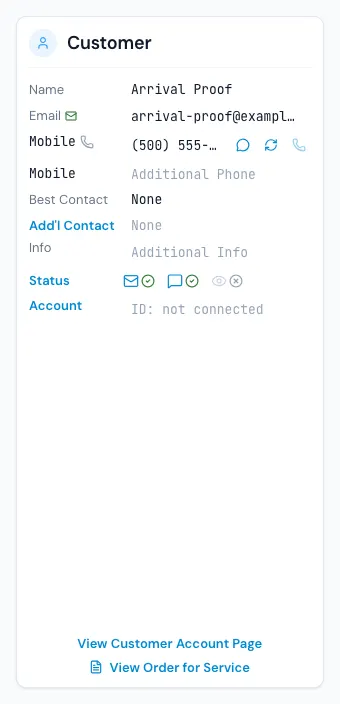
Name, email and phones
- Name — press it to change the first or last name. Each must be 2 to 32 characters.
- Email — type over it. A green mark means the customer is subscribed; the envelope beside it sends the Greeting New Customer email (after a warning to check the details first). If you change a saved email, MoveBoard offers to send the greeting to the new address.
- Primary Phone and Additional Phone — they format themselves as you type and take 10 digits. The word in front (Mobile, Home, Office, Other) is a list; an Office number also gets an extension box. Beside each number: - an icon showing what the carrier says it is (a mobile that takes texts, a landline…), - Retest phone number to ask the carrier again, - Call with RingCentral — it asks "Call … at …?" first, - a button to send the greeting text.
Best Contact, Add'l Contact and Info
- Best Contact — the best way (Email, Text, Phone) and time (Morning, Afternoon, Evening) to reach them.
- Add'l Contact — press the blue word to add someone else who should hear about the move, such as a spouse or an assistant: first and last name, email address and phone. Leave every box empty to take them off.
- Info — anything else, up to 2,000 characters.
Status
Press Status to open Contact status, three switches:
- Email status — whether MoveBoard emails this customer. Needs an email address.
- SMS status — whether MoveBoard texts them. Needs a phone number.
- Portal visibility — whether they see their quote in their portal.
The three icons on the card show which are on.
Account
Account shows the business or personal account the order belongs to, or ID: not connected. Press Account to open Link order: choose Corporate, Affiliate or Personal, search the account, and press Link it. This is saved straight away. Unlink takes it off again, for people allowed to detach orders from accounts — the account's discount comes off and the payment option goes back to your company's default.
The links at the foot
- View Customer Account Page — opens the customer's portal in a new tab, on your company's website when it has one.
- View Order for Service — a read-only copy of the Order for Service the customer sees and signs.
When the card is locked
Once the job has started, the card is read-only — changes to what happened on the day are made in the closing. You can still link or unlink an account.
If something goes wrong
- First Name is a required field / Last Name must be at least 2 characters — fix the name before saving.
- Phone number must have 10 digits
- That email address does not look right.
- Additional Info must be at most 2000 characters
- Save the changes first (on the greeting button) — the greeting goes to the saved email and phone, so save your edits first.
Related guides
- OrdersThe order window, card by cardEverything on an order in one window — the top bar, the status, the truck schedule, the four cards, the addresses, the conversation — and how SAVE works.
- OrdersHow saving works in an orderWhat waits for SAVE, what is saved the moment you do it, the checks SAVE makes, and what happens if you close with changes.
- OrdersThe Order cardThe order's IDs, the kind of move, service and estimate, the size, and who the lead belongs to — and which changes re-price the order on the spot.
- Booking & paymentsOrder for Service and estimate signingThe documents a customer signs to book — which one fits which move, how to edit them, and where the signed copy goes.
- Leads & salesBusiness accountsKeep your corporate clients and affiliates in one place — their contact, their moves, invoices, notes and their portal.
Still stuck? A person will help.
Open a ticket from Support inside MoveBoard, or email us — we usually reply within one business day.