
Orders
The Move Details card
The day of the move — date, arrival window, crew, trucks, rates and hours — and how a figure you set yourself sits beside the calculator's.
- 3 min read
- Checked against MoveBoard
- For sales, dispatchers, owners & admins
On this page
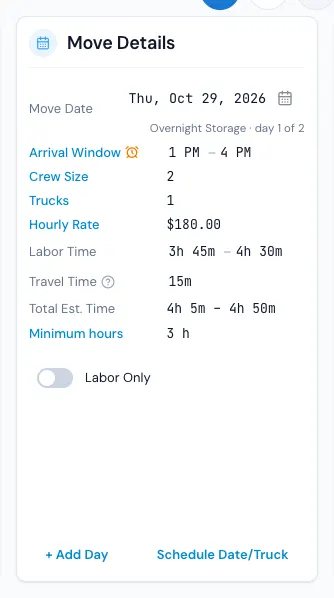
Move Details is the day itself: when it is, when the crew arrives, how many movers and trucks, the rate, and how long it takes. Every change re-prices the order on screen at once and is written with SAVE.
The rows
- Move Date — a date box right on the card. On a multi-day move it also says which day this is ("day 2 of 3"), the nights since the day before, and how many movers are already out on the day.
- Arrival Window — when the crew is due at the door. The two times are lists on the card; press the blue label for the full pop-up (below). TBD means no time is set yet. An orange clock means the customer asked for a time of their own — rest on it to read it.
- Crew Size — press it to change the number of movers. The trucks follow the crew size unless you set them yourself.
- Trucks — how many trucks. It reads Trucks (not included) when the service doesn't include a truck.
- Hourly Rate — press it for Edit Hourly Rate: a New Rate ($) and, if you like, when it expires (Rate Expires).
- Travel Rate — shown when your company charges travel at its own rate.
- Labor Time — the hours, from and to. Picking a time takes it over from the calculator.
- Estimated Travel Time — the driving between the office, the stops and back. Your company may call it something else.
- Double Driving Time — when your company doubles the driving for the price, this row sets it and the row above only shows the trip.
- Total Est. Time — labor plus travel.
- Minimum hours — the least the customer pays for. Press it to set another, with an optional expiry; the arrow next to it goes back to the calculated minimum.
- Labor Only — a switch, on services and days that allow it.
Long-distance days have a Pickup | Delivery switch in the card's title and their own rows; flat-rate days show their flat-rate rows instead of the hourly ones.
The calculator is always on
The calculator works out the crew, trucks, labor and travel from the size, the addresses and your settings. When you set a figure yourself it turns red, and a small arrow beside it shows what the calculator says. Press the arrow to put the calculator's figure back.
The arrival window pop-up
Press Arrival Window to see:
- Requested Arrival Window — what the customer asked for. It's a record and can't be changed.
- Set Time By — Select Time from Settings (your preset windows), Custom Time (any From and To), or TBD. With TBD you can still give the truck a Truck Start Time From and To, which dispatch plans by.
Which of the three you see depends on Settings › Sales & orders › Arrival windows.
At the foot
- + Add Day — adds another day to the move. See Multi-day moves.
- Schedule Date/Truck — when your company keeps the truck schedule in a pop-up. See Schedule date and truck.
When the card is locked
Once a day's job has started, or the day is completed, the card for that day turns grey and takes no changes. What really happened is entered in the closing.
If something goes wrong
- By selecting a new move date, you will need to reassign your truck to this move — the day already holds a truck. Ok lets the truck go so you can pick one for the new date; Cancel keeps the old date.
- The time in storage is more than the maximum allotted number of months for a storage tenant from your current settings. Do you wish to proceed? — a moving-and-storage date further out than your storage settings allow.
- The delivery day of an overnight storage move has to come after the day of the load.
Related guides
- OrdersThe order window, card by cardEverything on an order in one window — the top bar, the status, the truck schedule, the four cards, the addresses, the conversation — and how SAVE works.
- OrdersSchedule date and truckSet the move date and arrival window, and hold trucks for a day — from Move Details or the Schedule Date/Truck pop-up.
- OrdersMulti-day movesAdd days to a move (a pack day, a load, a delivery), switch between them, put them in order and take one off.
- OrdersQuote Details cardEvery line of the price — deposit, charges, fees, discount, taxes, total, payments and balance — and how to change each one.
- OrdersHow saving works in an orderWhat waits for SAVE, what is saved the moment you do it, the checks SAVE makes, and what happens if you close with changes.
Still stuck? A person will help.
Open a ticket from Support inside MoveBoard, or email us — we usually reply within one business day.