
Orders
Create a new order
Start an order the quick way with New Order, or fill in every detail first on the full form — and what MoveBoard writes either way.
- 3 min read
- Checked against MoveBoard
- For sales, owners & admins
On this page
There are two ways to start an order. New Order makes an empty order at once and opens it, so you fill it in on the order window. The full form asks for the customer, the move and the addresses first, and prices the move as you type.
New Order: an empty order in two clicks
- Press + in the top bar.
- Pick New Order.
- In Create Order, choose the move type and the Service type.
- Press Create.
The new order opens in its own window. Fill in the customer, the date and the addresses there, then press SAVE.
What the empty order starts with
- Status New, made by you.
- The move date ten days from today.
- The smallest move size your company has for that move type, so the quote starts at the minimum.
- A pickup and a delivery in your branch's own town, ready to be typed over.
- No customer yet. You'll need a first and last name, email and phone before the order can be Reserved or Booked.
The full form: every detail first
The same form opens from + › New Lead (as a pop-up — see Create a new lead) and as its own page, New lead, every detail. The page opens from Add new order on the customer history of an order that belongs to an account, and from New lead on an empty orders list.
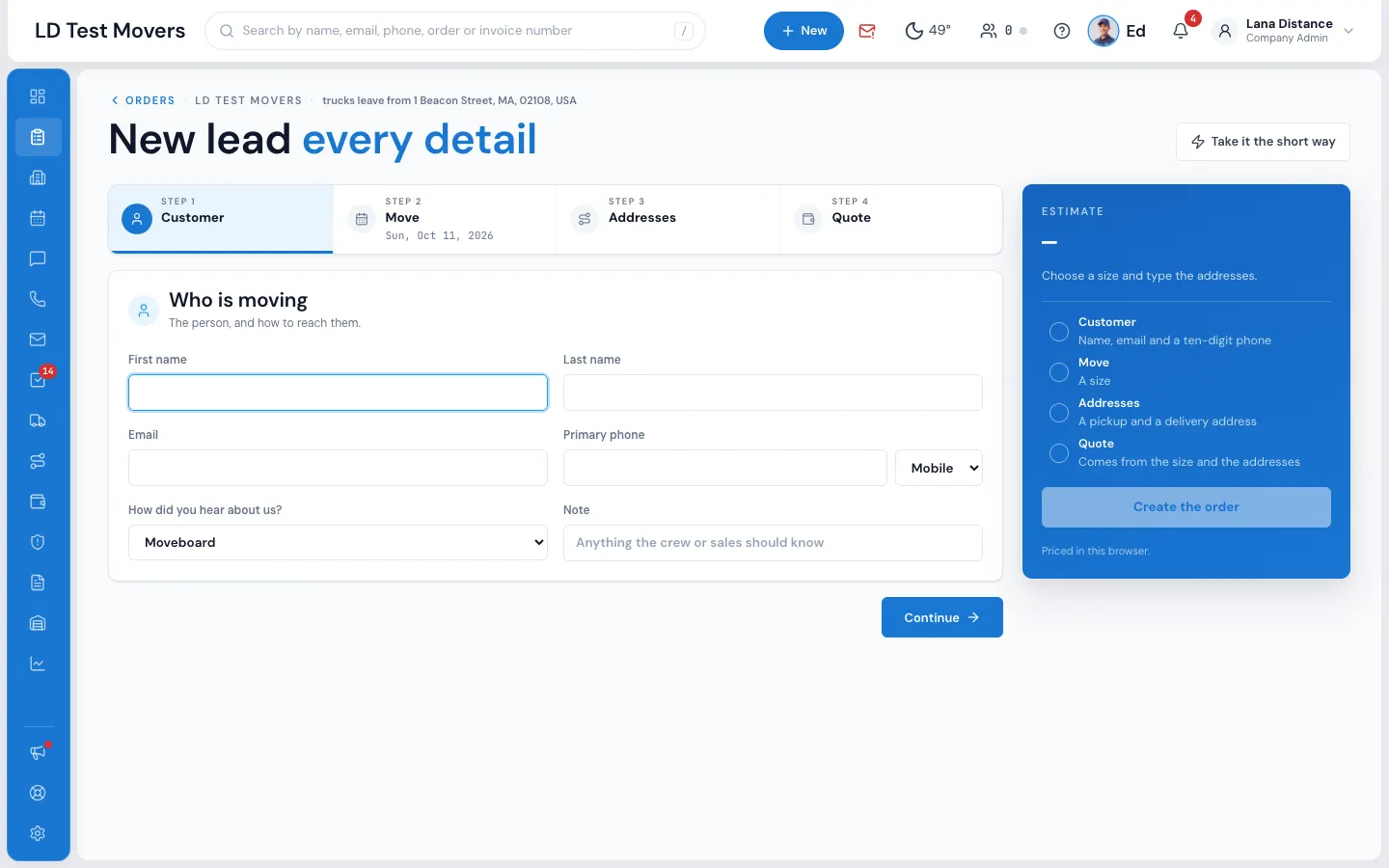
- Customer — First name, Last name, Email, Primary phone (it formats itself), How did you hear about us? and a Note. If the customer is already in MoveBoard, their orders show: Use this customer, Clone selected order, or This is a new customer.
- Move — the move type, Service type, Moving date, and a size (or Or a custom cu ft). For storage and long-distance services you can add a Desired delivery date.
- Addresses — Pickup address and Delivery address, picked from Google's suggestions; Add a stop for more. Each stop has Labor here, Entrance type, Parking distance, Property and Parking type. Once both ZIP codes are known, MoveBoard says whether the move is local or long distance and offers only the services of that kind.
- Quote — the price, the crew and trucks, and the labor hours the calculator works out. You can change the number of movers.
- Press Create the order.
Opened from an account, a strip says On account and the order is made on that account.
What happens next
- The order opens in its window, in status New.
- The Order Log notes New lead created by user with your name, the customer, and the pickup and delivery. A new customer also gets their own customer record.
- Whatever your company sends for a new lead goes out — set in Settings › Communication › Templates and Workflows.
If something goes wrong
- Move type is a required field / Service type is a required field — pick both in Create Order.
- Create the order stays grey until there is a price, a first and last name, a valid email and a ten-digit phone. Fill in the customer to create it. shows when only the customer is missing.
- Google could not find this address under a stop — add the city or the ZIP code.
- Outside the distances this company serves under the service — the two addresses are further apart than any of your services go.
Related guides
- Leads & salesCreate a new leadTake down a caller's move in four short steps — the price works itself out as you type.
- OrdersQuick new order for a callerTake a caller's move on the short form — the same questions your website asks, in the same order — and the lead is yours.
- OrdersThe order window, card by cardEverything on an order in one window — the top bar, the status, the truck schedule, the four cards, the addresses, the conversation — and how SAVE works.
- OrdersHow saving works in an orderWhat waits for SAVE, what is saved the moment you do it, the checks SAVE makes, and what happens if you close with changes.
Still stuck? A person will help.
Open a ticket from Support inside MoveBoard, or email us — we usually reply within one business day.