
Leads & sales
Create a new lead
Take down a caller's move in four short steps — the price works itself out as you type.
- 3 min read
- Checked against MoveBoard
- For sales, owners & admins
On this page
A lead is a customer who called or wrote and hasn't booked yet. In MoveBoard a lead is an order in status New — the same order becomes the job once it's booked.
Open the form
- Press + New in the top bar.
- Pick New Lead.
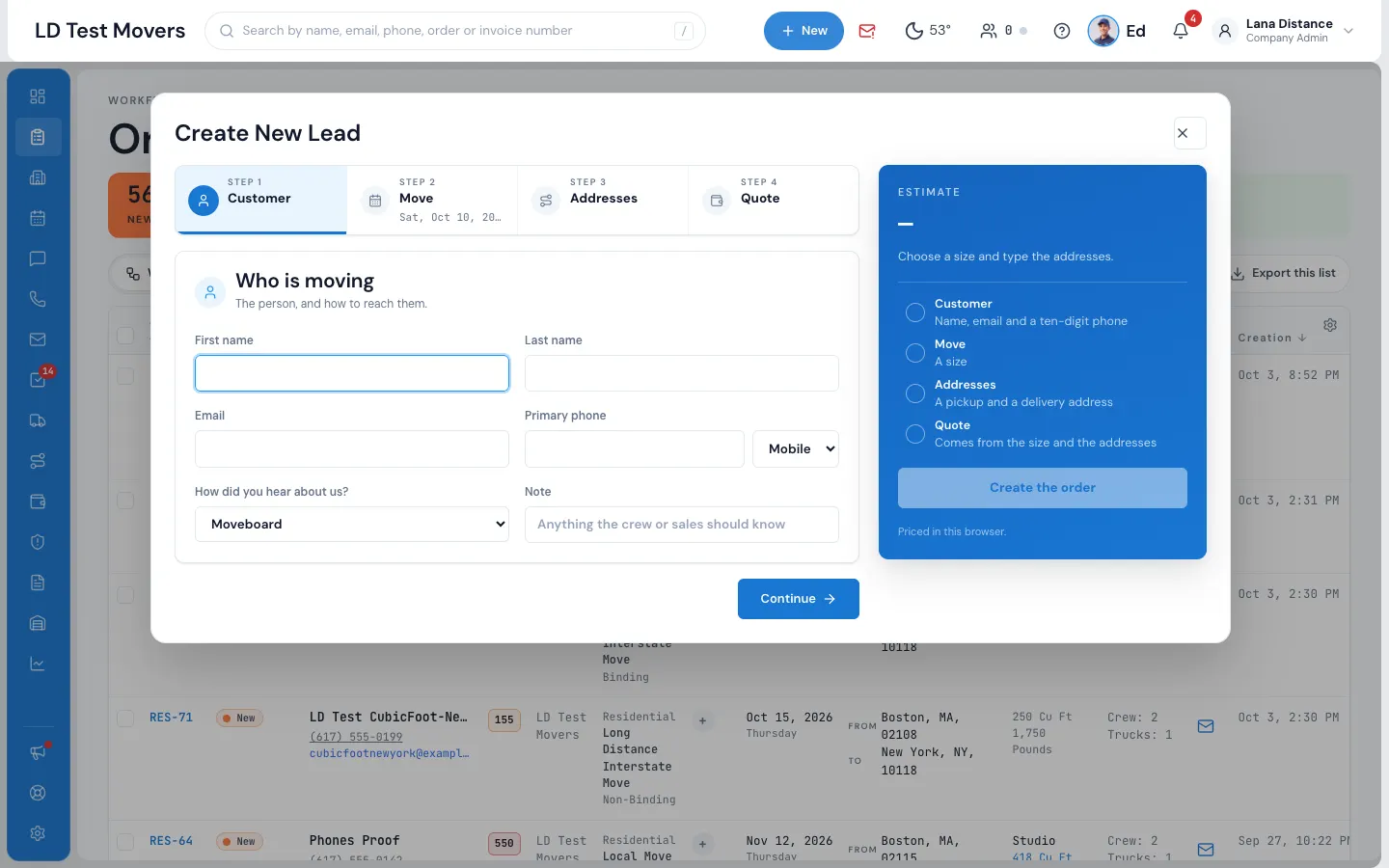
The Create New Lead form opens. It has four steps along the top — Customer, Move, Addresses and Quote — and you can jump to any of them. Each step tells you what it still needs.
1. Customer
Type the First name, Last name, Email and Primary phone (the phone formats itself as you type). Pick How did you hear about us? and add a Note for the crew or sales if you like.
2. Move
Choose the Move type (residential, commercial or military — your company may use its own names) and the Service type. Set the Moving date (it starts one week out) and pick a Move size — or type a volume under Or a custom cu ft.
MoveBoard tells you whether the move is local or long distance once the addresses are in.
3. Addresses
Type the Pickup address and Delivery address ("Street, city, state ZIP"). Add stops with +. For each stop you can set the entrance (ground floor, stairs, elevator and floor), parking, and whether there is packing or unpacking there.
4. Quote
The price works itself out the moment it has a size and two addresses Google can find: the number of movers and trucks, the hourly rate, the estimated labor hours and the breakdown, fuel included.
Press Create the order. The new order opens in its own window, ready to send the quote.
Who gets the lead
When you make the lead yourself, it's yours if the customer is new; a returning customer goes back to the salesperson who had them before. Leads from your website, the AI receptionist or lead providers follow your rules in Settings › Sales & orders › Lead assignment. If the rules pick nobody, the order window says why and links to the setting that fixes it. The Assign to field on the order can be changed at any time.
What the customer gets
Whatever messages your company sends for a new lead — set in Settings › Communication › Templates and Workflows. Your office also gets the New lead notification.
Related guides
- OrdersThe order window, card by cardEverything on an order in one window — the top bar, the status, the truck schedule, the four cards, the addresses, the conversation — and how SAVE works.
- InventorySend the inventory linkOne press emails and texts the customer a link straight to their inventory list, so you can price the move exactly.
- Booking & paymentsText the deposit linkText the customer their secure link to reserve the move with a deposit — straight from the Deposit row.
Still stuck? A person will help.
Open a ticket from Support inside MoveBoard, or email us — we usually reply within one business day.