
Leads & sales
Act on several orders at once
Tick orders on the list, then change their status, assign them, email or text them, flag them or export them together.
- 3 min read
- Checked against MoveBoard
- For sales, owners & admins
When the same thing needs doing to a handful of orders — a follow-up email to this week's quotes, a new salesperson for a batch of leads — do it once from the Orders list.
Pick the orders
- Tick the box at the left of each order. The box in the heading ticks every order on this page.
- Press Action for selected items (it shows how many you ticked). Clear unticks them all.
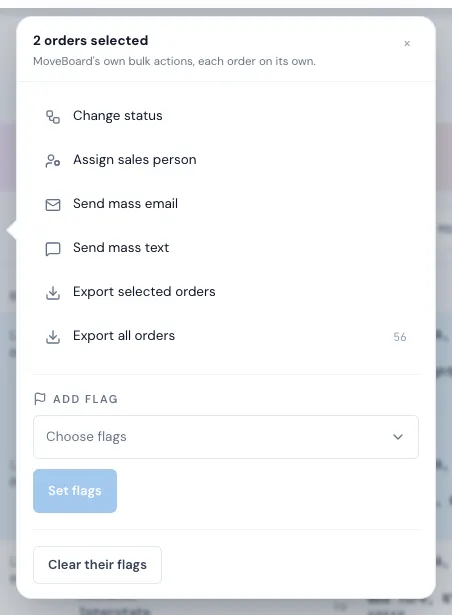
The panel's title says how many orders are selected. Each action works on every ticked order separately, so one order that can't be changed doesn't stop the others.
What you can do
| Action | What it does | Who sees it |
|---|---|---|
| Change status | Moves every ticked order to the status you pick | Everyone (Archived for admins only) |
| Assign sales person | Gives them all to one salesperson, or Unassigned | Can assign leads to other salespeople |
| Send mass email | One email to each order's customer | Everyone |
| Send mass text | One text to each order's customer | Everyone |
| Export selected orders | A CSV file of the ticked orders | Can Export reports |
| Export all orders | A CSV of every order the list's filters match, not just this page | Can Export reports |
| Add flag › Set flags | Gives every ticked order exactly the flags you choose | Everyone |
| Clear their flags | Takes every flag off them | Everyone |
Change status
The same rules apply as when you change one order: only an admin can archive, only reserved or booked orders can be postponed or cancelled, and so on (see Lead and order statuses). Moving orders to Booked or Reserved while some still hold trucks on the Unassigned truck names them first — Continue changes them all, Go back changes nothing. Archiving orders that have payroll asks first, too.
If some orders couldn't be changed, a pop-up lists each one and why, for example: "RES-71 cannot be moved to Booked because …".
Send mass email and mass text
Write a Subject and Message (for a text, just the Message) and press Send to N orders. Template variables are filled in for each order, so each customer gets their own name, date and price. The message lands in each order's conversation, like any message you send.
An order is skipped when its customer has no email address (or no phone number, for a text).
Set flags
Limits
- The tick-all box ticks the orders on the current page (25 at a time).
- Assign sales person, Send mass email and Send mass text take up to 100 orders at once; flags up to 200.
- Ticking only covers orders you can open. One you may not see is reported, not changed.
If something goes wrong
- "Tick between 1 and 100 orders." — too many orders for one action.
- "You do not have access to this order." — reported for an order that isn't yours to see.
- "The customer has no email address." / "SMS was not send for RES-71: the customer has no phone number" — that order was skipped.
- "Please give it a subject." / "Please write a message first."
Related guides
- Leads & salesThe Orders listFind any lead or job — the five workflow stages, the full list with its filters, the columns, and opening an order.
- Leads & salesFlag ordersPut coloured flags like "Left a Message" or "Wants to Book" on orders — from the order, from the list, or on many at once.
- Leads & salesAssign a lead to a salespersonGive a lead to a salesperson from the order, from the Orders list, or for many orders at once.
- Leads & salesExport the orders listDownload the orders you're looking at — with the same filters — as a CSV file for a spreadsheet.
- Leads & salesLead and order statusesWhat each status means, which ones MoveBoard sets on its own, and which changes need an admin.
Still stuck? A person will help.
Open a ticket from Support inside MoveBoard, or email us — we usually reply within one business day.