
Leads & sales
Follow up on leads
Keep every lead moving with tasks and reminders, the Follow Up status, and automatic follow-up messages.
- 4 min read
- Checked against MoveBoard
- For sales, owners & admins
On this page
Most moves are won on the second or third call. MoveBoard gives you three tools for that: tasks that remind you to call, email or collect, the Follow Up status for leads you're chasing, and automatic follow-up messages.
The Tasks page
Tasks in the menu shows your to-do list. A red badge on it counts the open tasks assigned to you.
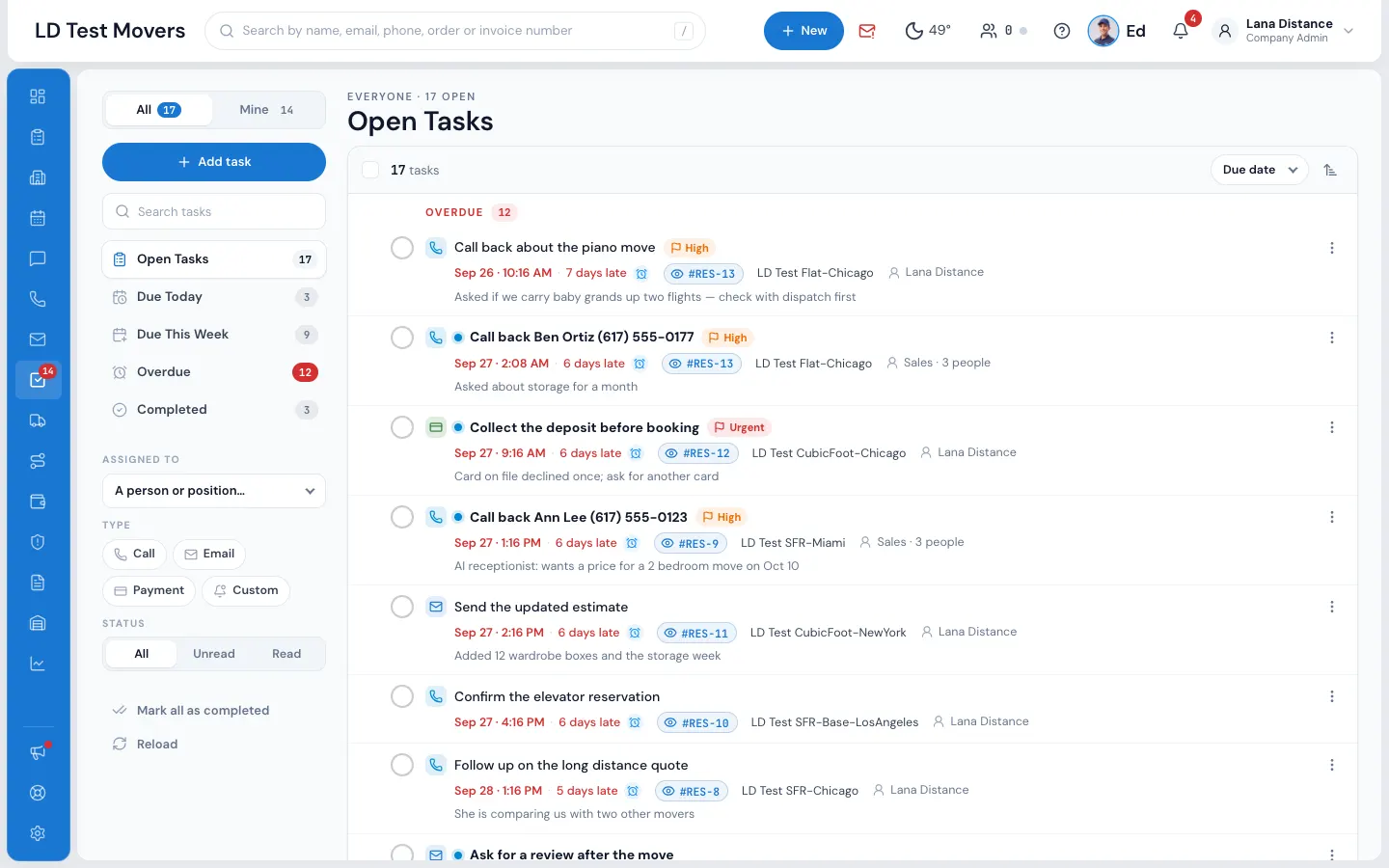
- Views: Open Tasks, Due Today, Due This Week, Overdue and Completed, each with its count.
- Filters: Assigned to (a person, or a whole position such as All Sales), Type (Call, Email, Payment, Custom) and Status (unread or read). Clear filters resets them.
- Open tasks are grouped Overdue, Today, Tomorrow, Later and No due date.
- Press the round check to complete a task, its title to edit it, or the order chip to open the order.
- The ⋮ on a task: Edit, Mark as complete, Mark as read, Remind me later, Move the due time (In 1 hour, Tomorrow, same time, Next week, same time) and Delete.
- Tick several tasks to Complete, Mark as read or Delete them together.
With the Can create task for other users permission you also get All and Mine at the top, and can give tasks to others. Without it you see only your own tasks.
Add a task
- Press Add task on the Tasks page (or + New › New Task in the top bar).
- Pick who it's for under Assign to — One person, Several people or Everyone in a position.
- Under About, pick Order or Account and search for it.
- Type the Subject and set the Date and Time.
- Pick the Task Type: Call, Email, Collect Payment or Custom.
- Remind Me is on, 5 minutes before; change Remind Time if you like.
- Set the Priority and add Notes, then press Save.
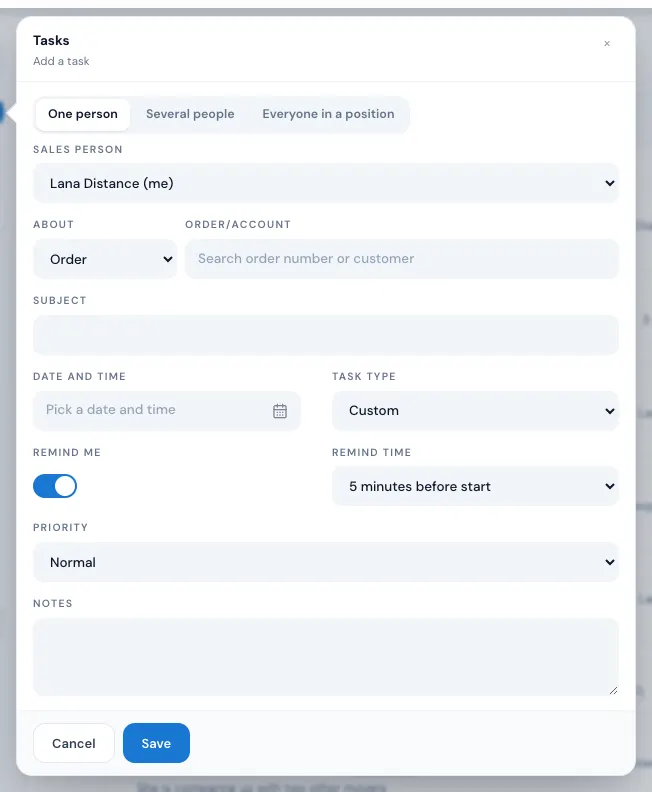
A task for several people is one task: whoever does it marks it completed, and it's done for everyone.
You can also add a task from the order itself: Tasks in the window's button row, then New task.
Follow up as you write
When you send a message or add a note on an order, switch on Create a follow-up. Pick the kind, who it's for and when — MoveBoard adds a task called Follow Up on the order as the message goes.
Reminders
When a task's reminder time comes, a Tasks due card pops up (with a chime, and a desktop notification if MoveBoard is in the background).
| Press | What it does |
|---|---|
| Complete | Completes the task for everyone. |
| Dismiss | This reminder won't show again for you. The task stays open. |
| Snooze | Shows it again later — from 5 minutes to 7 days. |
| Dismiss All | Dismisses everything on the card. |
| ✕ | Hides the card until a new reminder comes. |
Your presses count only for you.
The Follow Up status
Move a lead you're chasing to Follow Up — it gets its own stage on the Orders list, so the team can see which leads are being worked.
Automatic follow-up messages
Settings › Communication › Automation timeline sends a template a set time after something happens — for example, an email 3 days after an order has been in New, Follow Up or Can Book Online.
- Press Add new configuration.
- Pick the Automation rule — No activity status, When order status is, After move completed, Invoice reminder or Invoice overdue reminder.
- Pick the statuses, how many Days (or weeks, months, years), and the Template.
- Under Apply To, pick the Move types, Services and Estimate types.
- Press Save.
These go out once a day, at 1 PM your time.
If your company uses Workflows, they decide when follow-ups go instead. See Set up a workflow.
If something goes wrong
- "Subject is a required field" / "Subject must be at least 4 characters"
- "Please choose date starting from today"
- "We cannot notify you in past. Please check "Date", "Time" values" — the reminder would be before now.
- "Pick at least two people, or choose One person"
- "You may only change your own tasks." — you don't have Can create task for other users.
Related guides
- Leads & salesLead and order statusesWhat each status means, which ones MoveBoard sets on its own, and which changes need an admin.
- Leads & salesLead scoreHow MoveBoard scores a lead from what the customer does, where to read the score, and how to set the points.
- Workflows & automationSet up a Workflow (the piano example)Build a When · Wait · Only if · Do rule — here, a task to confirm the piano whenever an order with a piano is booked — and try it on an order before it ever runs.
- Leads & salesThe Orders listFind any lead or job — the five workflow stages, the full list with its filters, the columns, and opening an order.
Still stuck? A person will help.
Open a ticket from Support inside MoveBoard, or email us — we usually reply within one business day.