
Leads & sales
The Orders list
Find any lead or job — the five workflow stages, the full list with its filters, the columns, and opening an order.
- 4 min read
- Checked against MoveBoard
- For sales, dispatchers, owners & admins
On this page
Orders in the menu is where the office lives: every lead and every job, from the first call to the finished move. It has two views — Workflow and List — that you switch between with the buttons above the table.
Workflow: the five stages
The Workflow view opens on new leads. Across the top are five stages, each with its count:
| Stage | What it holds |
|---|---|
| New lead | Orders in New, plus the New variants MoveBoard moves leads into (New-Info, New-Date, New-Truck, New Lead Past) |
| Follow Up | Leads someone is chasing |
| Can book | Quotes the customer can book online |
| Reserved | Moves the customer has reserved |
| Booked | Booked moves — by default those booked this month |
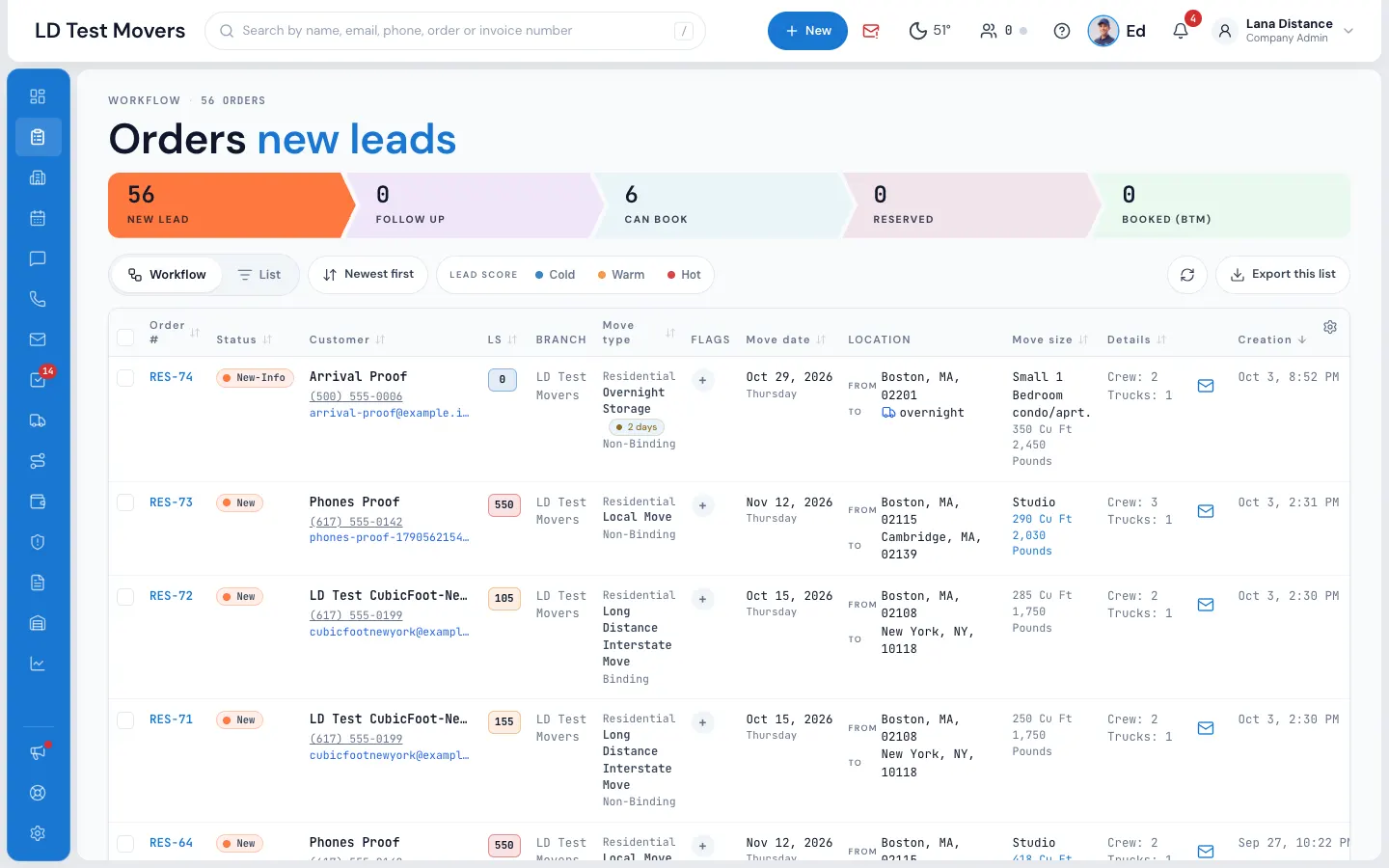
Press a stage to see its orders. On Booked, a button beside the toolbar picks which booked orders you see: Booked this month, Moves this month, All moves or All upcoming moves. The stage's label shows the short name (BTM, MTM, AM, AUM).
New leads appear on their own as they come in — you don't need to refresh. The round arrows button (Refresh the list) reads the list again if you want to.
List: every order, with filters
List shows every status at once and adds Filters. Each filter narrows the list the moment you choose it:
- Status, Sales person (or Unassigned), Move type, Source, Flags
- Service type, Estimate type, Account type, Move size
- From state, To state, Inventory (submitted or not)
- A date range, with a picker for which date it reads: Creation date, Move date, Update date, Status updated or Booked date
- Creation date from–to
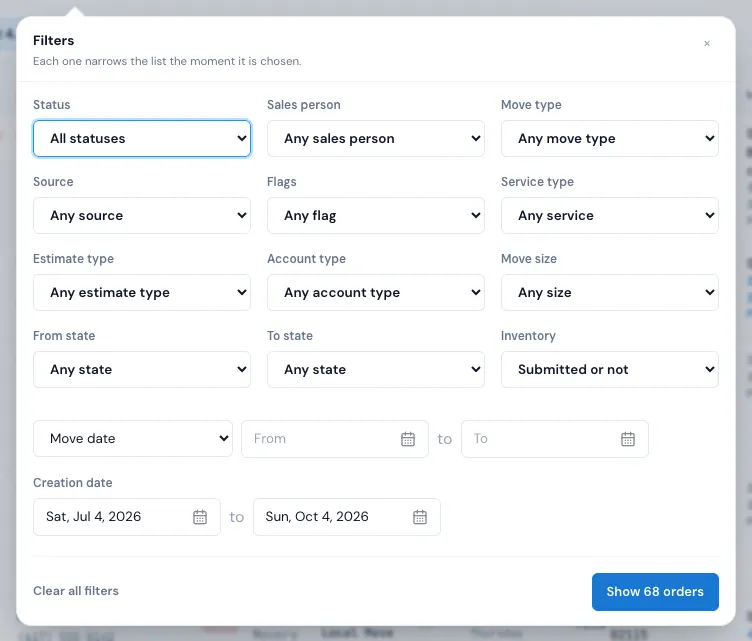
The filters you're using show as chips above the table. Press the × on a chip to drop that one, or Clear all filters.
Sort and lead score
- Sort picks the order: Newest first, By move date, Recently updated, Latest activity, Largest quote or By booked date. You can also press most column headings to sort by that column; press again to flip it.
- When lead scoring is on, Lead score buttons (Cold, Warm, Hot) pick out the matching orders. See Lead score.
The columns
Order #, Status, Customer (with phone and email), Score (the lead score, when scoring is on), Branch, Move type (the service on top, the move type · estimate type under it), Flags, Move date, Location (from and to), Move size (cu ft and pounds — green when they come from the inventory), Details (crew · trucks), the envelope, Creation, Last updt., Booked (on the Booked stage), Source, Est. quote and Sales person.
Each row is kept short: a value that doesn't fit its column ends in "…" — point at it to read the whole of it, or open the order.
Hide the columns you don't need with the gear at the right end of the headings (Columns). Your choice is kept for you, on every orders table.
A few things in a row do something on their own:
- A green dot by the name: the customer has their portal open right now. See Customers online now.
- A red badge: messages from the customer you haven't read.
- The envelope opens the order's text conversation in a pop-up; the email address opens it on the email side.
- The Flags cell (or its +) opens Edit Flags for that order. See Flag orders.
- The Sales person button picks who owns the lead. See Assign a lead to a salesperson.
- A row with light-blue stripes is a job that has been completed.
Open an order
Click a row once to light it, and double-click to open the order in its own window (on a phone or tablet, tap twice). See The order window.
Act on several orders
Tick the boxes on the left and press Action for selected items. See Act on several orders at once.
What you see depends on your permissions
You always see the orders assigned to you. Orders assigned to someone else need Can see other user's orders, and orders nobody owns yet need Can see unassigned orders. Archived orders are hidden from everyone except company admins, who can pick Archived in the Status filter. Export this list shows only with Can Export reports — see Export the orders list.
Related guides
- Leads & salesLead and order statusesWhat each status means, which ones MoveBoard sets on its own, and which changes need an admin.
- Leads & salesAct on several orders at onceTick orders on the list, then change their status, assign them, email or text them, flag them or export them together.
- Leads & salesExport the orders listDownload the orders you're looking at — with the same filters — as a CSV file for a spreadsheet.
- OrdersThe order window, card by cardEverything on an order in one window — the top bar, the status, the truck schedule, the four cards, the addresses, the conversation — and how SAVE works.
- Leads & salesCreate a new leadTake down a caller's move in four short steps — the price works itself out as you type.
Still stuck? A person will help.
Open a ticket from Support inside MoveBoard, or email us — we usually reply within one business day.