
Leads & sales
Flag orders
Put coloured flags like "Left a Message" or "Wants to Book" on orders — from the order, from the list, or on many at once.
- 3 min read
- Checked against MoveBoard
- For sales, dispatchers, owners & admins
On this page
Flags are coloured labels your office puts on orders so they stand out at a glance — Left a Message, Wants to Book, Needs Inventory, whatever your team uses. An order can carry several.
Before you start
Your company makes its flags in Settings › Sales & orders › Order flags: New flag, then a Flag name and a Color. Flags belong to a move type, so an order is offered the flags of its own move type. Copy to other move types puts the same flag on the others.
Flag an order from its window
- Open the order.
- Press the flag button next to the status at the top (Add a flag when there are none yet).
- Press a flag to put it on; press it again to take it off. Type in the box to narrow a long list.
- Press SAVE.
The flags are saved with the rest of your changes. If the move type has no flags, the panel says "This branch has no flags for this move type. They are made in Settings."
Flag an order from the list
- On the Orders list, press the order's Flags cell — or its + when it has none.
- In Edit Flags, tick the flags you want, or Clear all existing flags.
- Press Save.
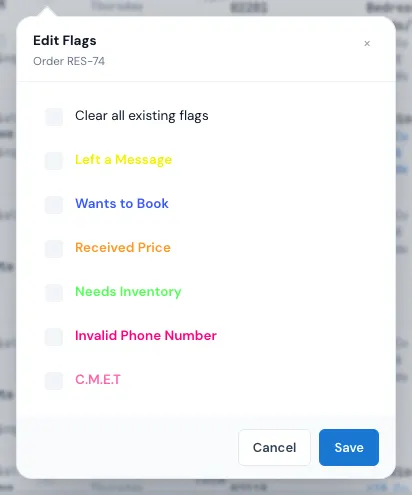
The row changes at once, and a note says Flags added successfully (or Flags removed successfully). What you tick replaces the order's flags.
Flag many orders at once
- Tick the orders on the list.
- Press Action for selected items.
- Under Add flag, press Choose flags and tick the ones you want.
- Press Set flags.
Find flagged orders
- In the List view, the Flags filter shows only orders with that flag.
- When an order has more than three flags, the list shows them as coloured dots; open Edit Flags to read the names.
What happens next
Each change is written in the order's log, for example "Sam Sales updated flags for order ID=1234 to: Left a Message". A change made to several orders at once says how many orders it covered. Flags don't send anything to the customer.
If something goes wrong
- "Please choose company flags" — you pressed Save in Edit Flags with nothing ticked. Tick a flag, or tick Clear all existing flags to remove them all.
- "That is more orders than one sweep should touch. Please do it in smaller batches." — more than 200 orders at once.
- The flag button is greyed out in the window once the crew has started the job and sales changes are locked. You can still change flags from the list.
Related guides
- Leads & salesThe Orders listFind any lead or job — the five workflow stages, the full list with its filters, the columns, and opening an order.
- Leads & salesAct on several orders at onceTick orders on the list, then change their status, assign them, email or text them, flag them or export them together.
- OrdersThe order window, card by cardEverything on an order in one window — the top bar, the status, the truck schedule, the four cards, the addresses, the conversation — and how SAVE works.
Still stuck? A person will help.
Open a ticket from Support inside MoveBoard, or email us — we usually reply within one business day.