
Leads & sales
Business accounts
Keep your corporate clients and affiliates in one place — their contact, their moves, invoices, notes and their portal.
- 4 min read
- Checked against MoveBoard
- For sales, owners & admins
On this page
A business account is a company you move for again and again — a corporate client relocating its staff, or an affiliate who sends you jobs. Its orders, invoices, notes and messages live together on one account.
Before you start
You need Can see Accounts Tab to open Accounts in the menu. You see the accounts you manage; Can see other user's accounts shows everyone's. Making accounts needs Can create a Corporate Account or Can Create an Affiliate Account, and changing them needs Can edit accounts.
The Accounts list
The tabs at the top pick Corporate, Affiliate or Personal accounts.
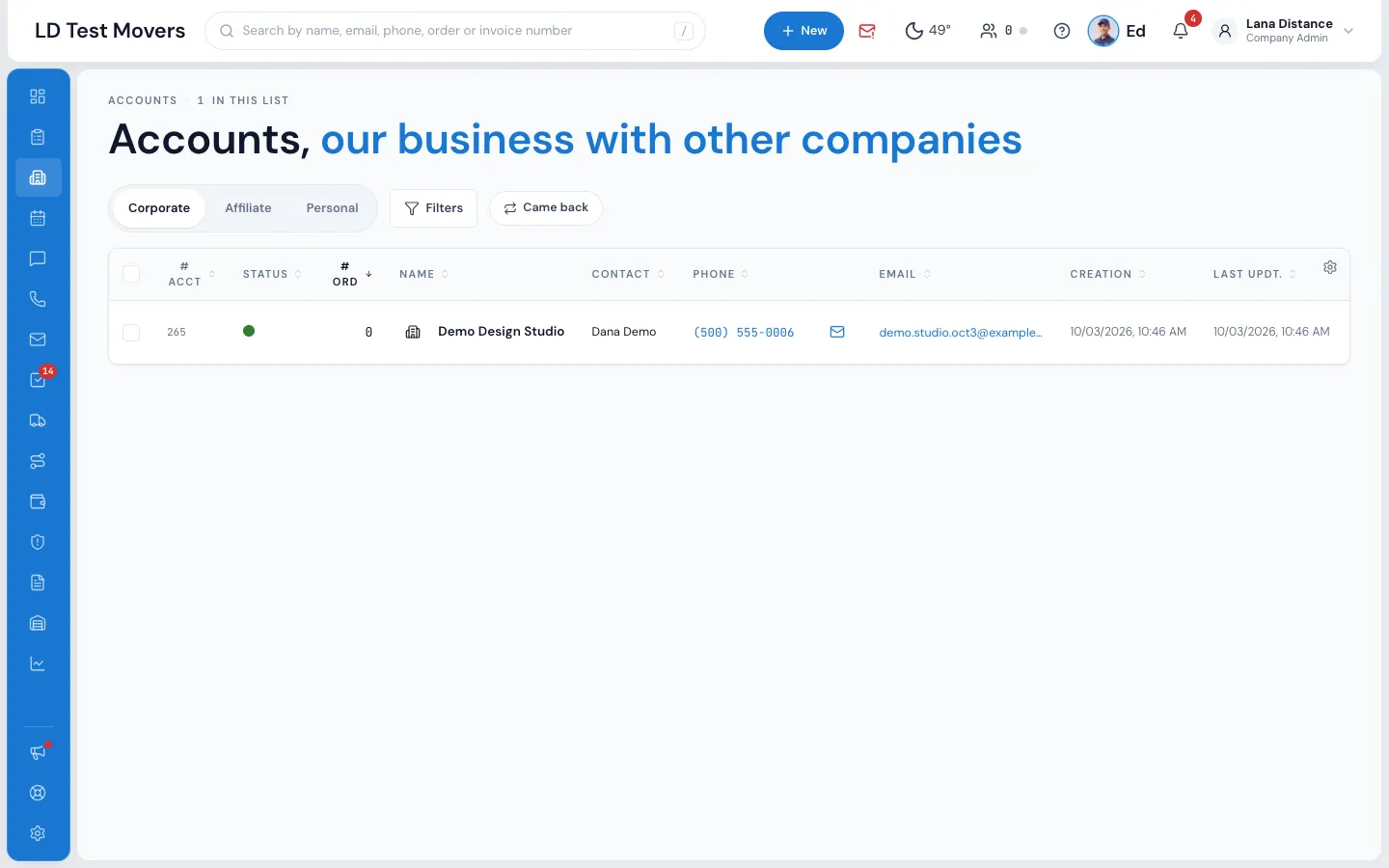
- Filters narrows by Account Type, Sales Person, Source, Based State, Status (Active or Non Active) and Created date.
- Came back shows only accounts that have had more than one order.
- The columns show the account number, status, number of orders, name, contact, phone and email, dates, source and Sales person. Press a heading to sort.
- Press the envelope or email address to message the contact.
- Tick accounts and press Action for selected items for Send Mass Email, Send Mass Text, Assign Sales Person or Export.
Click a row once to light it, double-click to open the account.
Create an account
- Press + New in the top bar and pick New Account.
- Fill in Account Name, Contact First Name, Contact Last Name, Account Contact Email and (optionally) Phone.
- Pick the Account Type — Corporate or Affiliate — and How did you hear about us?
- Press Save.
The account opens. You're its manager, and its contact gets a login to the customer portal.
The account
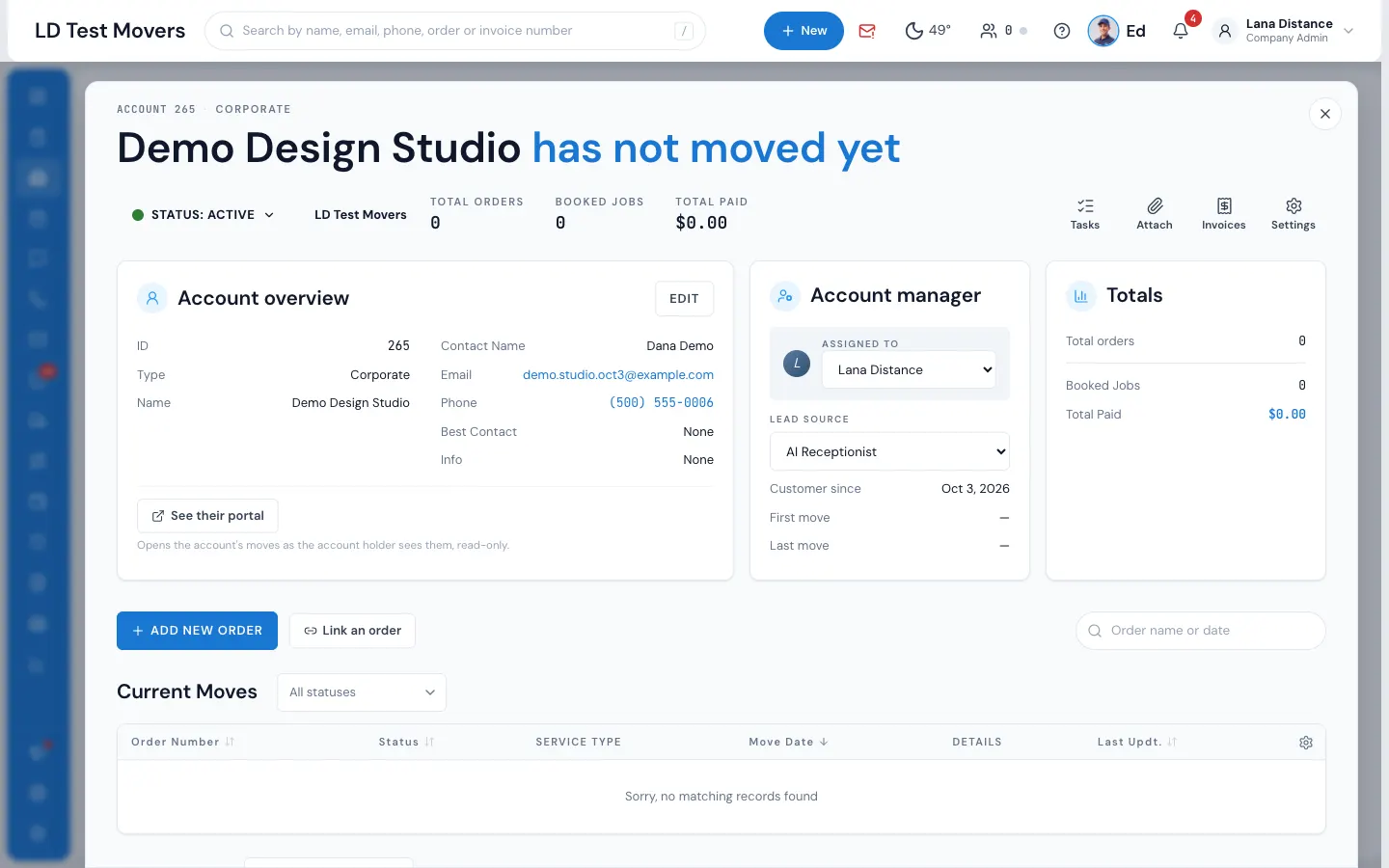
- Status — Active or Non Active. Making an account Non Active also suspends its contact's portal login. Needs Can change account status.
- Total orders, Booked jobs and Total paid.
- Account overview — the contact and an optional additional contact. Edit changes them.
- See their portal — opens the account's moves as the account holder sees them, read-only, in a new tab.
- Account manager — Assigned to and Lead source (both save at once), and when they first and last moved.
- Moves — Current Moves and Past Moves. ADD NEW ORDER starts a new lead already on this account; Link an order finds an existing order and moves it, with its payments, onto the account.
- Notes and Messages with the contact, and the Account log. Write from Messages as a Text, a Portal message (it goes to their portal only, no text is sent) or an Email. Messages also shows the emails sent for the account's orders — invoices, receipts and the like — each marked with its order number (Order #…; press it to open the order). It is the same email as in the order's conversation, shown in both places; nothing is sent twice.
The buttons in the account's top row:
- Tasks — reminders filed under the account.
- Attach — the account's own files. Tick Show in the account's portal to share one with the contact.
- Invoices — every invoice on the account, with its Balance. + makes an Account Invoice (one balance-due invoice for each unpaid order you tick, sent together) or a Custom Invoice billed to the account itself.
- Settings — the account's Account Discount and Payment Option (COD or IOD).
An order put on the account takes its Account Discount and Payment Option by itself; after that you can change them on any one order. See Billing a business account.
Take an order off an account
Open the order, and under Account on its Customer card press Unlink. It needs Can detach an order from an Account. The order goes back to the customer's own account. The account's discount comes off the order (unless someone changed it on the order — then it stays), and the payment option goes back to your company's default for the move type. The order log says what changed. A job that has started or is completed keeps its prices.
If something goes wrong
- "You do not have permission to create an account." — ask for one of the create permissions.
- "Somebody with that email address is already a customer here." — use another email, or find their existing account.
- "Contact First Name is a required field" / "Account Contact Email must be a valid email" / "Source is a required field"
- "You do not have access to this account." — it's managed by someone else and you don't have Can see other user's accounts.
- "Certain actions can’t be completed. The selected accounts are from multiple branches." — tick accounts from one branch at a time.
Related guides
- Leads & salesReturning customers and their historySee everything a customer has had with you, open their earlier moves, turn them into a company account, and know who gets their new lead.
- Leads & salesCreate a new leadTake down a caller's move in four short steps — the price works itself out as you type.
- Leads & salesThe Orders listFind any lead or job — the five workflow stages, the full list with its filters, the columns, and opening an order.
Still stuck? A person will help.
Open a ticket from Support inside MoveBoard, or email us — we usually reply within one business day.