
Leads & sales
Assign a lead to a salesperson
Give a lead to a salesperson from the order, from the Orders list, or for many orders at once.
- 2 min read
- Checked against MoveBoard
- For sales, owners & admins
On this page
Every lead belongs to one salesperson. Most new leads are handed out by your assignment rules, but you can change the salesperson at any time — even after the job is booked, started or completed.
Before you start
You need the Can assign leads to other salespeople permission. Without it, the salesperson shows as plain text and can't be changed. Only office staff can own a lead; movers are never listed.
From the order
- Open the order.
- In the Sales Lead section, pick a name under Assign to.
The change saves straight away — no need to press SAVE. You can't set an order back to Unassigned here; do that from the list.
From the Orders list
- Find the order on the Orders list.
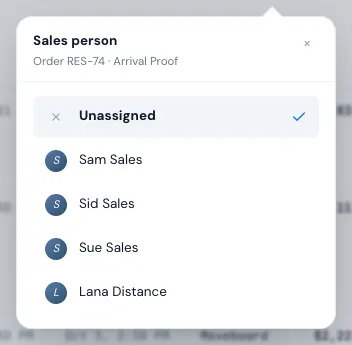
- Press its button in the Sales person column.
- Pick a name, or Unassigned.
Many orders at once
- Tick the orders on the list.
- Press Action for selected items.
- Press Assign sales person and pick a name, or Unassigned.
Up to 100 orders at a time. Each order is assigned on its own, so one you can't open doesn't stop the rest.
What happens next
- The Order Log records it: "Employee Sam Sales assigned order RES-74 to Sue Sales." (or "… unassigned order RES-74.").
- The new salesperson is told with the Order assigned notification. By default salespeople get it in the app, by email and by text for their own orders; managers and admins in the app. Change who gets what in Settings › Users & permissions › Notifications. Unassigning tells nobody.
- Linked orders follow. A storage move-out or other linked order moves with it, if it had the same salesperson or none.
- Any "Not assigned automatically" notice on the order goes away.
If something goes wrong
- "You do not have permission to do that." — you don't have Can assign leads to other salespeople.
- "You do not have access to this order." — the order isn't one you can open.
- "Tick between 1 and 100 orders." — too many orders ticked for one go.
Related guides
- Leads & salesWho gets each lead (assignment rules)The order MoveBoard follows to give each incoming lead a salesperson, how to set each person's rules, and what the "Not assigned automatically" notice means.
- Leads & salesThe Orders listFind any lead or job — the five workflow stages, the full list with its filters, the columns, and opening an order.
- Leads & salesAct on several orders at onceTick orders on the list, then change their status, assign them, email or text them, flag them or export them together.
- OrdersThe order window, card by cardEverything on an order in one window — the top bar, the status, the truck schedule, the four cards, the addresses, the conversation — and how SAVE works.
Still stuck? A person will help.
Open a ticket from Support inside MoveBoard, or email us — we usually reply within one business day.