
Orders
Print an order
Print the Order for Service or a clean copy of the order window.
- 2 min read
- Checked against MoveBoard
- For sales, dispatchers, owners & admins
You can print two things from an order: the Order for Service with the order's numbers filled in, or the Order Window as it looks on your screen.
- Open the order.
- Press the printer button in the title bar, between Minimise and Close.
- Choose Order for Service or Order Window.
- Press PRINT.
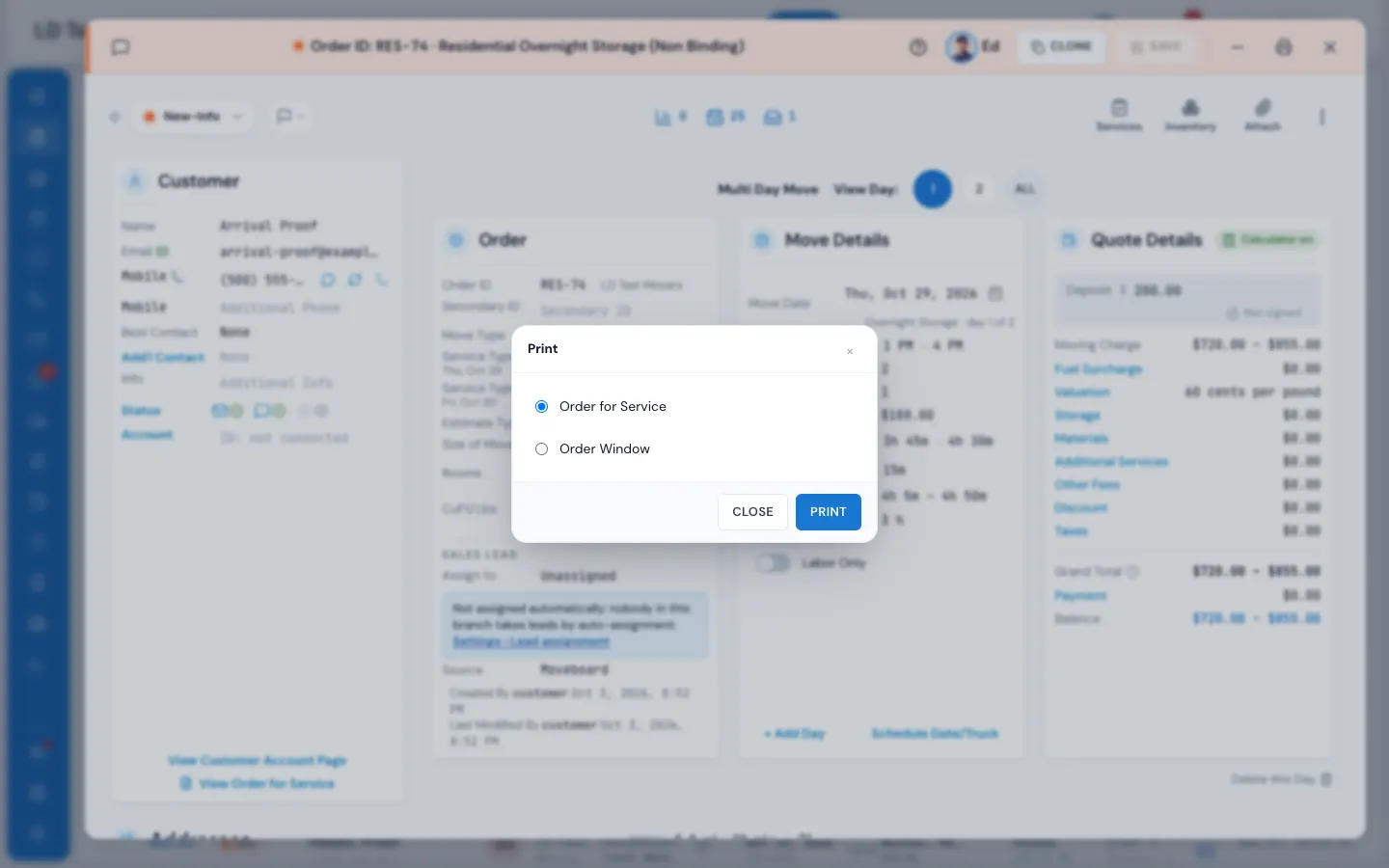
The pop-up closes and the printout opens in a window of its own, with your browser's print dialog. Print it, or choose "Save as PDF" in that dialog to keep a file.
Order for Service
Each of your Order for Service templates prints on its own page, filled in with this order's customer, move and prices. The templates are set in Settings › Documents & bill of lading › Estimate & order for service.
Order Window
A clean copy of what the window shows right now — the cards, the addresses and the rest — without the buttons. Pick the day you want first on a multi-day order, and switch to the closing side first if that's what you need on paper.
If something goes wrong
If there's nothing to print, the pop-up comes back with the reason:
- No order for service template to print — add one in Settings › Documents & bill of lading › Estimate & order for service.
- That order is no longer here. — the order was archived or removed.
- Nothing opens — your browser blocked the print window. Allow pop-ups for MoveBoard and press PRINT again.
The customer's signed Order for Service and the bill of lading are kept as PDFs in the order's Attachments; open them there to print the signed copy.
Related guides
- OrdersThe order window, card by cardEverything on an order in one window — the top bar, the status, the truck schedule, the four cards, the addresses, the conversation — and how SAVE works.
- Booking & paymentsOrder for Service and estimate signingThe documents a customer signs to book — which one fits which move, how to edit them, and where the signed copy goes.
- OrdersAttach files and photos to an orderAdd photos and documents to an order, share them with the customer or the foreman, and find the signed paperwork.
Still stuck? A person will help.
Open a ticket from Support inside MoveBoard, or email us — we usually reply within one business day.