
Orders
Tasks on an order
Add a reminder to call, email or collect a payment, filed under the order — for yourself or a colleague.
- 2 min read
- Checked against MoveBoard
- For sales, dispatchers, owners & admins
On this page
A task is a reminder filed under an order: "call them Tuesday at 10", "collect the balance". It reminds the person it's for, and it's listed on the order and on the Tasks page.
Before you start
To give a task to someone else you need the Can create task for other users permission. Without it, every task you add is your own, and you can only change tasks that are yours (or that you created).
Open the order's tasks
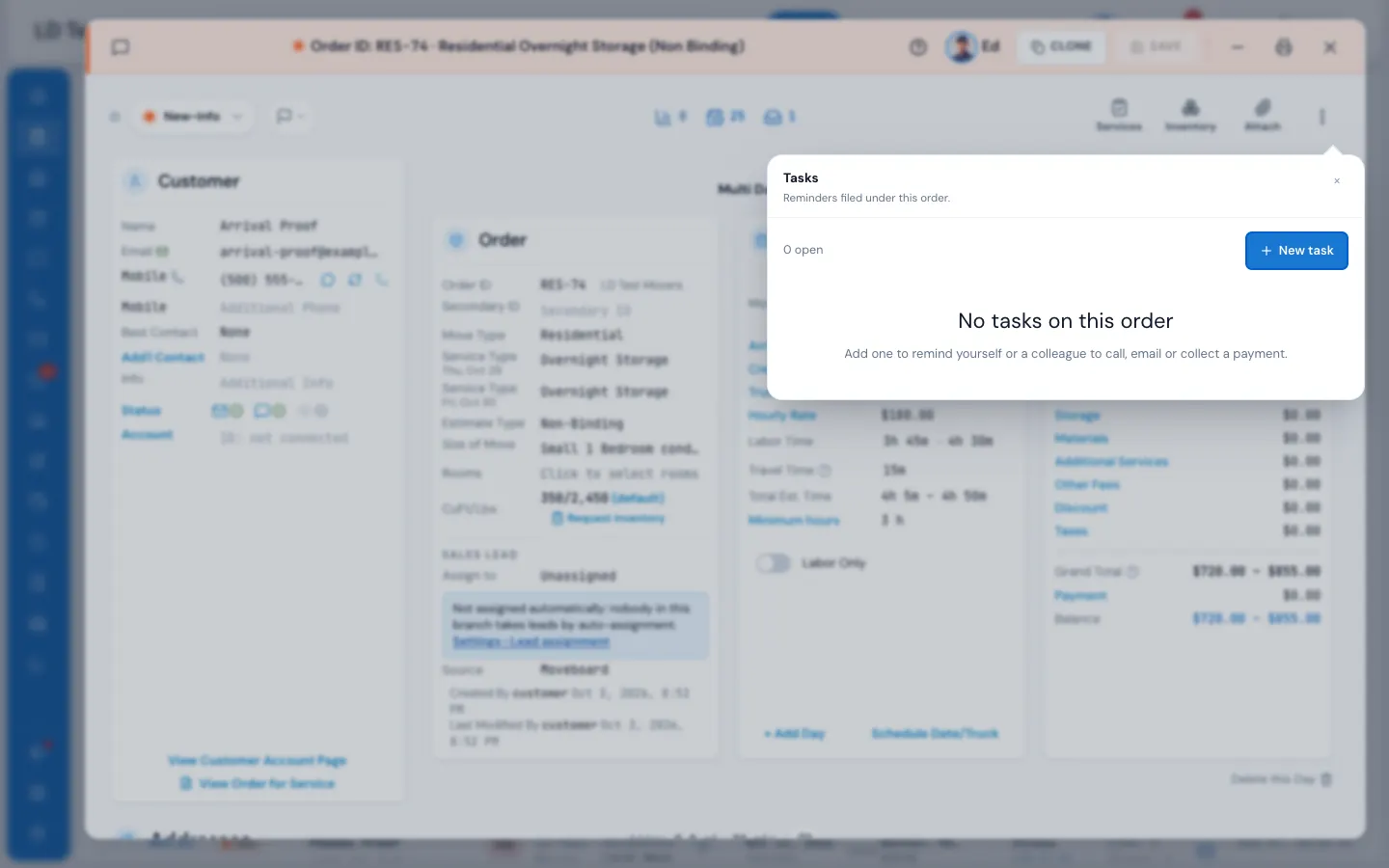
Open the order. When it already has tasks, Tasks sits in the strip under the title bar with a count. When it has none, press the ⋮ at the right of the strip, then Tasks.
The panel lists the open tasks first, then the done ones, with how many of each.
Add a task
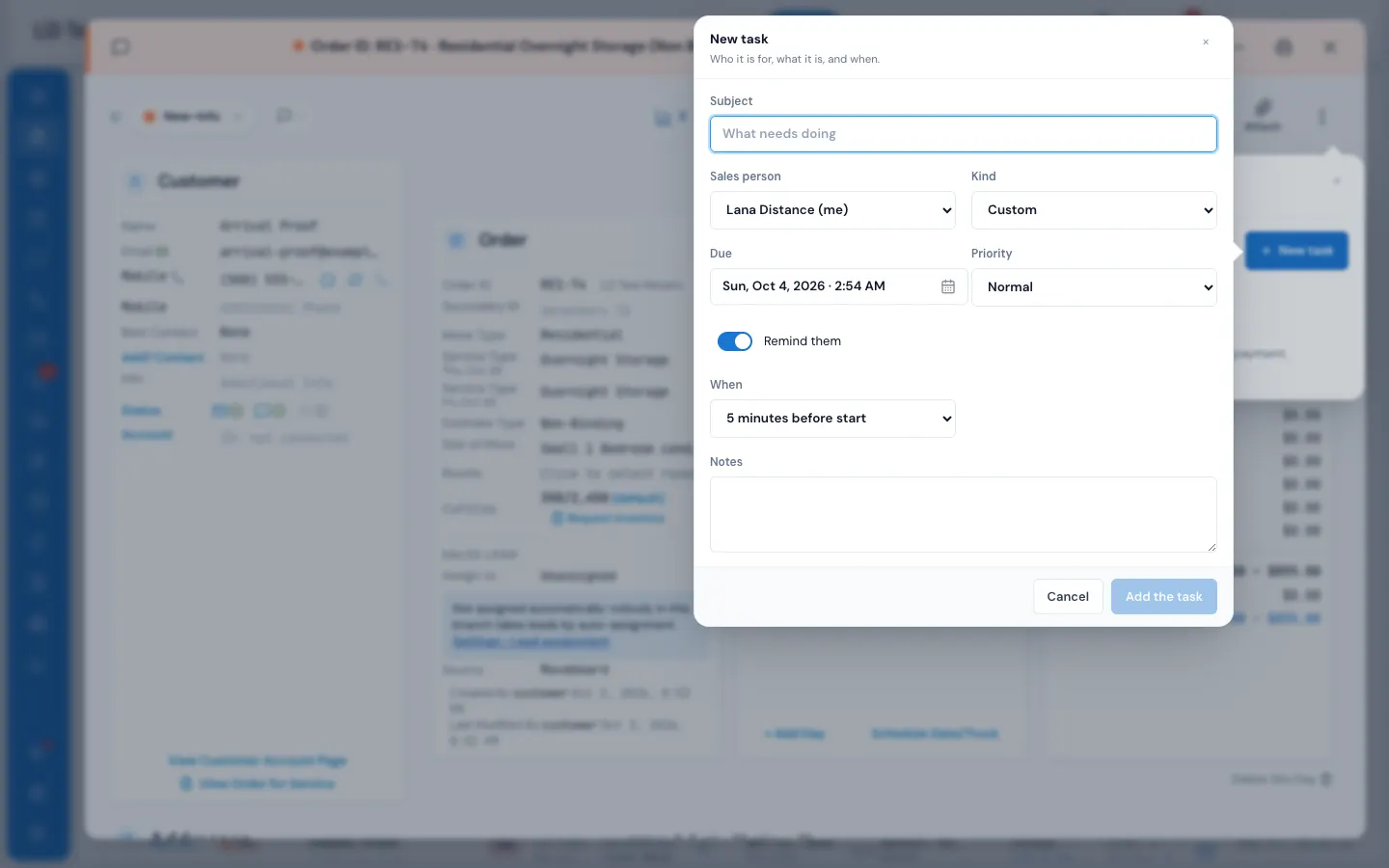
- Press New task.
- Type the Subject — what needs doing.
- Choose who it's for under Sales person. Without the permission above, it's you.
- Pick the Kind: Call, Email, Collect payment or Custom.
- Set Due — the day and time.
- Pick the Priority: Low, Normal, High or Urgent.
- Leave Remind them on and choose When — from 5 minutes to 6 hours before the due time.
- Add Notes if it helps.
- Press Add the task.
Work with tasks
- Mark it done — the round button at the left. The task is crossed out and shows who completed it and when. Press it again to open the task again.
- Edit — the pencil. Change anything and press Save the task.
- Delete — the bin. It goes at once, without asking.
A due time that has passed shows in red. A priority other than Normal shows as a tag. A task shared by several people shows all of them; when one person marks it done, it's done for everyone.
What happens next
The person gets their reminder the chosen time before it's due, in the top bar's reminders and through their own notification choices. The task also shows on the Tasks page, where it can be filtered and worked like any other — see Follow up on leads.
If something goes wrong
- Please choose date starting from today — the due date is in the past or empty.
- We cannot notify you in past. Please check "Date", "Time" values — the reminder time has already gone. Move the due time later, pick a shorter When, or switch Remind them off.
- You may only change your own tasks. / You may not give a task to somebody else. — you need the Can create task for other users permission.
- The tasks could not be loaded. / That could not be saved. — check the connection and try again.
Related guides
- OrdersThe order window, card by cardEverything on an order in one window — the top bar, the status, the truck schedule, the four cards, the addresses, the conversation — and how SAVE works.
- Leads & salesFollow up on leadsKeep every lead moving with tasks and reminders, the Follow Up status, and automatic follow-up messages.
- Getting startedNotificationsThe bell and its drawer, pop-up alerts and the chime, muting, choosing what you hear about, and the Tasks due card with Dismiss, Snooze and Complete.
- OrdersNotes on an orderLeave a note for sales, dispatch, the foreman or the customer — and who may edit or delete notes.
Still stuck? A person will help.
Open a ticket from Support inside MoveBoard, or email us — we usually reply within one business day.