
Orders
Quick new order for a caller
Take a caller's move on the short form — the same questions your website asks, in the same order — and the lead is yours.
- 2 min read
- Checked against MoveBoard
- For sales, owners & admins
When someone calls for a price, the short form walks you through exactly what they would see on your website: the move first, then who they are, then the price. The lead it makes belongs to you.
Open it
On the full form (New lead, every detail), press Take it the short way at the top right. To go back to every field, press The full form.
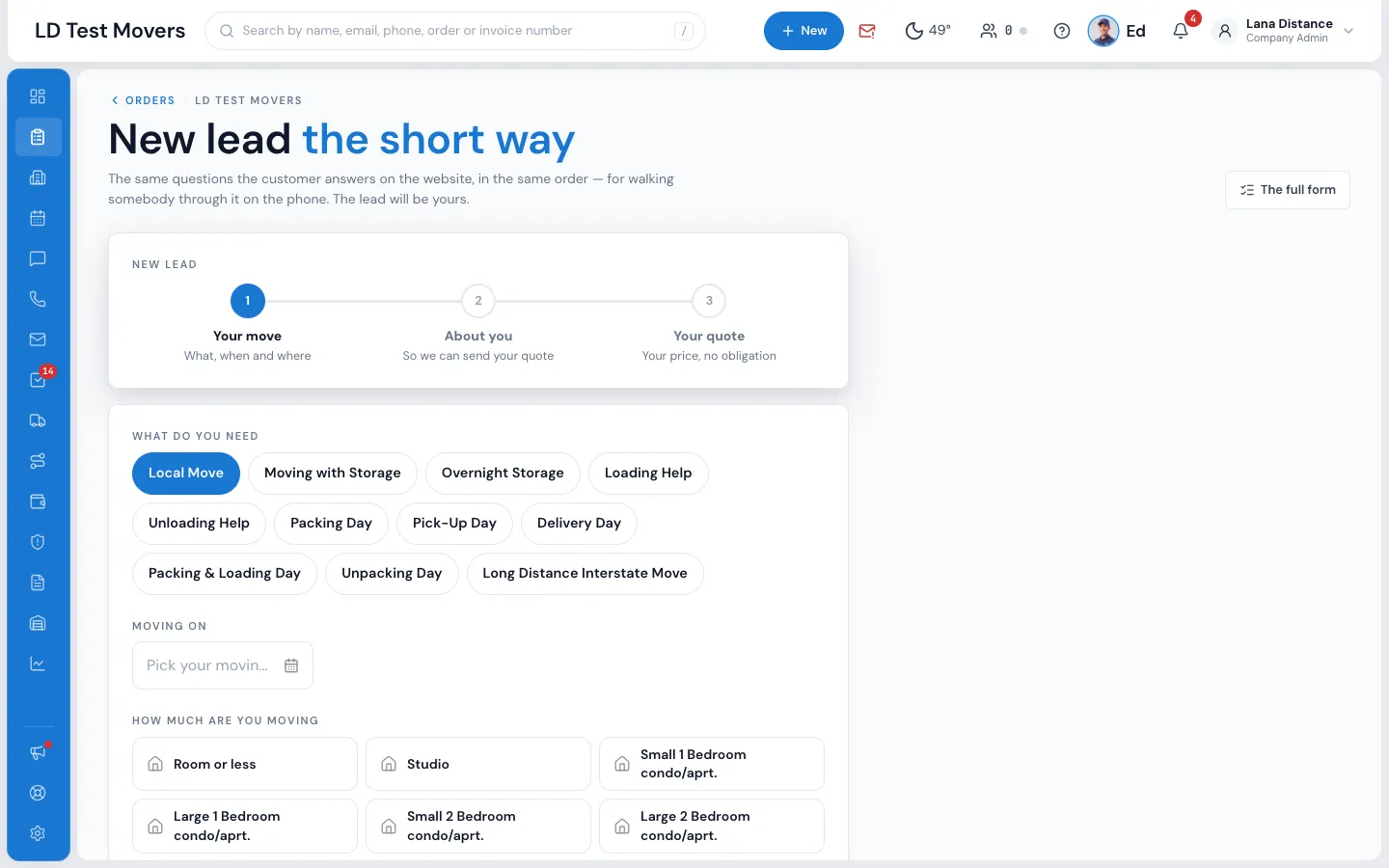
Take the call
1. Your move
- Under What do you need, pick the service.
- Set Moving on — the move date.
- Under How much are you moving, pick the size closest to what they describe.
- Type Moving from and Moving to. A street, a city or just a ZIP code works.
- Press Next.
MoveBoard finds both addresses as you type. If one can't be found it says We could not find one of those addresses. Try adding the city or the zip.
2. About you
- Type the caller's First name, Last name, Email and Phone.
- Pick How did you hear about us.
- Press See my quote.
3. The quote
The screen says who is on which order — for example "Dana Lee is on order 10482." — with the price under Quoted at. Press Open the order to carry on in the order window: add stops, entrances, inventory, or send the quote.
What happens next
- The order is created in status New, with you as its creator, exactly as a lead typed on the full form.
- The Order Log notes New lead created by user with your name and the pickup and delivery.
- Whatever your company sends for a new lead goes out — set in Settings › Communication › Templates and Workflows.
- Opened from an account's Add new order, the order is put on that account.
If something goes wrong
- Next stays grey until a service, a date, a size and both addresses are filled in.
- See my quote stays grey until there is a first and last name, an email and a ten-digit phone.
- We need where they are moving from and where they are going. — one of the two addresses is empty.
- A refusal from MoveBoard, such as an address Google can't place, shows on the form in its own words; fix it and press See my quote again.
Related guides
- OrdersCreate a new orderStart an order the quick way with New Order, or fill in every detail first on the full form — and what MoveBoard writes either way.
- Leads & salesCreate a new leadTake down a caller's move in four short steps — the price works itself out as you type.
- OrdersThe order window, card by cardEverything on an order in one window — the top bar, the status, the truck schedule, the four cards, the addresses, the conversation — and how SAVE works.
Still stuck? A person will help.
Open a ticket from Support inside MoveBoard, or email us — we usually reply within one business day.