
Getting started
Notifications
The bell and its drawer, pop-up alerts and the chime, muting, choosing what you hear about, and the Tasks due card with Dismiss, Snooze and Complete.
- 3 min read
- Checked against MoveBoard
- For owners & admins, sales, dispatchers
On this page
The bell at the top right tells you what happened while you were working — new leads, payments, customer replies and more. The red number is how many are new.
The bell's drawer
Press the bell. The Notifications drawer slides in from the right.
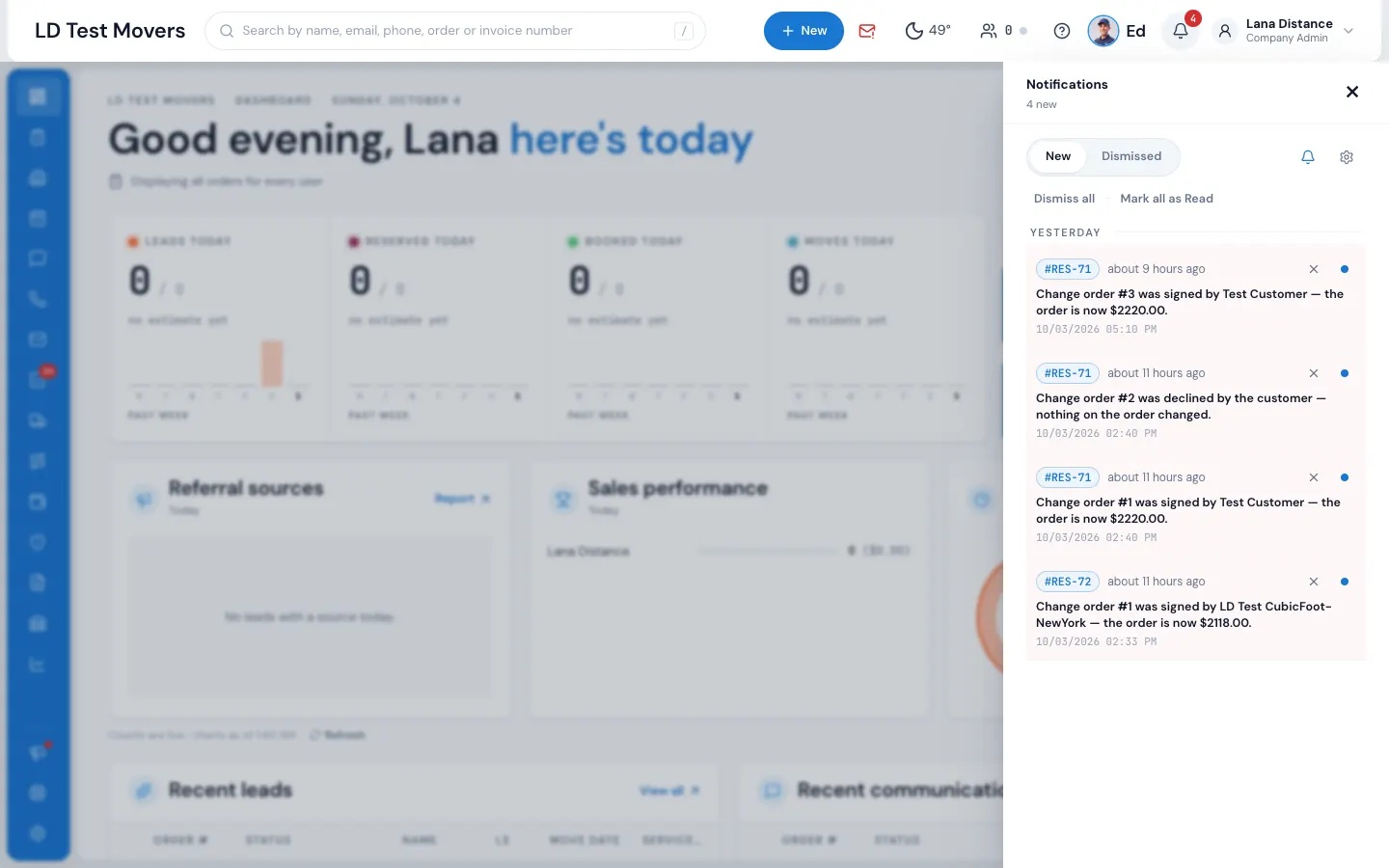
- New and Dismissed — two tabs. New ones are in bold until you read them.
- Each notification shows its order number (press it to open the order), how long ago it happened, who did it, and what happened.
- The dot on the right marks it read (press again to mark it unread). The × dismisses it to the Dismissed tab, where the arrow brings it back.
- Dismiss all and Mark all as Read work on everything in New.
- Fifty show at a time; Load More shows older ones.
When there's nothing new, the drawer says Nothing new — "New leads, payments and customer replies show up here."
Alerts as they happen
When something new arrives, MoveBoard plays a short chime and shows it:
- as a desktop notification (if your browser allows it — MoveBoard asks the first time), or
- as a small pop-up on the screen for five seconds.
Press it to open the order. With several MoveBoard tabs open, you hear the chime once, not once per tab.
Mute
Press the bell button inside the drawer to mute. The bell in the top bar turns into a crossed-out bell, the number stops, and no chime or pop-ups come. Press it again to turn notifications back on; you'll hear about things from that moment.
Choose what you hear about
Press the gear in the drawer for Notification preferences. Kinds are grouped — New leads, Customer activity, Bookings and payments, Estimates and surveys, Office activity, Jobs and crews, Reminders, Storage, Company — with a tick for App (in the bell), Email and Text. Turn on all ticks everything. Your choices save as you tick.
What's offered is set by your admin in Settings › Users & permissions › Notifications. If staff emails or texts are off for the company, those columns are greyed out ("Staff emails are off for the company, so none are sent.").
Tasks due
When one of your tasks reaches its reminder time, a Tasks due card opens at the top right, with the chime. Each task shows its type, order, customer, due time and priority.
| Button | What it does |
|---|---|
| ○ (the circle) | Complete — the task is done, for everyone |
| Dismiss | This reminder is done for you; the task stays open |
| Snooze | Remind you again later — pick from 5 minutes up to 7 days |
| Dismiss All / the snooze icon at the top | The same, for every task on the card |
| × | Closes the card. Those reminders don't come back; only a new one opens it again |
Your presses are remembered on your account, so another tab, another page or a reload agrees. With more than four tasks, Show … more lists the rest. The red number on Tasks in the menu is your open tasks.
If something goes wrong
- "Could not load your notifications." or "That did not save. Try again." in Notification preferences — check your connection and try again.
- "No notification options are available yet. Your administrator can enable them in Settings under Notifications." — ask your admin.
Related guides
- Getting startedThe top barWhat every button across the top of the screen does — search, + New, the phone, weather, customers online, Ed, the bell and the menu under your name.
- Leads & salesFollow up on leadsKeep every lead moving with tasks and reminders, the Follow Up status, and automatic follow-up messages.
- Getting startedRoadmap and feature requestsSee what MoveBoard is building next, vote for the ideas you want, and ask for a feature of your own.
Still stuck? A person will help.
Open a ticket from Support inside MoveBoard, or email us — we usually reply within one business day.