
Getting started
The top bar
What every button across the top of the screen does — search, + New, the phone, weather, customers online, Ed, the bell and the menu under your name.
- 3 min read
- Checked against MoveBoard
- For owners & admins, sales, dispatchers
The top bar sits across the top of every office screen. Everything in it opens a small panel that grows out of the button you pressed; press outside the panel or Esc to close it.

From left to right
- Your logo and company name. Press the logo to go back to the dashboard. If your company has more than one branch, the name is a button with a ▾ — see Work in another branch.
- Search. The long box: "Search by name, email, phone, order or invoice number". Press it, or press / anywhere you're not typing. See Find anything with search.
- New. Opens Start something new with four tiles: New Order, New Lead, New Account and New Task. With more than one branch, pick the Branch first.
- Email connection problem. A red envelope appears only when a mailbox can't send. Press it to see whose mailbox it is (the company or branch is named) and press the button under it to go and fix it.
- Phone. A keypad and your recent calls, when your company's phone line is connected. Calls go through your office line right in the browser.
- Weather. The forecast for your branch. Press it for the Local Forecast.
- Customers online. How many customers have their portal open right now. Press it to see who, and open their order or messages. You only see it with the permission to see customers online. See Customers online.
- Update ready. Appears when a new version of MoveBoard is out. See "MoveBoard has been updated".
- ? — the help article for the screen you're on, in a side panel.
- Ed — your assistant. Press ⌘J (Mac) or Ctrl+J (Windows). See Shortcuts.
- The bell — your notifications, with the number of new ones. A crossed-out bell means you muted them. See Notifications.
- Your name — and, on wide screens, your role.
The menu under your name
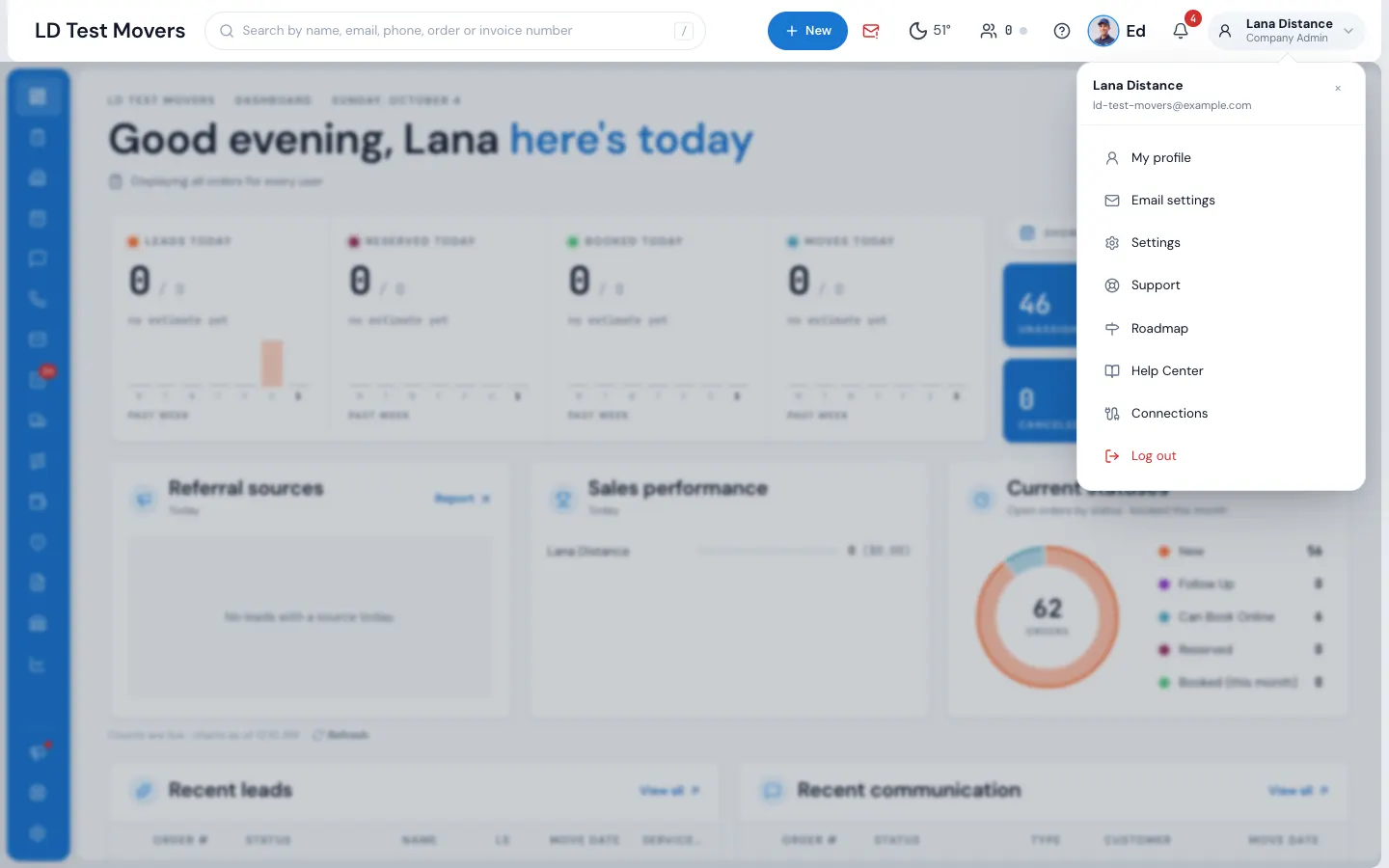
| Item | What it does |
|---|---|
| My profile | Your details, your password, and the card customers see |
| Email settings | Your own mailbox |
| Settings | Your company's settings (if you're allowed) |
| Support | Help from the Elromco team — see Support and tickets |
| Roadmap | What's being built next, and your feature requests — see Roadmap and feature requests |
| Help Center | These guides, in a new tab |
| Connections | Sign in your own email, calendar and phone (RingCentral) |
| Log out | Signs you out of this computer |
| Appearance | At the very bottom: Warm, Cold or Dark — how MoveBoard (and this Help Center) looks for you |
On smaller screens
The bar keeps search (as a magnifier), New, customers online, the phone, Ed and the bell at every width. The rest moves into the ⋮ button at the right: Weather, and on a phone What's New, plus Profile, Email Setting, Roadmap, Help Center, Connections and Logout. See MoveBoard on your phone.
Related guides
- Getting startedFind anything with searchFind an order, account, storage tenant, invoice or payment by name, phone, email or number — from the top bar or the full search page.
- Getting startedNotificationsThe bell and its drawer, pop-up alerts and the chime, muting, choosing what you hear about, and the Tasks due card with Dismiss, Snooze and Complete.
- Getting startedWork in another branchPick which branches you're looking at from the top bar, and what changes from branch to branch.
- Leads & salesCustomers online nowSee which customers have their portal open right this minute, and jump straight to their order.
- Leads & salesCreate a new leadTake down a caller's move in four short steps — the price works itself out as you type.
Still stuck? A person will help.
Open a ticket from Support inside MoveBoard, or email us — we usually reply within one business day.