
Getting started
Your first day in MoveBoard
A ten-minute tour of the screens you'll use every day — the menu, the top bar, the dashboard and order windows.
- 4 min read
- Checked against MoveBoard
- For owners & admins, sales, dispatchers
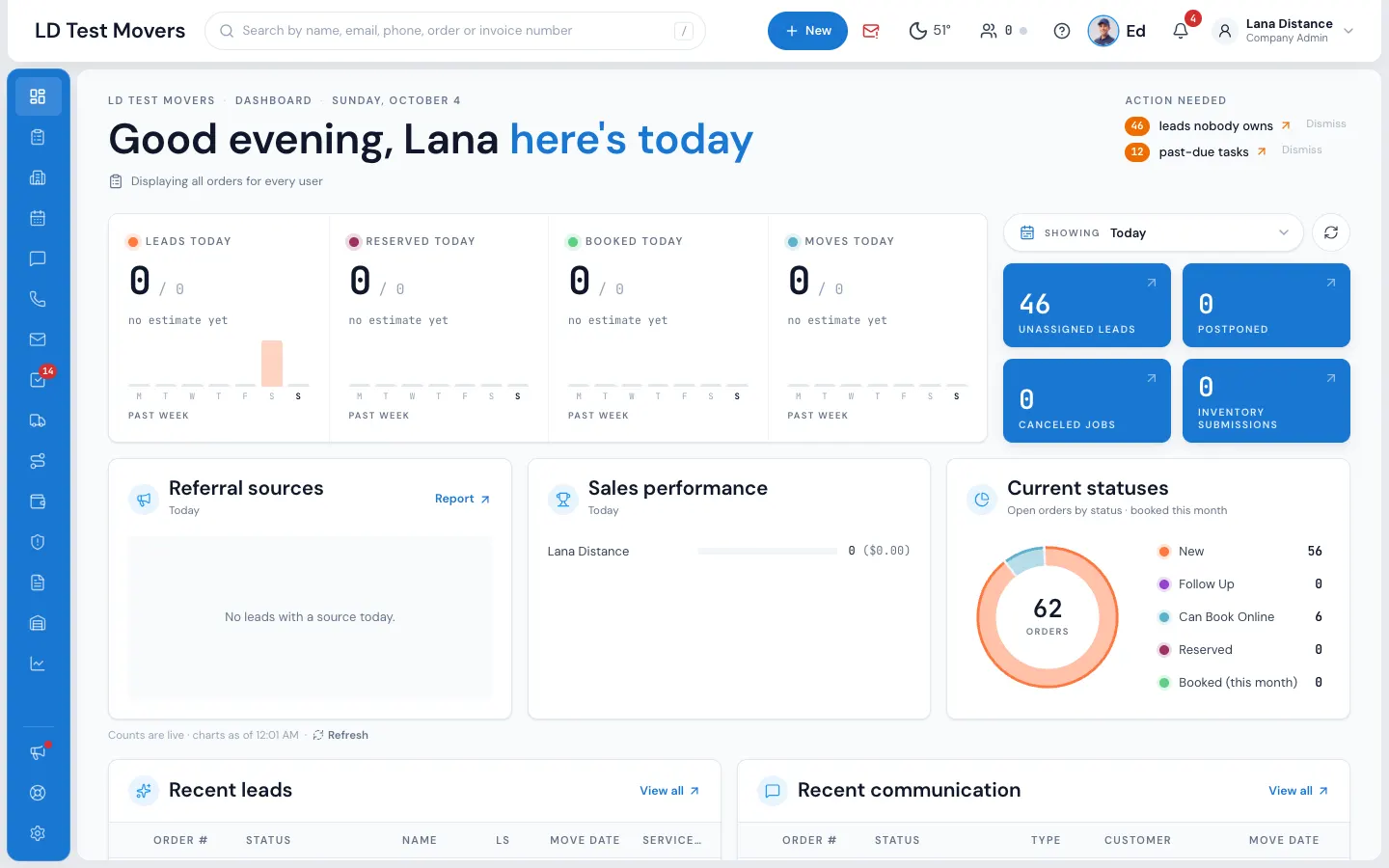
MoveBoard has three things on every screen: the menu down the left, the top bar across the top, and the page itself. Orders open in windows on top of whatever page you are on, so you never lose your place.
The menu
Each item opens one part of MoveBoard. You only see the items your permissions allow — if something is missing, ask your admin (see Team & permissions).
| Item | What it's for |
|---|---|
| Dashboard | Today's numbers, what needs your attention, recent leads and messages, the week ahead |
| Orders | Every lead and job, by status, with filters |
| Accounts | Business accounts (corporate and affiliate) and their orders |
| Calendar | Moves and trucks by month or by day |
| Messages | Every text, email and portal conversation with customers — the red number is unread messages |
| Calls | Call history, missed calls and voicemails |
| Tasks | Your to-dos — the red number is your open tasks |
| Dispatch | Trucks and crews, day by day |
| Trips | Long-distance trips |
| Accounting, Invoices | Money in and out |
| Claims | Damage claims from customers |
| Storage | Storage customers and their billing |
| Reports | Every report, in one place |
| What's new, Support, Settings | At the bottom of the menu |
On a phone, the menu is behind the three-line button at the top left; it closes as soon as you pick something.
The top bar
From left to right:
- Search — press / anywhere and type a name, email, phone, order or invoice number.
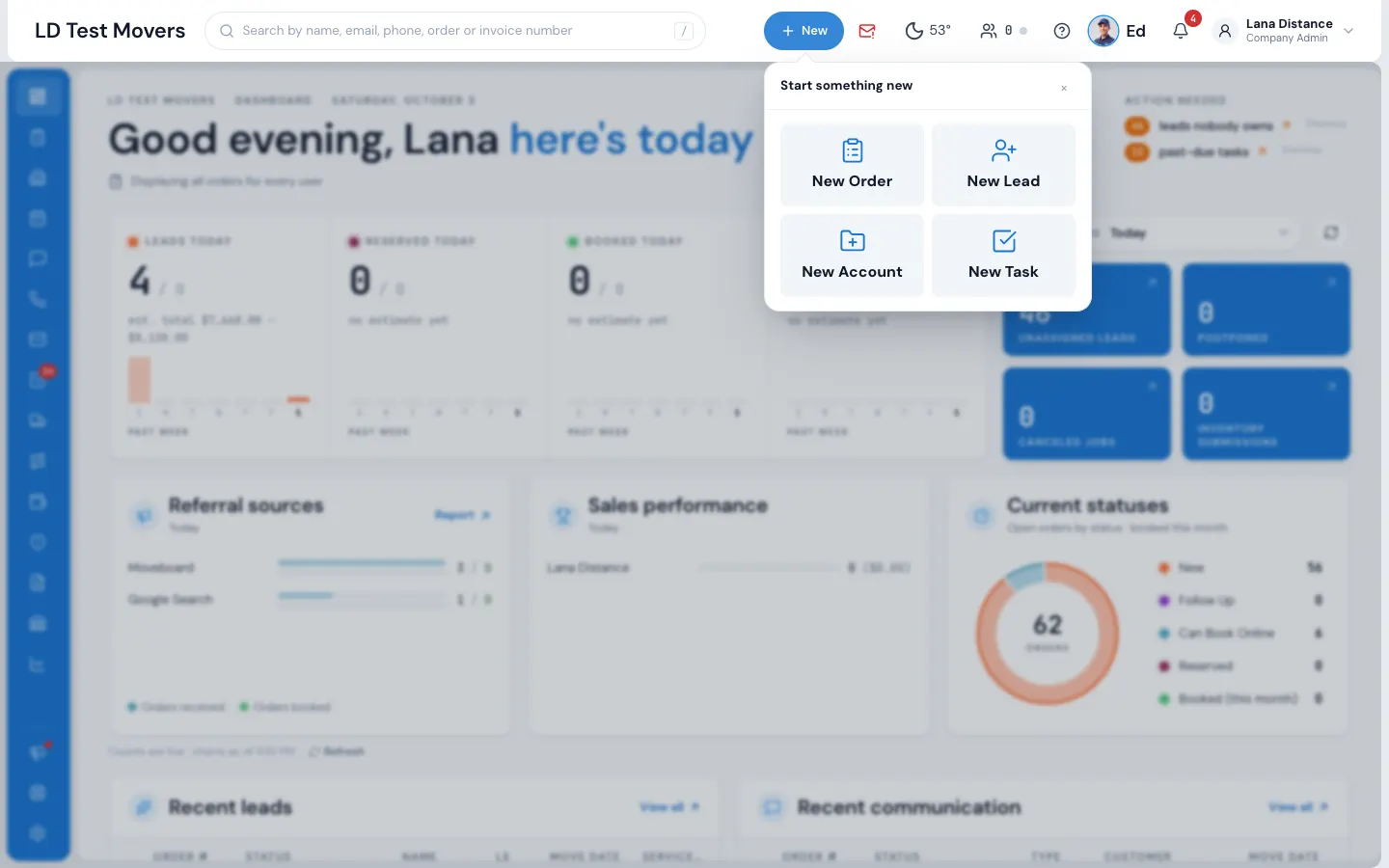
- + New — start a New Order, New Lead, New Account or New Task.
- Phone — a keypad and your recent calls; calls go through your office line right in the browser.
- Weather — the forecast for your branch, up to 16 days.
- ? — the help article for the screen you're on, in a side panel. You're reading one now.
- Ed — your assistant. Press ⌘J (Mac) or Ctrl+J (Windows) from anywhere, or e when you're not typing.
- The bell — your notifications. Mute them from inside the drawer.
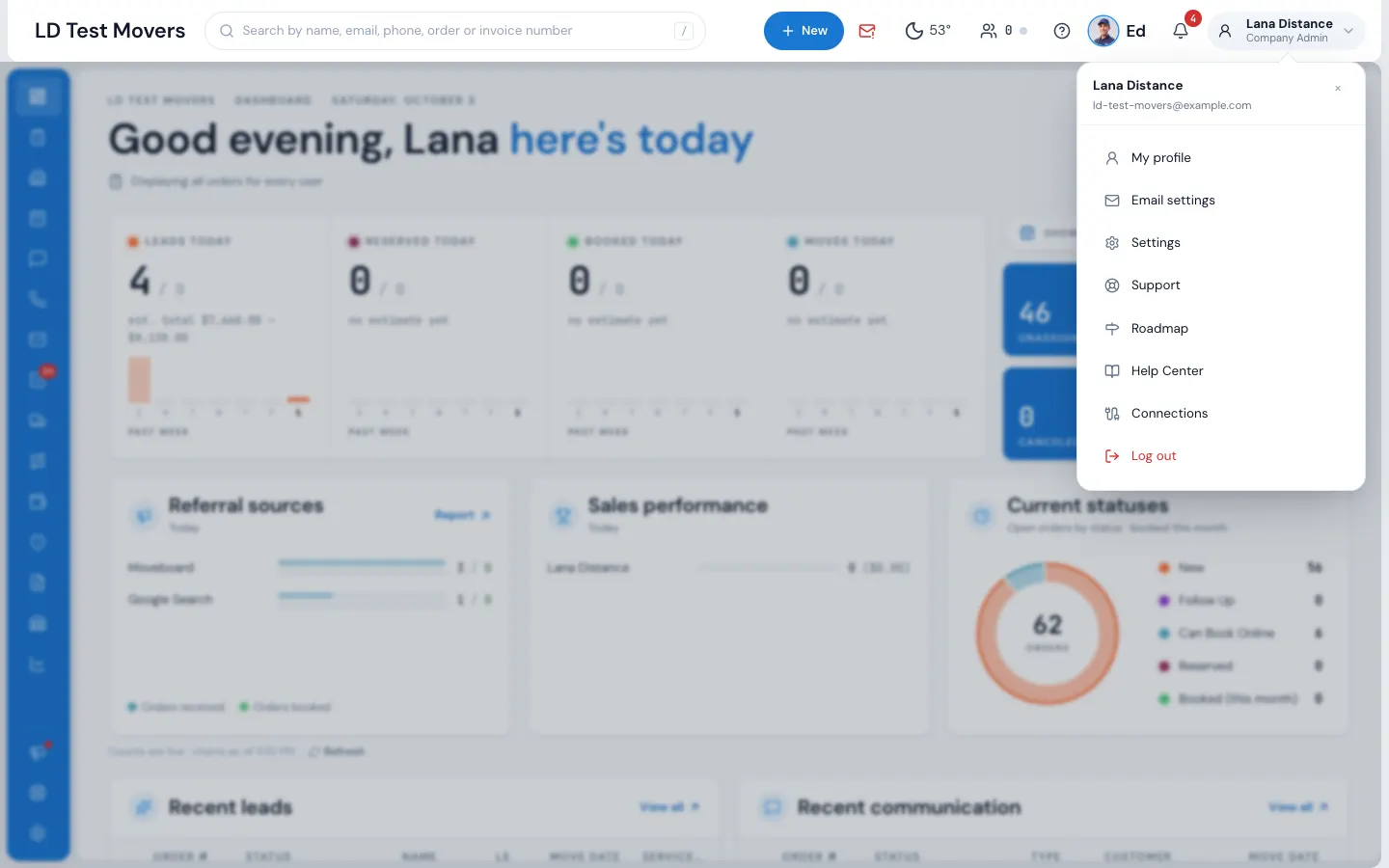
- Your name — your profile, email settings, Settings, Support, the Roadmap, this Help Center (it opens in a new tab), your Connections, Log out, and at the bottom Appearance (Warm, Cold or Dark).
The dashboard
The dashboard greets you with today's picture:
- The four tiles across the top — Leads, Reserved, Booked and Moves — show today's number and a small chart of the past week. Press a tile to see the orders behind it.
- The blue cards count what needs a hand: Unassigned leads, Postponed, Canceled jobs and Inventory submissions.
- Below: where leads come from (Referral sources), Sales performance, Current statuses, Recent leads, Recent communication and The week ahead.
Use the date picker to look at another day or a range; the numbers compare with the same days last year.
Order windows
Double-click any order — on the orders list, the calendar, dispatch or a search result — and it opens in a window.
- Open as many as you like. Each keeps its own unsaved changes.
- Minimise puts a window away into a chip along the bottom; press the chip to bring it back exactly as you left it.
- Move to another page and your windows come along.
- Drag a window by its top bar.
Storage customers, invoices and trips open in the same kind of window. Learn every part of it in The order window, card by card.
Get help any time
- Press ? on any screen for that screen's guide.
- Ask Ed a question in plain words.
- Open the Help Center from the menu under your name.
Related guides
- Leads & salesCreate a new leadTake down a caller's move in four short steps — the price works itself out as you type.
- OrdersThe order window, card by cardEverything on an order in one window — the top bar, the status, the truck schedule, the four cards, the addresses, the conversation — and how SAVE works.
- Dispatch & schedulingOpen Dispatch on the tab you wantUse the gear to choose whether Dispatch opens on the Dashboard, Job Assignments, Crew Schedule or the board — on every computer and phone you use.
Still stuck? A person will help.
Open a ticket from Support inside MoveBoard, or email us — we usually reply within one business day.