
Dispatch & scheduling
Open Dispatch on the tab you want
Use the gear to choose whether Dispatch opens on the Dashboard, Job Assignments, Crew Schedule or the board — on every computer and phone you use.
- 2 min read
- Checked against MoveBoard
- For dispatchers, owners & admins
Dispatch has up to four tabs:
| Tab | What it shows |
|---|---|
| Dashboard | The day at a glance: progress of every job, late jobs, crews, movers and trucks out or free, and the crews' answers |
| Job Assignments | Jobs booked without a truck yet (only if your company uses the Unassigned truck) |
| Crew Schedule | The day's crews — people and trucks — and whether each person confirmed |
| Dispatch | The board: trucks down the side, the day across, jobs as blocks you drag |
Choose where Dispatch opens
- Open Dispatch from the menu.
- Press the gear at the top right, next to The fleet.
- Under Open Dispatch on, pick the tab you want.
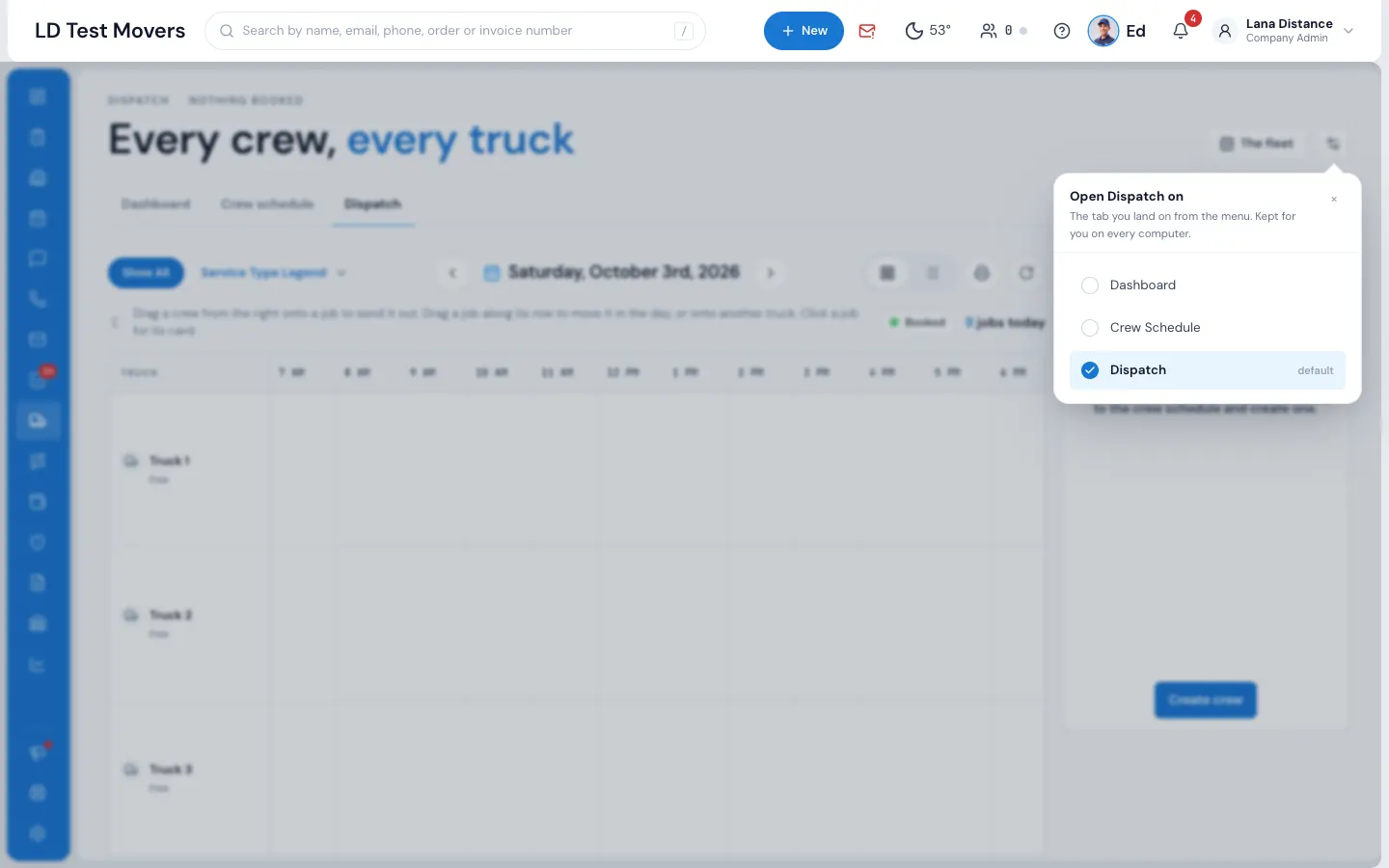
It's saved straight away, for you only, and follows you to every computer and phone you sign in on. Choosing Dispatch puts it back to the board.
The Dashboard tab in a minute
- Progress — every job as Not started, En route, Working or Finished. A job is late once its arrival window has ended and it hasn't started; jobs with no time set are never late.
- Crews, movers and trucks — who's out and what's free.
- Crew answers — who accepted, declined, or hasn't been told yet.
- Money — the day's estimate, what was collected by cash, card and check, the balance due, deposits and tips. Only people with the permission See dispatch money figures see these cards (admins always do).
Change the day with the date at the right of the tab line.
Related guides
- Getting startedYour first day in MoveBoardA ten-minute tour of the screens you'll use every day — the menu, the top bar, the dashboard and order windows.
- OrdersThe order window, card by cardEverything on an order in one window — the top bar, the status, the truck schedule, the four cards, the addresses, the conversation — and how SAVE works.
Still stuck? A person will help.
Open a ticket from Support inside MoveBoard, or email us — we usually reply within one business day.