
Dispatch & scheduling
Dispatch on a phone or tablet
Run the day from a phone — the four tiles, tapping a job then a crew to assign it, and the Crew Schedule's bar at the foot of the screen.
- 2 min read
- Checked against MoveBoard
- For dispatchers, owners & admins
On a phone or a small tablet, Dispatch fills the whole screen and works by tapping instead of dragging crews.
Getting around
- Dispatch opens straight on the tab chosen with the gear (the board, unless you chose another) — see Open Dispatch on the tab you want.
- The bar at the top shows the tab's name, the branch (if you have more than one) and the date with its arrows.
- The × on that bar shows the tiles: Dashboard, Job Assignments (when your company uses it), Crew Schedule, Dispatch and — while box delivery is on — Box Deliveries, with its red number of deliveries to schedule. Tap one to open it.
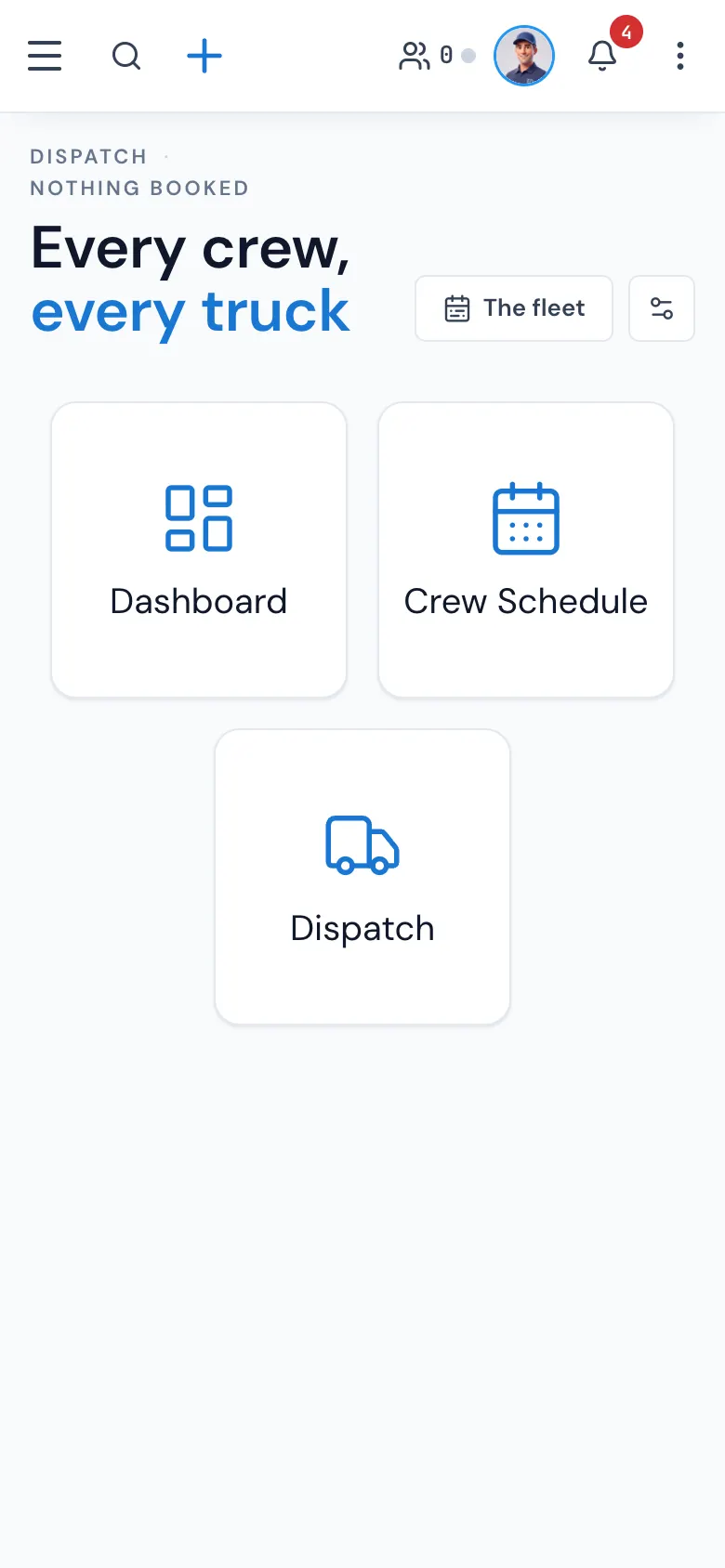
Put a crew on a job
- On the Dispatch tile, tap a job.
- A panel slides in from the right, headed with the job and Open order, listing the day's crews under Assign Crew — "(Select the order and then click on the crew)".
- Tap a crew. It's assigned to the job at once and the panel closes.
Tap outside the panel (or press Esc on a keyboard) to close it without choosing. Open order opens the order window over the board.
To pick people one by one, switch the panel to Assign Personnel and fill the spots as on a computer — see Assign trucks and crew.
Move a job
Press and drag the six-dot handle at a card's top-left corner — it's always shown on touch screens. A swipe anywhere else on the board scrolls it, so you won't move a job by accident. The small arrow at a card's top right opens its order.
The board is drawn a little smaller on a phone so more of the day fits.
The Crew Schedule
- Each spot on a crew card is a list you pick a name from, with ⋮ beside it for Confirm, Decline, Resend and Remove.
- A bar at the foot of the screen has Send Notification, how many crews the day has, and the round + to add a crew.
- Who's free shows as counts across the top (foremen, drivers, helpers).
Job Assignments
Send to all customers is the envelope icon next to the reload button. The print menu isn't on this tile.
Related guides
- Dispatch & schedulingOpen Dispatch on the tab you wantUse the gear to choose whether Dispatch opens on the Dashboard, Job Assignments, Crew Schedule or the board — on every computer and phone you use.
- Dispatch & schedulingThe Dispatch boardRead the day at a glance — trucks down the side, hours across, every booked job as a card you can select, open or move.
- Dispatch & schedulingAssign trucks and crewBuild the day's crews on the Crew Schedule, then put a crew on each job — by dragging it onto the board or picking people in Assign Personnel.
- Getting startedMoveBoard on your phoneHow the office screens fit a phone — the menu behind the three-line button, the ⋮ menu, full-screen search and windows — and what is roomier on a computer.
Still stuck? A person will help.
Open a ticket from Support inside MoveBoard, or email us — we usually reply within one business day.