
Dispatch & scheduling
Move a job to another time, truck or day
Drag a job along its row to change its start, onto another row to change its truck, or change the move date in the order to move it to another day.
- 3 min read
- Checked against MoveBoard
- For dispatchers, owners & admins
On this page
The Dispatch board shows one day. On it you can move a job to another time or another truck. To move it to another day, change its move date in the order.
Before you start
- Changing a job's truck needs the dispatch permission to change the truck.
- Changing its start time needs the dispatch permission to adjust the start time.
- Without them MoveBoard puts the job back and tells you why.
Move it in the day or to another truck
- Find the job on the board. Point at it: the six-dot handle shows at its top-left corner (on a phone or tablet it's always there).
- Press the handle and drag. A dashed box shows where the job will land, snapped to the half hour.
- Let go: - along its own row — the job starts at the new time; - on another truck's row — the job moves to that truck (at the new time, if you also moved it sideways).
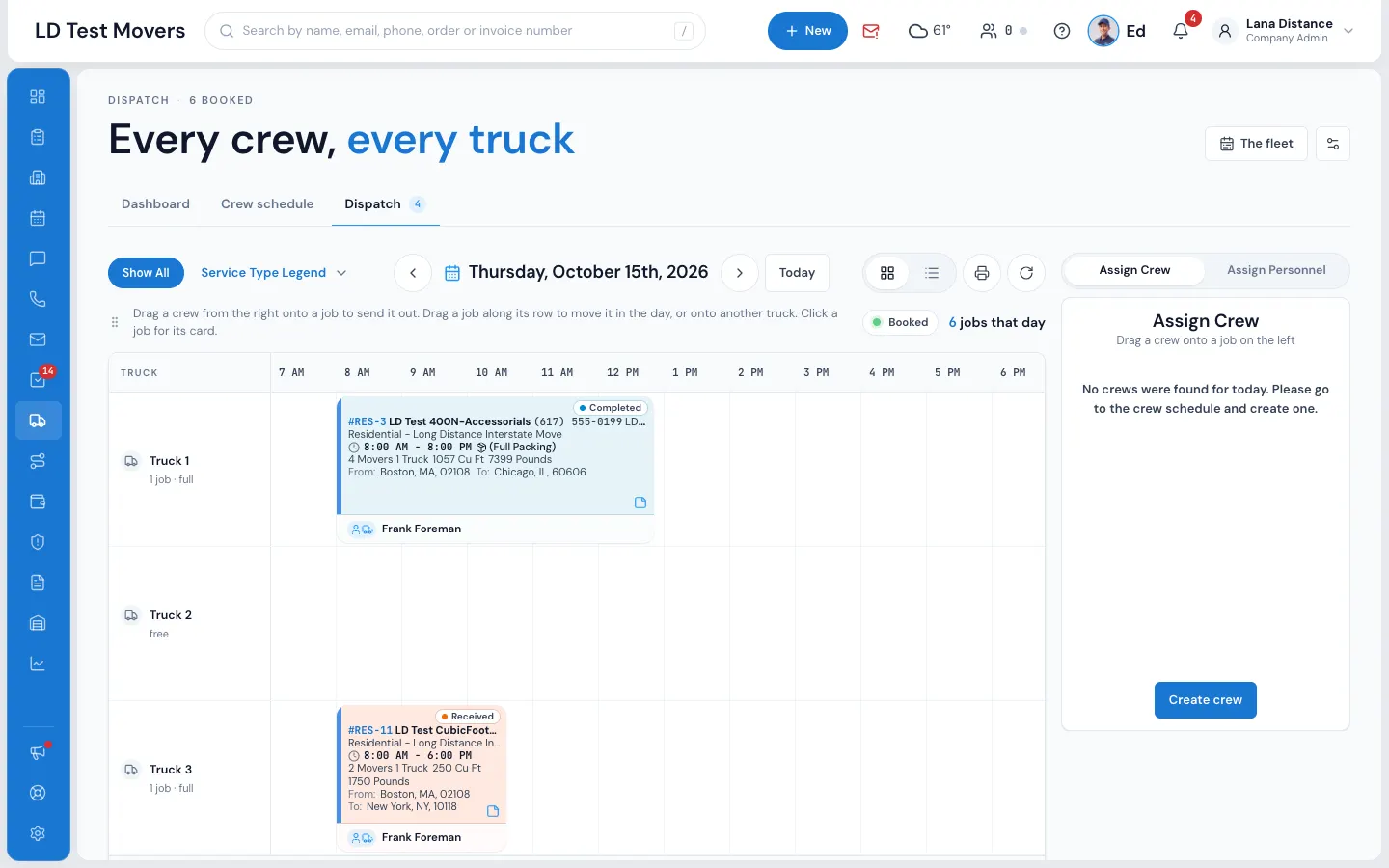
The job lands where you dropped it straight away while MoveBoard saves. If the save is refused, it goes back with the reason.
What the new window looks like
The start is where you let go. The end comes from your company's arrival windows (Settings › Sales & orders › Arrival windows): the window that starts at that time, or else the one starting nearest to it. Dropped at 3 PM with a 3–7 PM window set up, the job reads 3:00 PM – 7:00 PM. With no windows set up, it's four hours long.
To type an exact window instead, open the job's card (on Job Assignments) and press Start window: set when the window starts and ends. The trucks on the job are checked against the new time.
Take a job off a truck
On the Job Assignments tab, drag a placed job onto TBD / Unassigned jobs to take it off the truck it was on. See Job assignments and the Unassigned truck.
Move it to another day
- Double-click the job to open the order.
- Change Move Date in Move Details, and press SAVE.
See Schedule date and truck for the details, including what happens to trucks already held.
Tell the customer
Moving a job doesn't text the customer by itself. On the Job Assignments tab, the envelope on the job's card (and Send to all customers) sends the new arrival window — see Arrival windows.
If something goes wrong
- Sorry, the current truck is already scheduled for this time — another job on that truck overlaps the new time.
- Sorry, you don't have permission to change truck
- Sorry, you don't have permission to change start time
- This job is completed — reopen it to make changes.
- That could not be saved. — check the connection and try again.
Related guides
- Dispatch & schedulingThe Dispatch boardRead the day at a glance — trucks down the side, hours across, every booked job as a card you can select, open or move.
- Dispatch & schedulingOverlapping jobs on one truckBooked and reserved jobs never share a truck beyond your allowed overlap; quotes can pile up until one books, and then the others lose the truck.
- Dispatch & schedulingArrival windowsHow arrival windows work from booking to the day — the customer's requested time, the window you set, how the board sets one when you drag, and telling the customer.
- OrdersSchedule date and truckSet the move date and arrival window, and hold trucks for a day — from Move Details or the Schedule Date/Truck pop-up.
- OrdersThe truck schedule in the orderSee every truck for the move day with the jobs already on them, hold a truck for this order, and move between days.
Still stuck? A person will help.
Open a ticket from Support inside MoveBoard, or email us — we usually reply within one business day.