
Dispatch & scheduling
How an available truck is counted
Choose whether a truck counts as free by its open hours or as taken for the day by one job — it drives Trucks Available, the calendar bars and the board.
- 2 min read
- Checked against MoveBoard
- For owners & admins, dispatchers
"How many trucks are free that day?" MoveBoard answers it one way everywhere — in the order window's Trucks Available, the Calendar's day bars and the Dispatch board. You choose the rule.
Set the rule
- Go to Settings › Dispatch › Trucks.
- Find How we count an available truck.
- Under Count a truck as available, pick one: - By open hours — a truck can take several jobs a day. It counts as available when its open time fits the order's job. - One job per truck per day — a truck with any booked or reserved job that day is taken for the whole day.
- With By open hours, also set: - A truck's working day — how many hours, and from what time (the page shows when it ends); - Buffer between jobs — minutes kept free before and after each job; - Show the open time as green "free" blocks — on the truck schedule and the Dispatch board.
- Press Save.
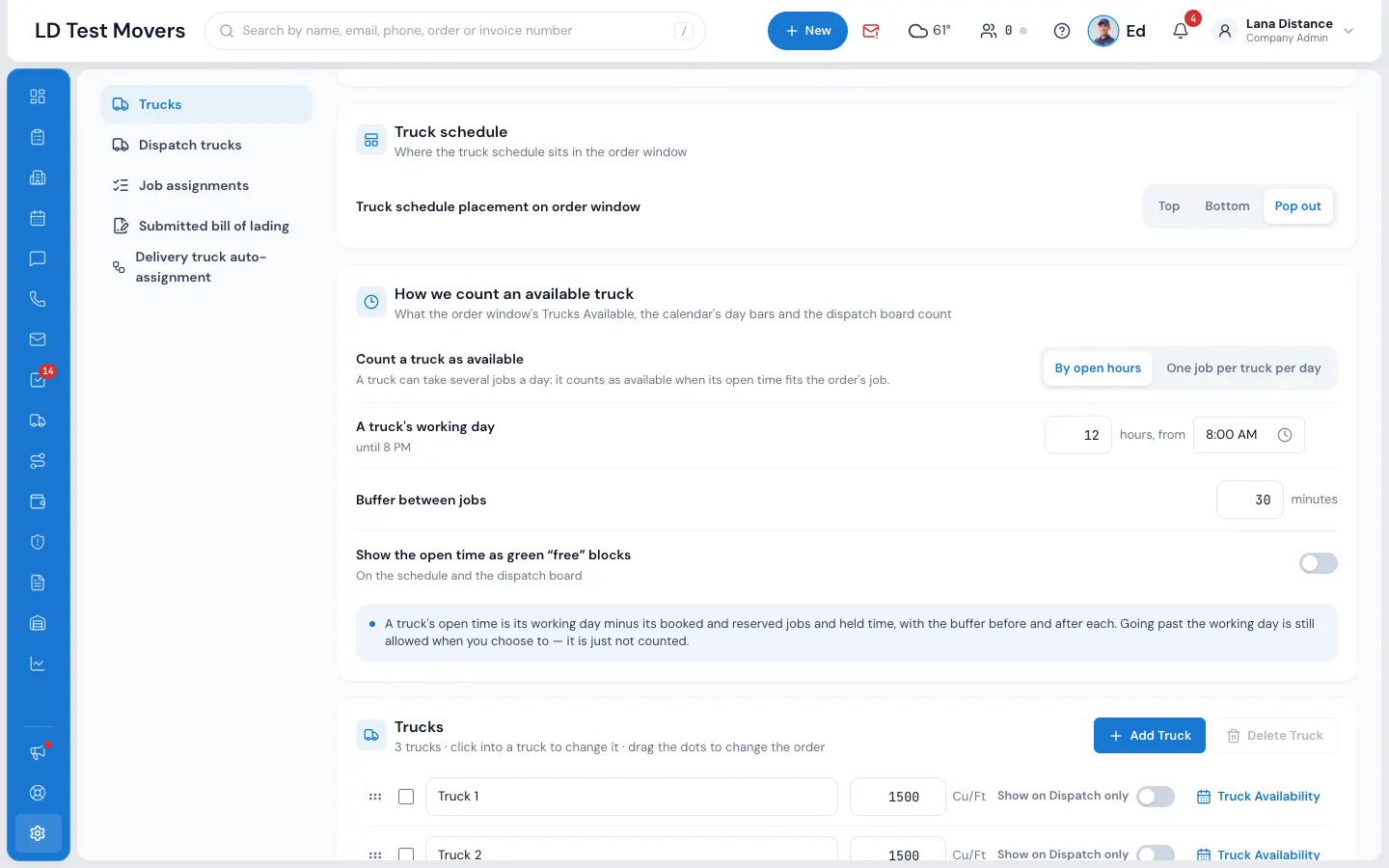
Never set, MoveBoard counts By open hours, with a working day from 8 AM to 8 PM and a 30-minute buffer.
How open time is worked out
A truck's open time is its working day minus its booked and reserved jobs and held time, with the buffer before and after each one. Example: a 12-hour day from 8 AM, a 30-minute buffer, and one job from 9 AM to 1 PM leaves the truck open from 1:30 PM to 8 PM — six and a half hours.
Going past the working day is still allowed when you choose to; it just isn't counted as open time.
Where you'll see it
- The order window — Trucks Available for the day.
- The Calendar — the bar under each day, such as 68% booked · 2 trucks free.
- The Dispatch board — under each truck's name, how much time is still open (for example 4 h 30 min open) or full; and, with green blocks on, the open stretches drawn on the row.
Related guides
- Dispatch & schedulingThe Dispatch boardRead the day at a glance — trucks down the side, hours across, every booked job as a card you can select, open or move.
- Dispatch & schedulingThe CalendarSee the month's orders by status, the trucks on the road each day, and your estimators' visits — then open a day, a week or an order from there.
- Dispatch & schedulingThe fleet calendarSee a month of the fleet — which trucks are working, which are off the road — and take a truck out of service for a day.
- OrdersThe truck schedule in the orderSee every truck for the move day with the jobs already on them, hold a truck for this order, and move between days.
Still stuck? A person will help.
Open a ticket from Support inside MoveBoard, or email us — we usually reply within one business day.