
Dispatch & scheduling
The Calendar
See the month's orders by status, the trucks on the road each day, and your estimators' visits — then open a day, a week or an order from there.
- 2 min read
- Checked against MoveBoard
- For sales, dispatchers, owners & admins
On this page
The Calendar shows your work by month, week or day. Open it from Calendar in the menu. It has three tabs: Orders, Services and Personal.
The toolbar
- TODAY — back to today.
- The branch — when your company has more than one.
- The arrows and the date — a month, week or day back or forward, or pick a date.
- MONTH, WEEK, DAY — how much to show.
- Refresh — read it again.
Orders, month
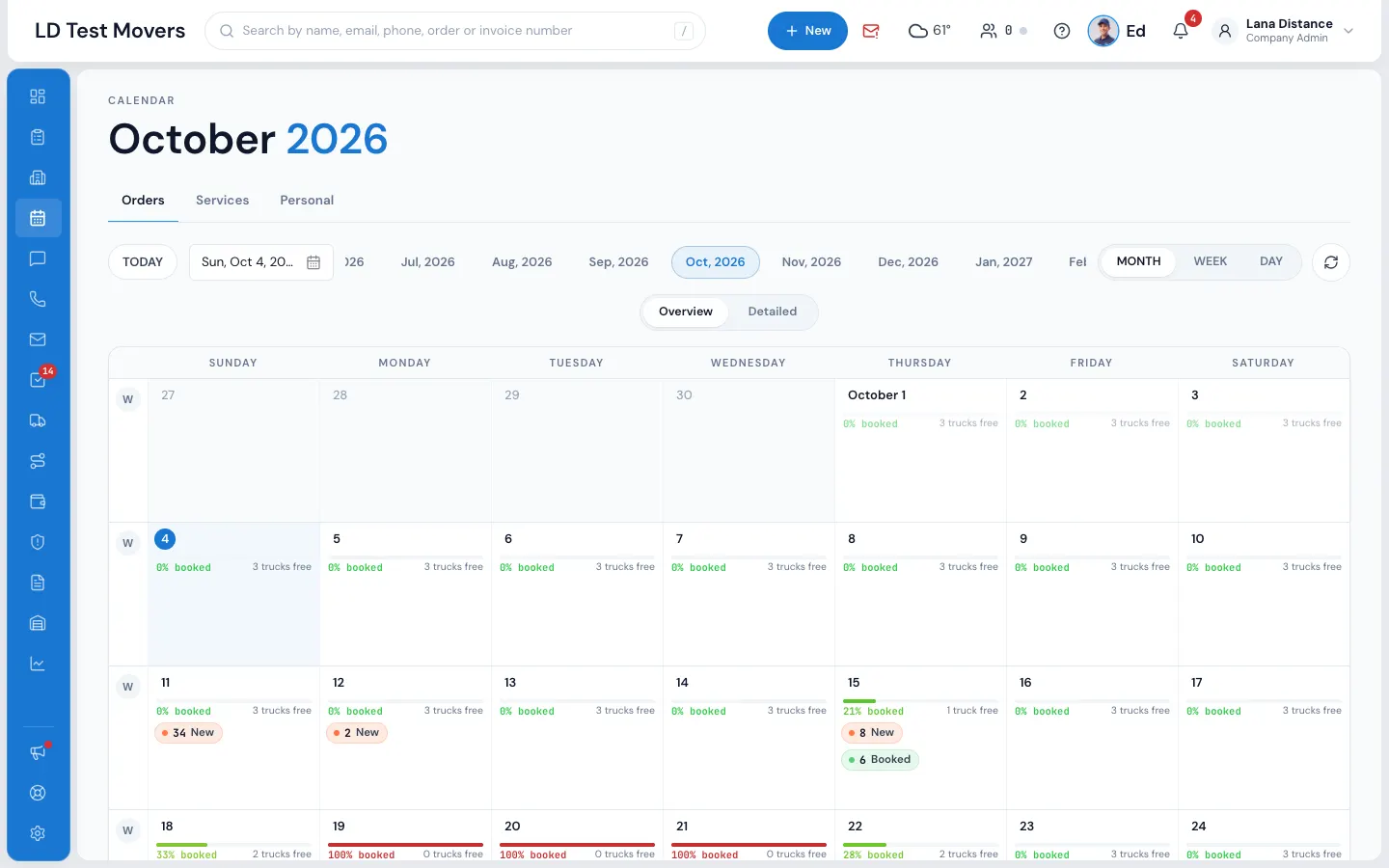
Pick Overview or Detailed under the toolbar.
- Overview — each day lists a chip per status, such as 6 Booked or 34 New. Press a chip to open that day's orders in that status.
- Detailed — each day shows count squares for Can Book Online, Reserved and Booked, then a thin line for each truck on the road with a bar per job at its time. Jobs that overlap on a truck pile up; booked and reserved jobs never pile. Jobs with no truck sit on a No truck line.
Under each day, a thin bar shows how full the fleet is — for example 68% booked · 2 trucks free (on a phone, just the %). It counts trucks the way Settings › Dispatch › Trucks says — see How an available truck is counted. Past days are faded.
- The day number opens Day View — that day's truck schedule, with every booked, reserved and Can Book Online job.
- The W at the start of a row opens that week.
- Pick a service in Service Type Legend to see only its jobs; Show All clears it.
Orders, week and day
The truck schedule across the page: a row per truck, the hours across, each job on the trucks it holds. Blocked time shows with the jobs (Held for a booked order, or Pencilled in until the order is booked) — it's set from the order window. Double-click a job to open its order.
Working on a list of orders
A chip's list of orders has tick boxes. Tick orders to Change status, Assign sales person, Add flag, Send mass email, Send mass text or Export them together — see Bulk actions.
Services
The Services tab shows in-home and virtual estimate visits.
- Month — each day lists its visits under the estimator doing them. A card with one visit opens that order; a card with several opens a list of them.
- Week and Day — a row per estimator, the hours across, a cell per visit.
Personal
Not offered yet — pressing it says This functionality is coming soon.
Who sees what
You need the Calendar permission to open it. The Orders tab needs its own permission to see the orders calendar. On the truck schedule, the customer's name shows only on orders you may see.
Related guides
- Dispatch & schedulingThe Dispatch boardRead the day at a glance — trucks down the side, hours across, every booked job as a card you can select, open or move.
- Dispatch & schedulingHow an available truck is countedChoose whether a truck counts as free by its open hours or as taken for the day by one job — it drives Trucks Available, the calendar bars and the board.
- Dispatch & schedulingHold a truck without an orderBlock a truck for a repair, a rental return or a load that leaves tomorrow — or hold extra time before or after a job — from the truck schedule.
- OrdersThe truck schedule in the orderSee every truck for the move day with the jobs already on them, hold a truck for this order, and move between days.
- Leads & salesAct on several orders at onceTick orders on the list, then change their status, assign them, email or text them, flag them or export them together.
Still stuck? A person will help.
Open a ticket from Support inside MoveBoard, or email us — we usually reply within one business day.