
Dispatch & scheduling
Crew cards on the Crew Schedule
Everything on a crew card — the foreman's spot, adding and removing spots, report time, trucks, the answer colours and the row menu.
- 4 min read
- Checked against MoveBoard
- For dispatchers, owners & admins
On this page
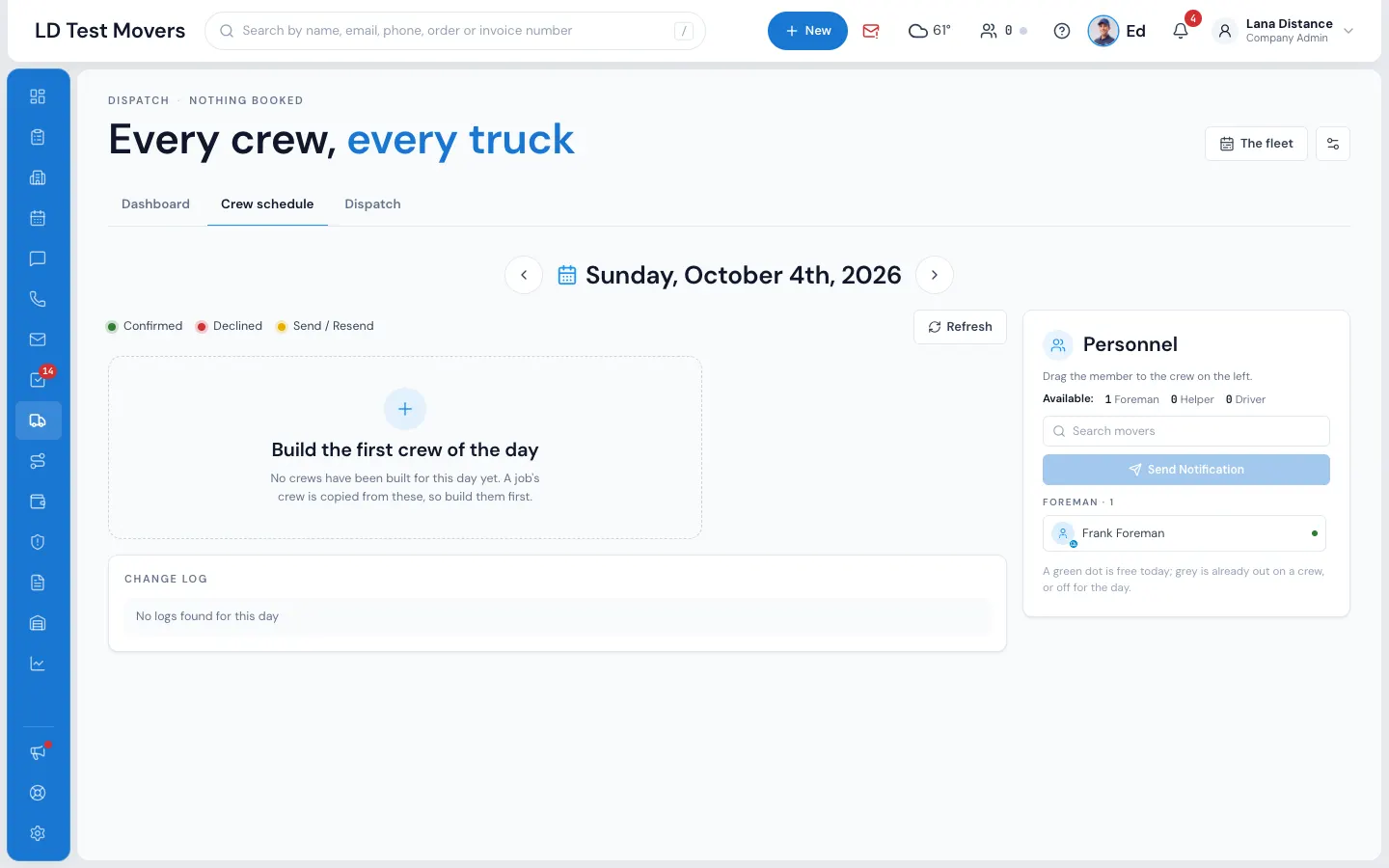
On Dispatch › Crew schedule, each crew of the day is a card. The board's jobs get their crews copied from these cards, so build them first. Changes on a card save as you make them; nobody is told anything until you press Send Notification.
The top of the card
- Crew 1, Crew 2… — numbered in the order of the day.
- Draft — nobody has been told about this crew yet.
- 2/3 — how many spots have a name, of the spots on the card.
- Crew rating 4.5★ — under the top: the crew's safety rating, the average of the stars of the people on it (see Safety stars below).
- The bin — takes the crew off the day. MoveBoard asks first: Take it off or Keep it. If the crew is on jobs, those jobs keep their own crews. If the people were already told, they're told the crew was cancelled.
The spots
- The first spot is always the foreman's. A crew may go out with nobody named there.
- Drag a person from Personnel onto a spot. Drag a named person to another spot or crew, or back to Personnel to take them off.
- Add a spot adds an empty spot. An empty spot after the foreman's has an × to take it away.
- Each name carries its icon — foreman, driver or helper.
- A person with time off that day shows a chip: Asked · Morning while waiting for an answer, Off · Whole day once approved. Answer a request right in Personnel with Approve or Decline.
Safety stars
Every name — on the crews, in Personnel and in the Assign Crew pop-ups — carries a safety rating from 1★ to 5★ (half stars; higher is safer). It comes from damage claims on the jobs the person worked over the last two years, with recent work counting more, against your company's own rate:
- No claims is 5★; exactly the company's rate is 3★; more claims, fewer stars (never under 1★). One claim on its own never drops someone below 2.5★.
- New — fewer than 5 completed jobs in two years, too few to tell.
- Hover the stars for the numbers, such as 1.2 claims per 100 jobs · 2 claims in 12 months · $310.00 paid · 84 jobs in 2 years.
- In Personnel, Safest first puts the most stars at the top of each group (New last); By name goes back to name order. Your choice is remembered on this computer.
Anyone who can see Dispatch sees the stars and the numbers. Which claims they were stays on the Claims tab of the person and in Reports › Crew Claims Score, for people with the Claims permission — both show the same stars.
The answer colours
Once the crew is sent, each name is coloured by the person's answer from their phone, live, without reloading:
- Confirmed (green, with a ✓ before the name)
- Declined (red)
- Send / Resend (yellow) — sent, no answer yet
The row menu (⋮)
Press ⋮ on a named spot for Confirm, Decline, Resend or Remove. Use Confirm or Decline when the person answered you by phone; Resend sends their text again.
Report at and trucks
- Report at — when the crew should show up. Changing it on a crew that was already sent asks Do you want to send a time change notification to crew members ? — Yes, proceed texts everyone on the crew the new time.
- Truck — one row per truck; Add truck adds another. A truck already on another crew today is shown greyed with where it is, such as on Crew 3 — you can still pick it. A truck can't be picked twice on the same card.
- Running — the jobs this crew's trucks are on today.
On a phone
Each spot is a list to pick from, with ⋮ next to it. Send Notification and the round + (new crew) sit in a bar at the foot of the screen.
Under the cards
Change Log lists every crew change and every text or email sent for the day, newest first. Refresh reads the day's crews again.
Related guides
- Dispatch & schedulingAssign trucks and crewBuild the day's crews on the Crew Schedule, then put a crew on each job — by dragging it onto the board or picking people in Assign Personnel.
- Dispatch & schedulingTexts the crew getsWhich texts or emails your movers get when you build crews, put them on jobs, take them off, change the report time or cancel a job — and how to change the words.
- Mover's PortalConfirm or decline a scheduleWhen the office puts you on a crew, answer from your phone — CONFIRM (or DECLINE, if your company allows it) — and the office sees it right away.
- Mover's PortalAsk for time offAsk the office for a day, a morning, an afternoon or certain hours off from the Tracker — and change or withdraw it while it's waiting.
Still stuck? A person will help.
Open a ticket from Support inside MoveBoard, or email us — we usually reply within one business day.