
Dispatch & scheduling
The Dispatch board
Read the day at a glance — trucks down the side, hours across, every booked job as a card you can select, open or move.
- 4 min read
- Checked against MoveBoard
- For dispatchers, owners & admins
On this page
The Dispatch tab is the board: one row per truck, the hours of the day across, and every booked job as a card laid over the hours it runs. Open it from Dispatch in the menu.
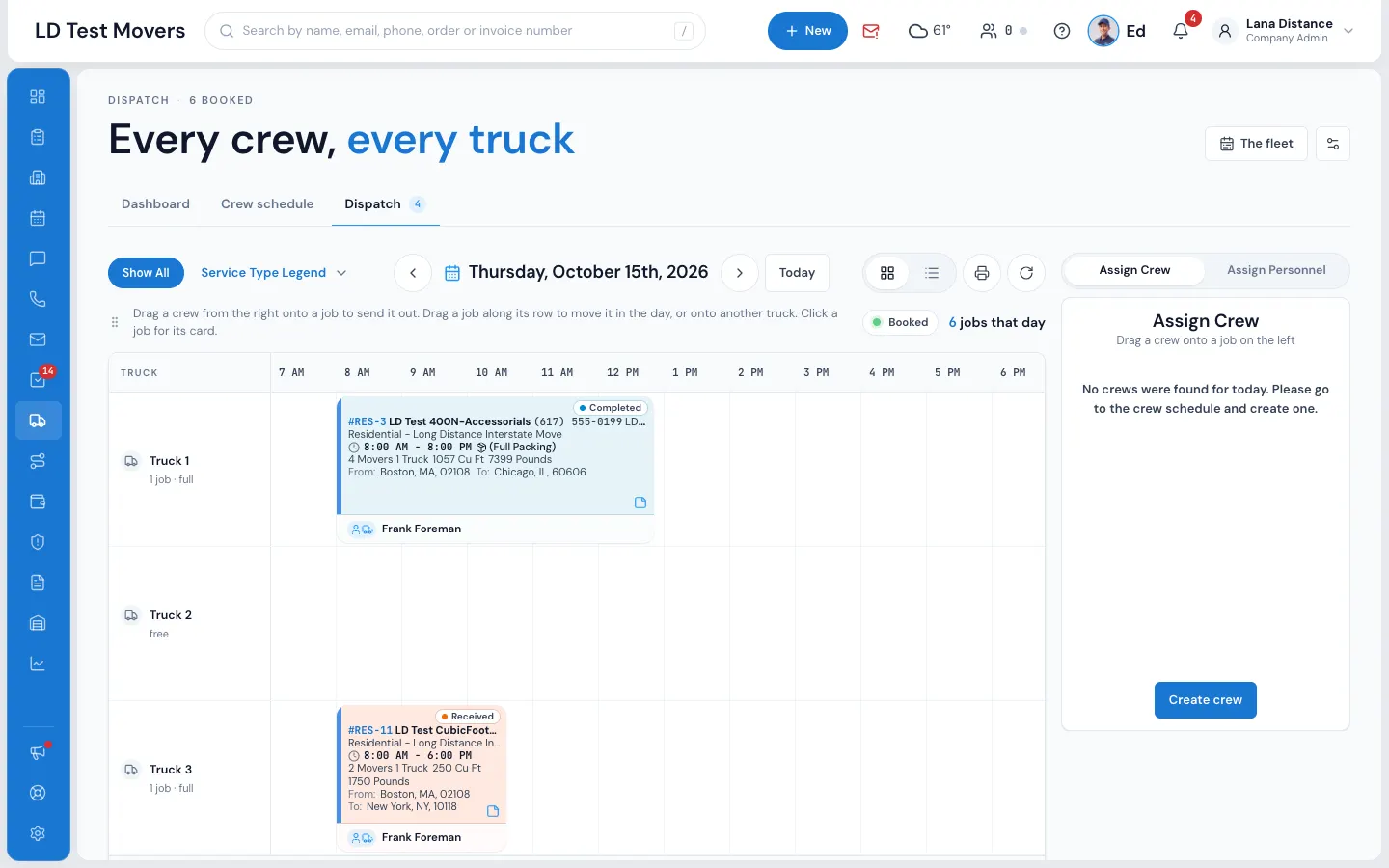
The toolbar
- Show All and Service Type Legend — pick a service from the legend to see only its jobs; Show All brings back every job.
- The date — the arrows go a day back or forward, and the date opens a calendar. A dot under a day means it has work on it. Today takes you back to today.
- Grid and List — the grid is the board; the list is one row per job (order number, status, start time, move type, customer, location, size, crew, trucks and foreman).
- Print — see Print the day.
- Reload — reads the day again.
Next to the drag tips you'll see Booked and how many jobs the day has.
The truck rows
Each row is a truck from Settings › Dispatch › Trucks. Under the truck's name you see its crew and report time, or how many jobs it has. If your company counts trucks By open hours, it also says how much time is still open, or full — see How an available truck is counted. A truck with nothing on it says free. Blocked time and time held for an order show as dark bands on the row, with their reason — see Hold a truck without an order. Hours outside 7 AM–8 PM are shaded, and a red line marks the time now.
No trucks yet? The board says No trucks yet — add them in Settings › Dispatch.
Reading a job card
- The colour — Booked (green), Reserved (purple), Crew on it (orange) and Completed (blue). The legend under the board says so. The thin bar down the left edge is the service colour.
- Top line — the six-dot handle (top left) and the job's status, such as Assigned or En Route. Press the status to see the job tracker.
- The details — order number, customer and phone, move type and service, arrival window, packing, movers and trucks, cubic feet and pounds, move size, and From / To.
- The note icon — gold when there's a dispatch or foreman note. Press it to read them — see Dispatch and foreman notes on the board.
- The crew strip — at the bottom once a crew is on the job: the foreman's name. Hover or press it to see the rest of the crew, the truck and Bill of Lading — see Open the bill of lading from Dispatch.
A narrow card shows less; hover over it for a card with everything.
What a click does
- Click a card to select it. It gets a ring, and the panel on the right turns to Assign Personnel for that job.
- Double-click to open the order in its window.
- To move a job, drag it by the six-dot handle only — see Move a job to another day or truck.
On a touch screen, the small arrow at the top right of a card opens the order.
Hold a job's truck and crew longer on the board
If you have Expand job time on dispatch, you can make a job take more (or less) room on the board without changing the order:
- Point at the right edge of the job's card — it shows a small grip.
- Drag it right to hold the truck and crew longer, or left for shorter. It moves in half hours.
- Let go. The card shows held 6h (or however long), and the Order Log says who held it and for how long.
The longer block counts everywhere the schedule is checked: the truck's open time, double-booked trucks and crew, truck availability and the Calendar. It never changes the quoted or estimated hours, the labor, the price, the quote, the contract, the bill, the crew's clock or payroll.
To go back, press ↺ on the held mark — the card returns to the estimate. Without the permission there is no grip and no ↺; you still see the held mark.
Under the board
- TBD / unassigned jobs — jobs still waiting for a truck. Drag one onto a truck row at the hour it should start.
- Dispatch Notes — a note for the whole day. See Dispatch and foreman notes on the board.
Related guides
- Dispatch & schedulingAssign trucks and crewBuild the day's crews on the Crew Schedule, then put a crew on each job — by dragging it onto the board or picking people in Assign Personnel.
- Dispatch & schedulingMove a job to another time, truck or dayDrag a job along its row to change its start, onto another row to change its truck, or change the move date in the order to move it to another day.
- Dispatch & schedulingThe Dispatch DashboardThe day in numbers — jobs by status, who is running late, crews and trucks out, the crews' answers and, if you may see it, the money.
- Dispatch & schedulingOpen Dispatch on the tab you wantUse the gear to choose whether Dispatch opens on the Dashboard, Job Assignments, Crew Schedule or the board — on every computer and phone you use.
- Dispatch & schedulingPrint the dayPrint the day's jobs, crews and trucks on one sheet, sorted by truck for the yard or by move time for the office.
Still stuck? A person will help.
Open a ticket from Support inside MoveBoard, or email us — we usually reply within one business day.