
Dispatch & scheduling
The Dispatch Dashboard
The day in numbers — jobs by status, who is running late, crews and trucks out, the crews' answers and, if you may see it, the money.
- 3 min read
- Checked against MoveBoard
- For dispatchers, owners & admins
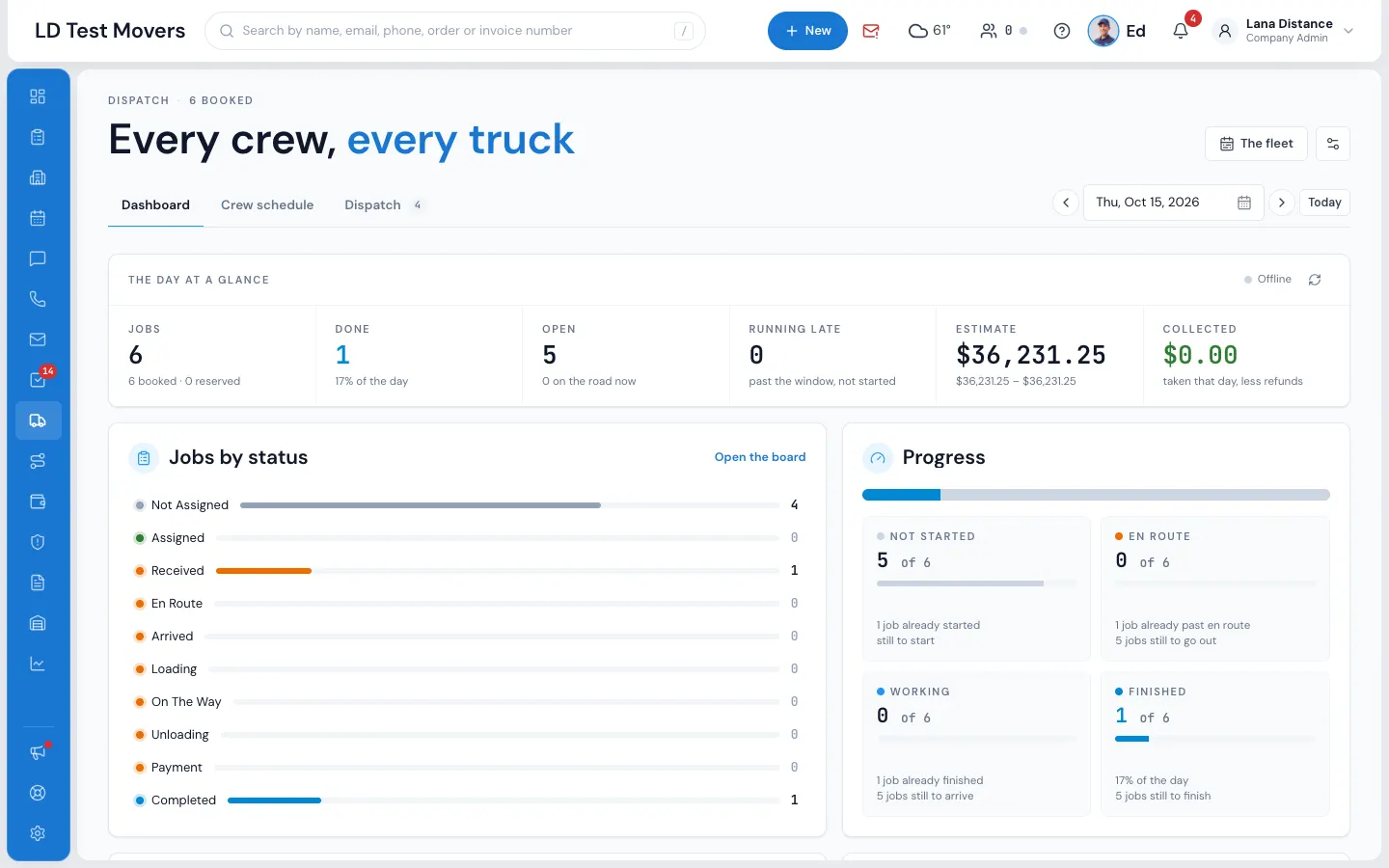
The Dashboard tab shows the whole day on one screen. It updates by itself the moment a crew moves a job along or the office changes something — the word Live at the top says it's connected. If it says Offline, it reconnects and reads the figures again on its own.
Open it
- Open Dispatch from the menu.
- Press Dashboard on the tab line.
- To see another day, use the small date at the right end of the tab line.
To land on the Dashboard every time, use the gear — see Open Dispatch on the tab you want.
The counts across the top
| Count | What it means |
|---|---|
| Jobs | Every job of the day, with how many are booked and reserved. Press it to open the board. |
| Done | Jobs completed, and what share of the day that is. |
| Open | Jobs not done yet, and how many are on the road now. |
| Running late | Past the end of the arrival window and not started yet. |
| Estimate and Collected | Only for people who may see the money (below). |
The cards
- Jobs by status — one bar per job status, from Not Assigned to Completed. Open the board goes to the Dispatch tab.
- Progress — every job as Not started, En route, Working or Finished, each with "of how many", what is already behind it and what is still ahead. When jobs are late, a red line says how many are past the arrival window and not started.
- Crews & trucks — Crews out (and how many are still drafts), Movers working, Trucks out of your fleet and how many are free, and Not dispatched (no crew, no truck). Under it, the gaps (Jobs with no crew, Jobs with no truck) and The crew's answers: Confirmed, Declined, Sent, no answer yet and Not told yet. Crew schedule opens the Crew Schedule tab.
- The day's work — the mix of local moves, long distance, moving & storage, packing days, loading or unloading help, and how many jobs include packing.
- Money — the day's Estimate, Collected (payments less refunds), Balance still due, Deposits on file, Tips, and Collected by method (cash, card, check and other).
When is a job late?
A job is running late once the end of its arrival window has passed and the crew hasn't gone en route, started working or finished. A job with no arrival time yet is never late. On a day that's already over, every job that never started counts as late; a day still ahead has none.
Who sees the money
The Estimate, Collected and Money cards show only to administrators and to people given the See dispatch money figures permission (on the person's Permissions tab). Everyone else who can open Dispatch sees the rest of the Dashboard.
Related guides
- Dispatch & schedulingOpen Dispatch on the tab you wantUse the gear to choose whether Dispatch opens on the Dashboard, Job Assignments, Crew Schedule or the board — on every computer and phone you use.
- Dispatch & schedulingThe Dispatch boardRead the day at a glance — trucks down the side, hours across, every booked job as a card you can select, open or move.
- Dispatch & schedulingAssign trucks and crewBuild the day's crews on the Crew Schedule, then put a crew on each job — by dragging it onto the board or picking people in Assign Personnel.
- OrdersJob trackerFollow the crew's day on the order — en route, arrived, loading, unloading, done — against the time you sold.
Still stuck? A person will help.
Open a ticket from Support inside MoveBoard, or email us — we usually reply within one business day.