
Dispatch & scheduling
The fleet calendar
See a month of the fleet — which trucks are working, which are off the road — and take a truck out of service for a day.
- 2 min read
- Checked against MoveBoard
- For dispatchers, owners & admins
The fleet shows one month: a row per truck, a column per day. At a glance you see which trucks are working and which are off the road.
Open it
- Open Dispatch.
- Press The fleet at the top right.
Use the arrows to go a month back or forward, This month to come back, and The board to return to Dispatch.
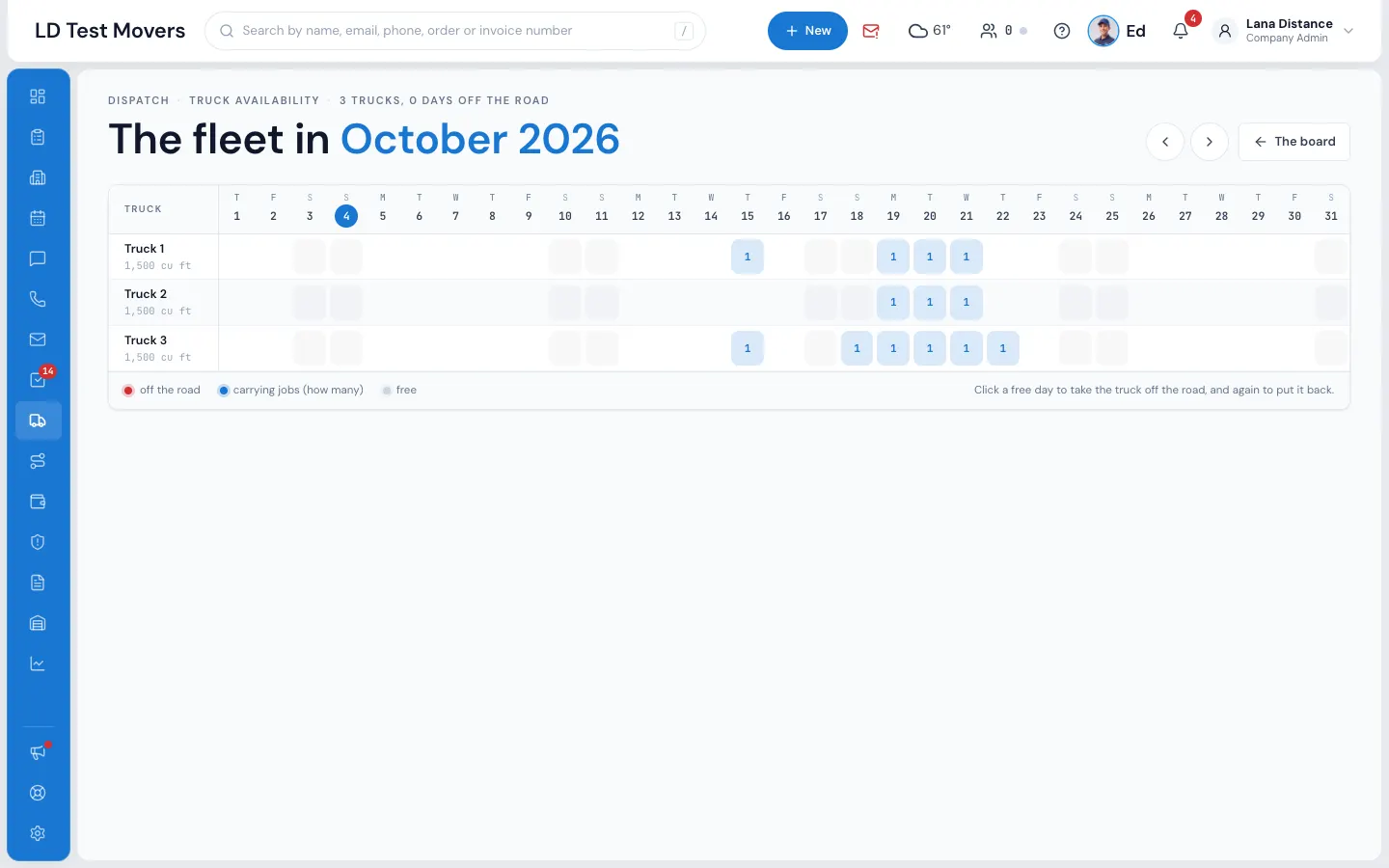
Reading it
- Under each truck's name: its size in cubic feet (or placeholder for a truck with no size, such as the Unassigned truck).
- A green cell with a number — the truck is carrying that many jobs that day. Point at it to see which orders.
- A red × — off the road that day.
- An empty cell — free.
- Today's date is circled at the top, and weekends are shaded.
The header says how many trucks you have and how many truck-days are off the road this month.
Take a truck off the road
- Click a free day on the truck's row. It turns red at once.
- Click it again to put the truck back.
A truck that's off the road can't be put on a job that day — MoveBoard refuses with One or more of the selected trucks are not available on ….
You can't take a truck off the road on a day it's already carrying a job: MoveBoard says That truck is on … that day. Move the job first.
If something goes wrong
- That truck is on … that day. Move the job first.
- That could not be saved. — the cell goes back; check the connection and try again.
Related guides
- Dispatch & schedulingThe Dispatch boardRead the day at a glance — trucks down the side, hours across, every booked job as a card you can select, open or move.
- Dispatch & schedulingHold a truck without an orderBlock a truck for a repair, a rental return or a load that leaves tomorrow — or hold extra time before or after a job — from the truck schedule.
- Dispatch & schedulingHow an available truck is countedChoose whether a truck counts as free by its open hours or as taken for the day by one job — it drives Trucks Available, the calendar bars and the board.
- Dispatch & schedulingOverlapping jobs on one truckBooked and reserved jobs never share a truck beyond your allowed overlap; quotes can pile up until one books, and then the others lose the truck.
Still stuck? A person will help.
Open a ticket from Support inside MoveBoard, or email us — we usually reply within one business day.