
Dispatch & scheduling
Assign trucks and crew
Build the day's crews on the Crew Schedule, then put a crew on each job — by dragging it onto the board or picking people in Assign Personnel.
- 3 min read
- Checked against MoveBoard
- For dispatchers, owners & admins
On this page
Putting people on a job takes two steps: build the day's crews on the Crew Schedule, then give each job a crew on the Dispatch board.
Before you start
- You need access to Dispatch. Choosing which truck goes out also needs the dispatch permission to change the truck; without it you can still put a crew on a job with the trucks the crew already has.
- A Reserved job can't be given a crew until it is booked.
1. Build the day's crews
- Open Dispatch and press Crew schedule.
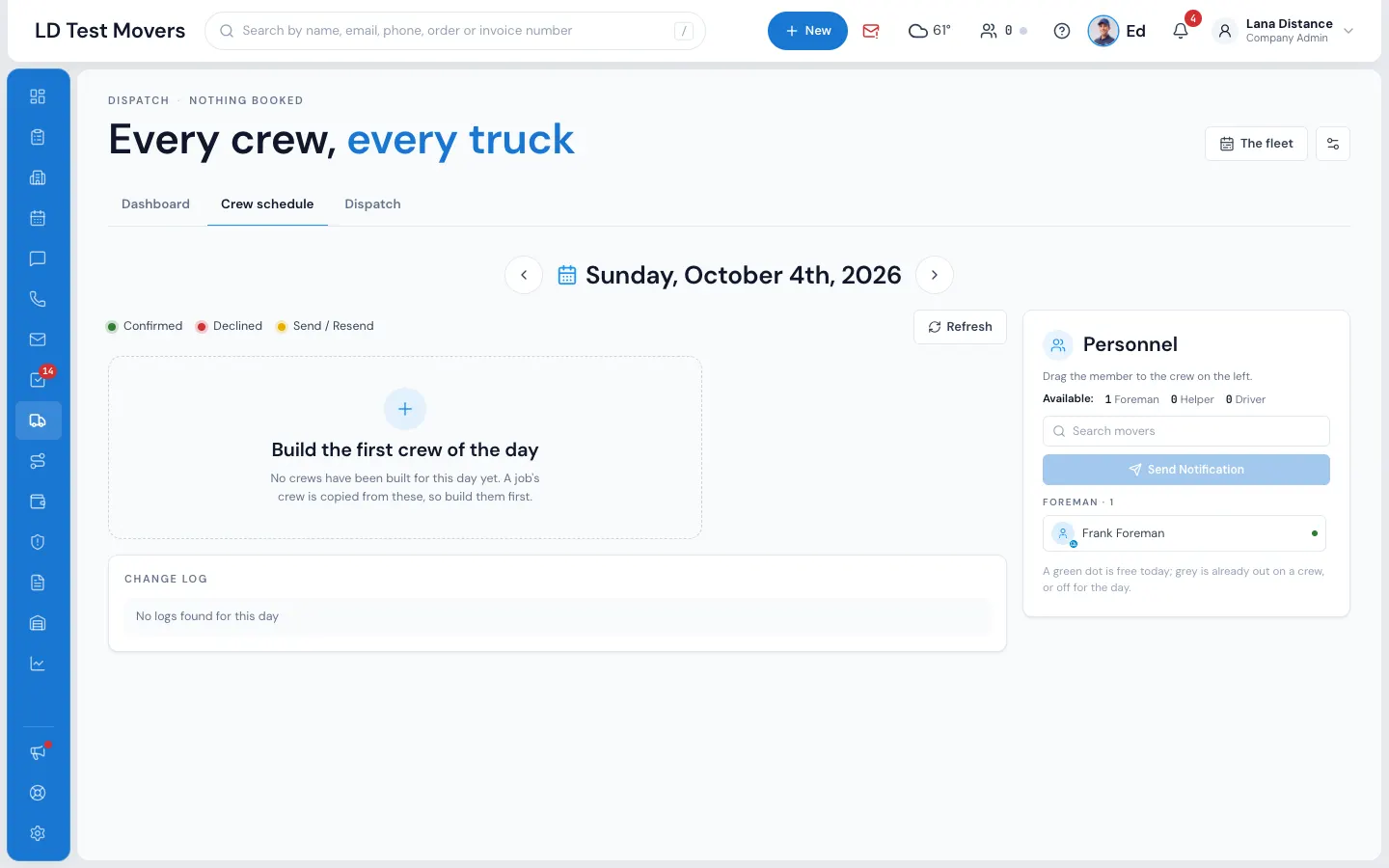
- Press Create New Crew (or Build the first crew of the day). A crew starts as a Draft with three spots — the first is the foreman's.
- Drag people from Personnel on the right onto the spots. A green dot means free today; grey means already on a crew or off for the day.
- Set Report at and pick the Truck (press Add truck for a second or third).
- Press Send Notification. The crews are saved and everyone not told yet gets their text — see Texts the crew gets.
More on the cards: Crew cards.
2a. Drag a crew onto a job
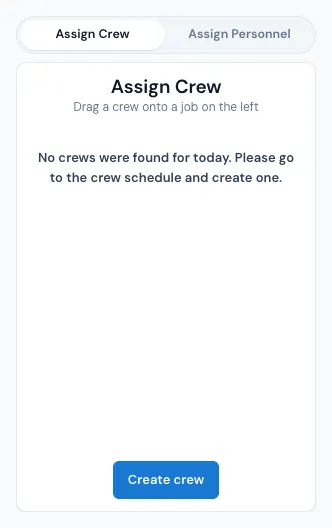
- Go back to the Dispatch tab. Assign Crew on the right lists the day's crews, with their trucks, Report At and the orders they already run.
- Drag a crew onto a job card on the board.
The job turns orange (Crew on it), its status becomes Assigned, and the new people get their assignment text. If there are more than three crews, use the search box to find one by number, person or truck.
2b. Pick people for one job
- Click the job card. The panel turns to Assign Personnel.
- Pick a Crew template, or fill the spots one by one: Foreman, then Driver or Helper. Names already out today say so.
- Pick the Truck. Use ⊕ and ⊖ under the spots to add or remove a spot, and ⊕ next to the crew tabs to add Crew 2.
- Press Assign crew (or Save crew when it already has one).
Crew: 2/3 shows how many spots are filled. Unassign crew takes everyone off; the job goes back to Not Assigned.
The first person named is the job's foreman — the one whose phone runs the job.
A long-distance job whose Delivery by is Local crew has two tabs, Pickup Crews and Delivery Crews: one crew for each end. When Delivery by is Trip Planner, there are no tabs — you assign only the pickup crew here, and the trip handles the delivery crew. When Pickup by is Trip Planner, the job is not on the board at all: the long-distance truck picks it up on its trip, and MoveBoard refuses a local crew or truck on it.
If something goes wrong
- Your job is in a reserved status. You cannot assign a crew until your job has been booked.
- Please select foreman / Please fill one of the fields — the first crew needs a foreman and at least one person.
- Please select truck / Please select the correct number of trucks for this order. — when your company dispatches trucks, the crew must have as many trucks as the quote.
- No crews were found for today. Please go to the crew schedule and create one. (on another day it names that day, for example "No crews were found for Tuesday, Oct 6.")
- That crew is already on this job.
- You do not have permission to change the truck on dispatch.
- This job is completed — reopen it to make changes.
MoveBoard also asks before going ahead when the job is already completed, when the crew is busy on another job at the same time, or when the job already has a crew (to add a second one). See Warnings: double-booked people and trucks.
Related guides
- Dispatch & schedulingCrew cards on the Crew ScheduleEverything on a crew card — the foreman's spot, adding and removing spots, report time, trucks, the answer colours and the row menu.
- Dispatch & schedulingTexts the crew getsWhich texts or emails your movers get when you build crews, put them on jobs, take them off, change the report time or cancel a job — and how to change the words.
- Dispatch & schedulingWarnings: double-booked people and trucksWhen a person, crew or truck is already busy, MoveBoard warns you and lets you decide — only a booked truck clash is a hard stop.
- Dispatch & schedulingThe Dispatch boardRead the day at a glance — trucks down the side, hours across, every booked job as a card you can select, open or move.
- Dispatch & schedulingJob assignments and the Unassigned truckUse the Job Assignments tab to put TBD and Unassigned jobs on real trucks, set the end of each window, and tell customers their arrival time.
Still stuck? A person will help.
Open a ticket from Support inside MoveBoard, or email us — we usually reply within one business day.