
Dispatch & scheduling
Dispatch and foreman notes on the board
Read an order's dispatch and foreman notes straight from its job card, and keep a note for the whole day under the board.
- 2 min read
- Checked against MoveBoard
- For dispatchers, owners & admins
Two kinds of notes reach the Dispatch board: the notes on each order meant for dispatch or the foreman, and Dispatch Notes for the whole day.
An order's notes, from its card
- Find the job on the board. The small note icon sits at the bottom right of the card (just above the crew strip). It's gold when the order has a dispatch or foreman note.
- Press it. A pop-up opens beside the card with two lists: Dispatch Note and Foreman Note. An empty list says Dispatch note is empty or Foreman note is empty.
- Press anywhere else to close it.
Pressing the icon doesn't select or open the job. The same two lists are on the job's card on the Job Assignments tab.
Only notes ticked for Dispatch or Foreman show here — a note just for sales stays in the order window. To write or change these notes, open the order and use its conversation — see Notes on an order. The pop-up updates as soon as a note is written.
The foreman sees the Foreman notes on the phone — see Notes from the office.
Dispatch Notes for the day
Under the board, Dispatch Notes keeps notes about the whole day — "Truck 4 at the shop until noon", "Two helpers on loan from Branch B".
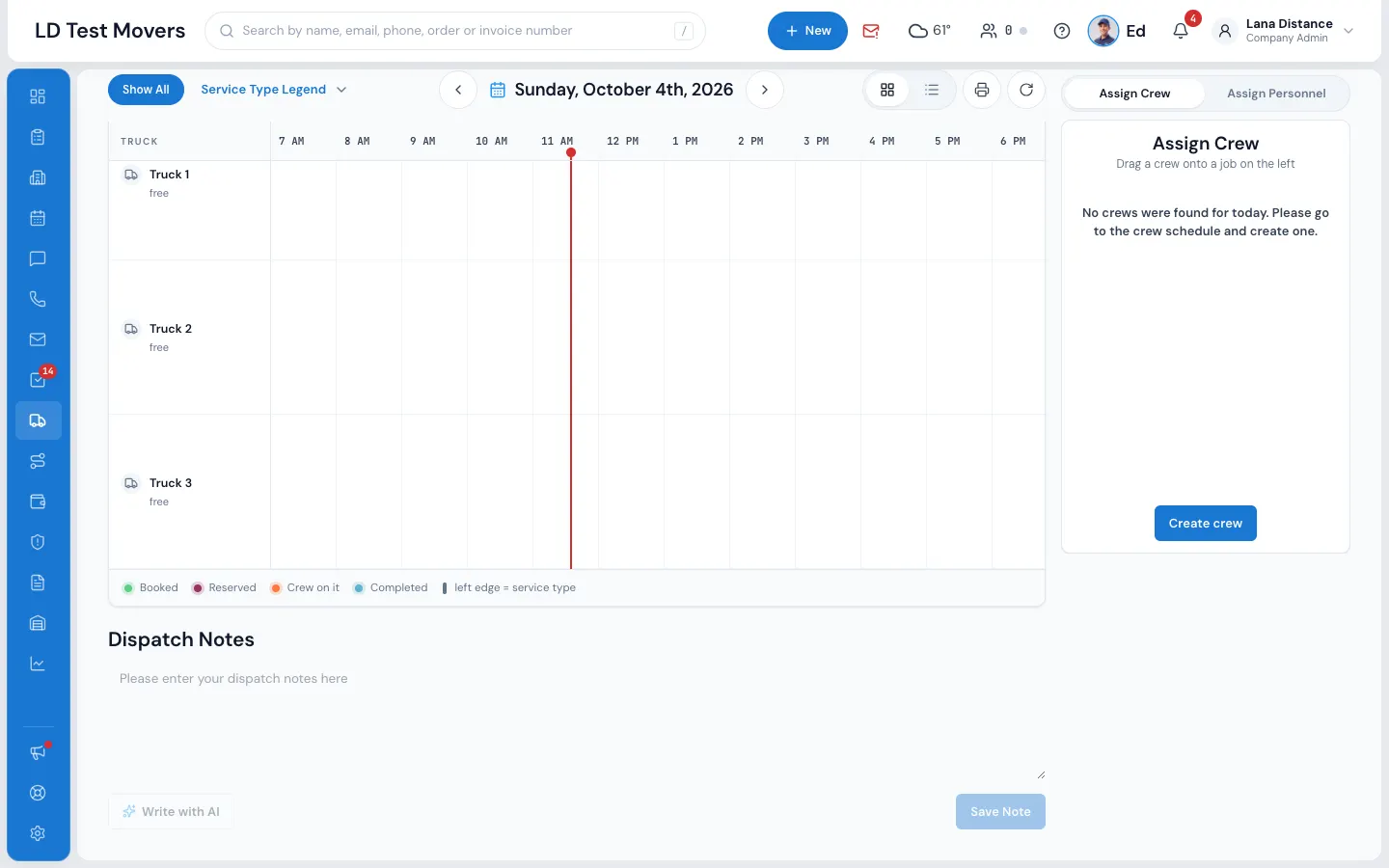
- Type in Please enter your dispatch notes here.
- To tidy the words, press Write with AI and pick Make it more professional, Make it friendlier, Make it more formal, Make it shorter, Make it longer or Fix spelling and grammar. The new words land in the box for you to read and change.
- Press Save Note.
The day's notes are listed newest first, each with the date, time and who wrote it. Press a note to change it, or to delete it.
Day notes belong to the day you're looking at: change the date and you see that day's notes.
If something goes wrong
- The notes could not be loaded.
- Can't save note / Can't update note / Can't delete dispatch note
- The AI could not write that just now.
Related guides
- OrdersNotes on an orderLeave a note for sales, dispatch, the foreman or the customer — and who may edit or delete notes.
- Dispatch & schedulingThe Dispatch boardRead the day at a glance — trucks down the side, hours across, every booked job as a card you can select, open or move.
- Mover's PortalNotes from the office and foreman notesRead the notes the office left for the crew, and write your own foreman notes on the job — the office sees them on the board.
Still stuck? A person will help.
Open a ticket from Support inside MoveBoard, or email us — we usually reply within one business day.