
Getting started
Sign in to MoveBoard
Sign in with your company ID, email and password, set your password from an invitation, and what to do when MoveBoard signs you out.
- 3 min read
- Checked against MoveBoard
- For owners & admins, sales, dispatchers
On this page
The office signs in at the MoveBoard sign-in page with three things: your company ID, your email (or username) and your password.
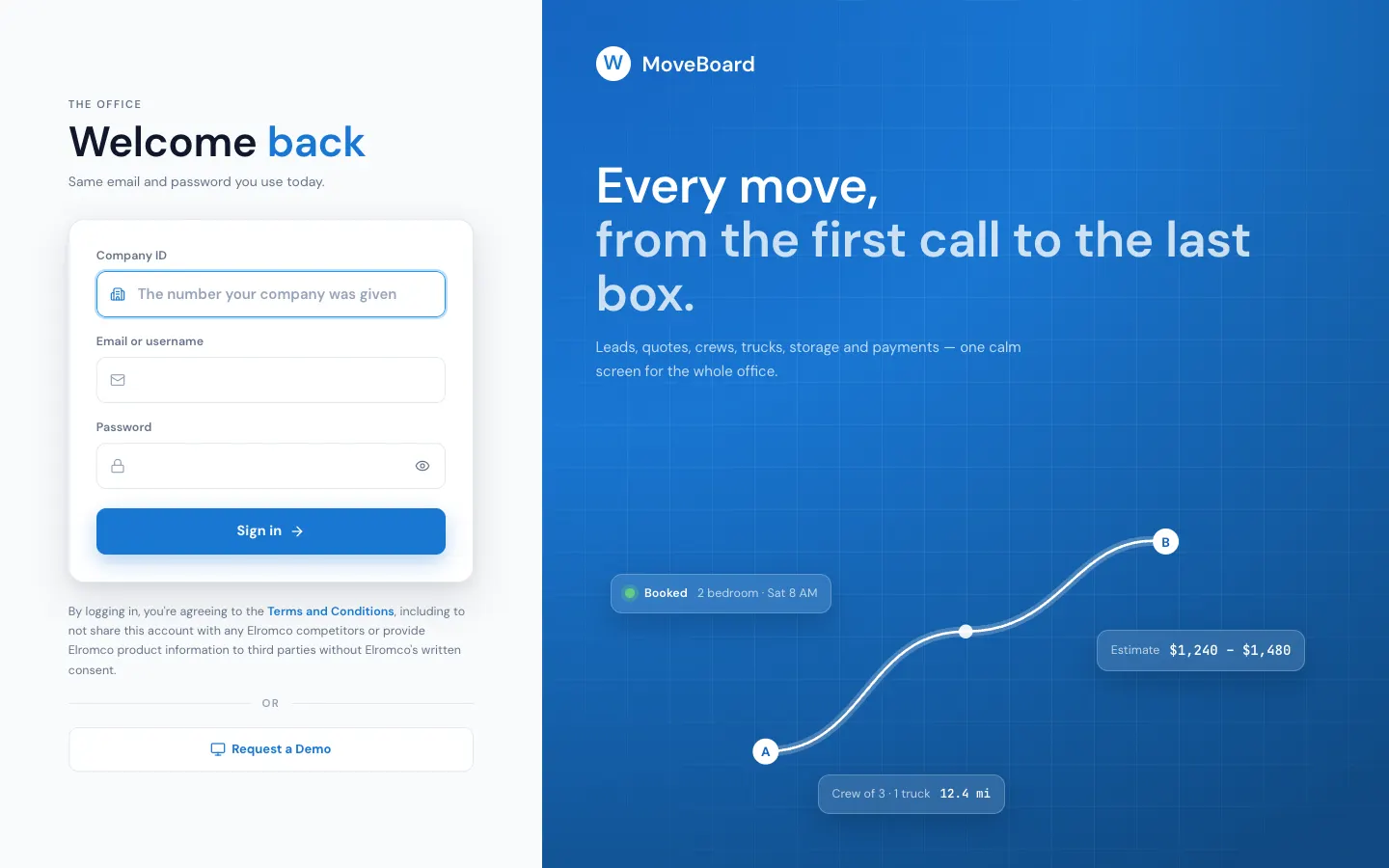
Sign in
- Open the sign-in page.
- Type your Company ID — the number your company was given. MoveBoard remembers it on this computer after your first good sign-in, and shows Signing in to with your company's name. To use another company, press the pencil next to it.
- Type your Email or username and your password.
- Press Sign in.
MoveBoard opens your dashboard. If you only work as a foreman or mover, it takes you straight to the Mover's Portal instead.
Your first password
You never pick a password on the sign-in page. It comes from a link:
- A new company's owner gets an invitation email. The link opens Welcome aboard: type a password twice and press Set my password, then Sign in.
- Everyone else gets a link from their office (an admin presses Send a link to set the password on your user). It opens Your password: type it twice, press Set my password, then Sign in.
A password needs at least 4 characters. A link from your office works once and runs out after 48 hours; a newer link replaces an older one.
One computer at a time
Depending on your plan, MoveBoard may allow you to be signed in on only one computer at a time, and your company may have a limit on how many people are signed in at once.
- Signed in somewhere else? You see Active Session. Press Continue to sign out the other computer and sign in here, or Cancel to stop.
- Company limit reached? You see "You have reached the maximum number of concurrent sessions." Press Close — someone else needs to log out first.
When MoveBoard signs you out
After a long time without use, or when you sign in on another computer, a card opens over the page:
- Your session timed out — for your security.
- You were signed out — you signed in on another computer.
Type your password and press Sign in. You pick up right where you left off: your open order windows and anything you typed stay on the screen. Not you? Press Use another account to go to the full sign-in page.
Log out yourself from the menu under your name: Log out.
If something goes wrong
| What you see | What it means |
|---|---|
| Wrong company ID, email or password. | One of the three is wrong. Check the company ID first. |
| Enter your company ID: the number your company was given. | The company ID is empty or isn't a number. |
| Too many attempts. Please wait a while and try again. | Several wrong tries in a row. Wait, then try again. |
| No connection. Try again in a moment. | Your computer couldn't reach MoveBoard. |
| Company '…' (ID: …) was deactivated. | Your company's account is closed. Contact Elromco. |
| The two passwords do not match. | On a password link: type the same password twice. |
| This link has run out or was already used. Ask your office to send a new one. | The set-password link is older than 48 hours, used, or replaced. |
Related guides
- Getting startedYour first day in MoveBoardA ten-minute tour of the screens you'll use every day — the menu, the top bar, the dashboard and order windows.
- Getting startedWork in another branchPick which branches you're looking at from the top bar, and what changes from branch to branch.
- Getting startedMoveBoard on your phoneHow the office screens fit a phone — the menu behind the three-line button, the ⋮ menu, full-screen search and windows — and what is roomier on a computer.
Still stuck? A person will help.
Open a ticket from Support inside MoveBoard, or email us — we usually reply within one business day.