
Getting started
Order, storage, invoice and trip windows
Open several orders at once, put them away into the dock along the bottom, move them, and close them without losing unsaved work.
- 3 min read
- Checked against MoveBoard
- For owners & admins, sales, dispatchers
On this page
Orders open in windows on top of the page you're on, so you never lose your place. Storage customers, invoices and long-distance trips open in the same kind of window.
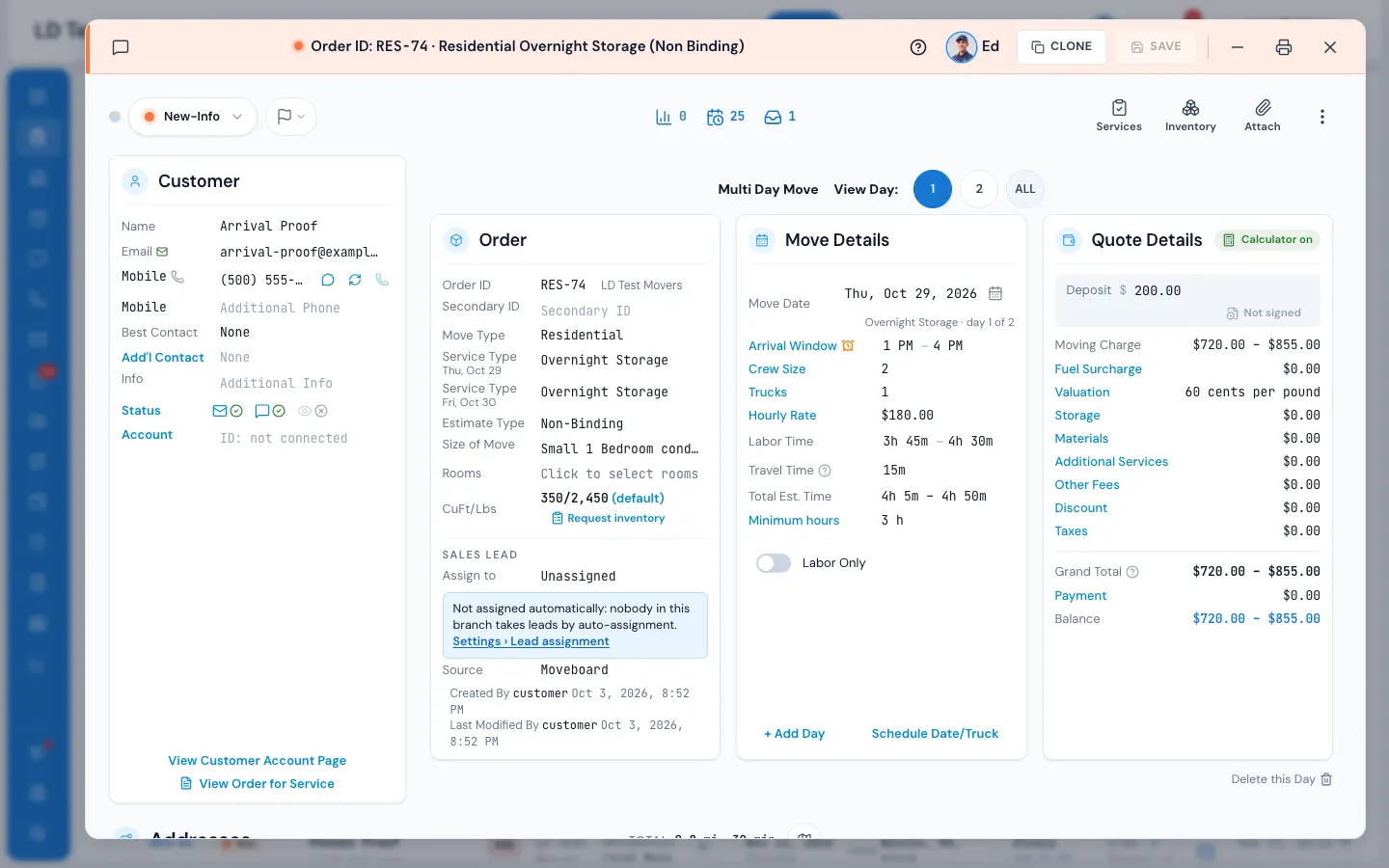
Open a window
- Double-click an order anywhere — the orders list, the dashboard, the calendar, dispatch, a search result. One click only highlights the row; the second opens it.
- On a touch screen, tap twice.
- With the keyboard, move to the order's link and press Enter.
Opening an order that's already open brings its window back to the front instead of opening a second copy.
Work with several at once
- Open as many as you like. Each one keeps its own unsaved changes.
- Press a window to bring it to the front.
- Go to another page from the menu — your windows come with you.
- Drag a window by its top bar to move it (on screens 960 pixels wide or more). It always keeps its top bar on screen.
Put a window away
Press Minimise (the – at the top right), or press Esc. The window goes into a chip in the dock along the bottom of the screen, with its order number in the order's status colour.
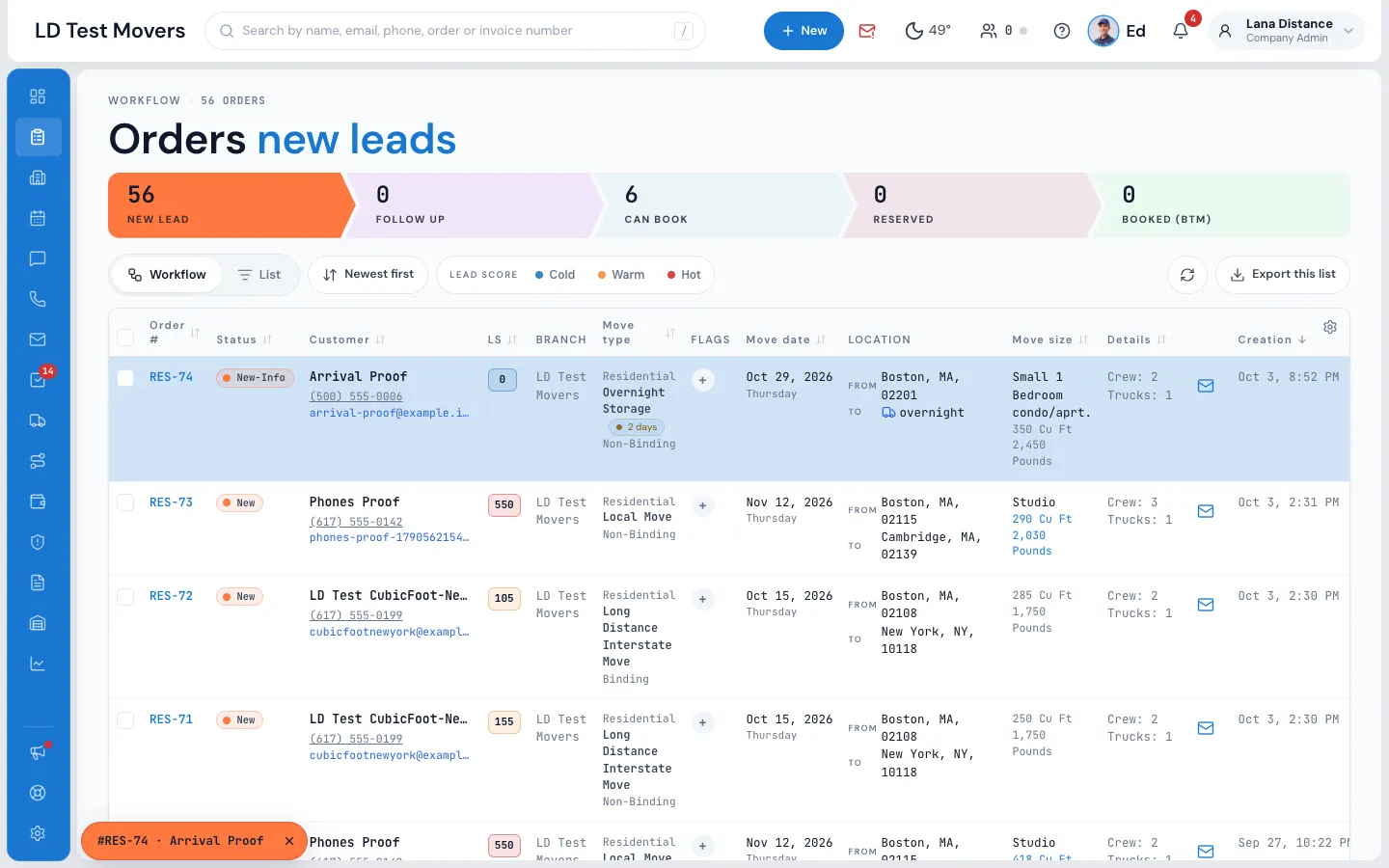
- Press the chip to bring the window back exactly as you left it — even half-typed changes are still there.
- Press the chip of the window in front to put it away again.
- A gold dot on a chip means that window has changes that aren't saved yet.
- The × on a chip closes that window.
If a pop-up is open inside the window, Esc closes the pop-up first.
Close a window
Press Close (the × at the top right), or the × on its chip. If nothing is unsaved, it closes at once.
If something isn't saved, the window comes to the front and asks Save your changes? — "This order has changes that are not saved yet." (or storage tenant, invoice, trip):
| Button | What happens |
|---|---|
| Cancel | Nothing. The window stays open with your changes. |
| Close without saving | Your changes are dropped and the window closes. |
| Save and close | MoveBoard saves, then closes. If the save is refused (or you cancel a question it asks, such as order updates), the window stays open and shows why. |
How saving works inside an order is in The order window, card by card.
If something goes wrong
If a window can't load, it shows "That order could not be opened." (or "That storage tenant…", "That invoice…", "That trip…"). Close it and try again; if it keeps happening, the record may have been deleted or you may not have permission to see it.
Related guides
- OrdersThe order window, card by cardEverything on an order in one window — the top bar, the status, the truck schedule, the four cards, the addresses, the conversation — and how SAVE works.
- OrdersHow saving works in an orderWhat waits for SAVE, what is saved the moment you do it, the checks SAVE makes, and what happens if you close with changes.
- OrdersThe order on a phoneHow the order window fits a phone — the stacked top bar, the ⋮ menu, cards one under another, and the dock.
- Getting startedShortcutsThe keys and clicks that save time in MoveBoard — open Ed, search, put a window away, and open rows.
Still stuck? A person will help.
Open a ticket from Support inside MoveBoard, or email us — we usually reply within one business day.