
Getting started
Your dashboard
What every number, card and list on the dashboard counts, how to change the days it shows, and what "Action needed" lists.
- 3 min read
- Checked against MoveBoard
- For owners & admins, sales, dispatchers
The dashboard is the first screen after you sign in. It shows today's picture — or any other days you choose — and what needs your attention. Press Dashboard in the menu, or your logo, to come back to it.
At the top it says Displaying all orders for every user or Displaying your own orders — that depends on whether you may see other people's orders.
Action needed
The Action needed column at the top right lists what needs a hand, each line with its count. Press a line to go to those items:
- jobs going out today with nobody on them
- invoices past their date with money still on them
- leads nobody owns
- unread messages from customers
- unread calls
- past-due tasks
- storage tenants whose monthly charge is not set to stop when they leave
Each line has a small Dismiss. A dismissed line stays away until something new joins it. When there's nothing, it says No action items.
The four tiles
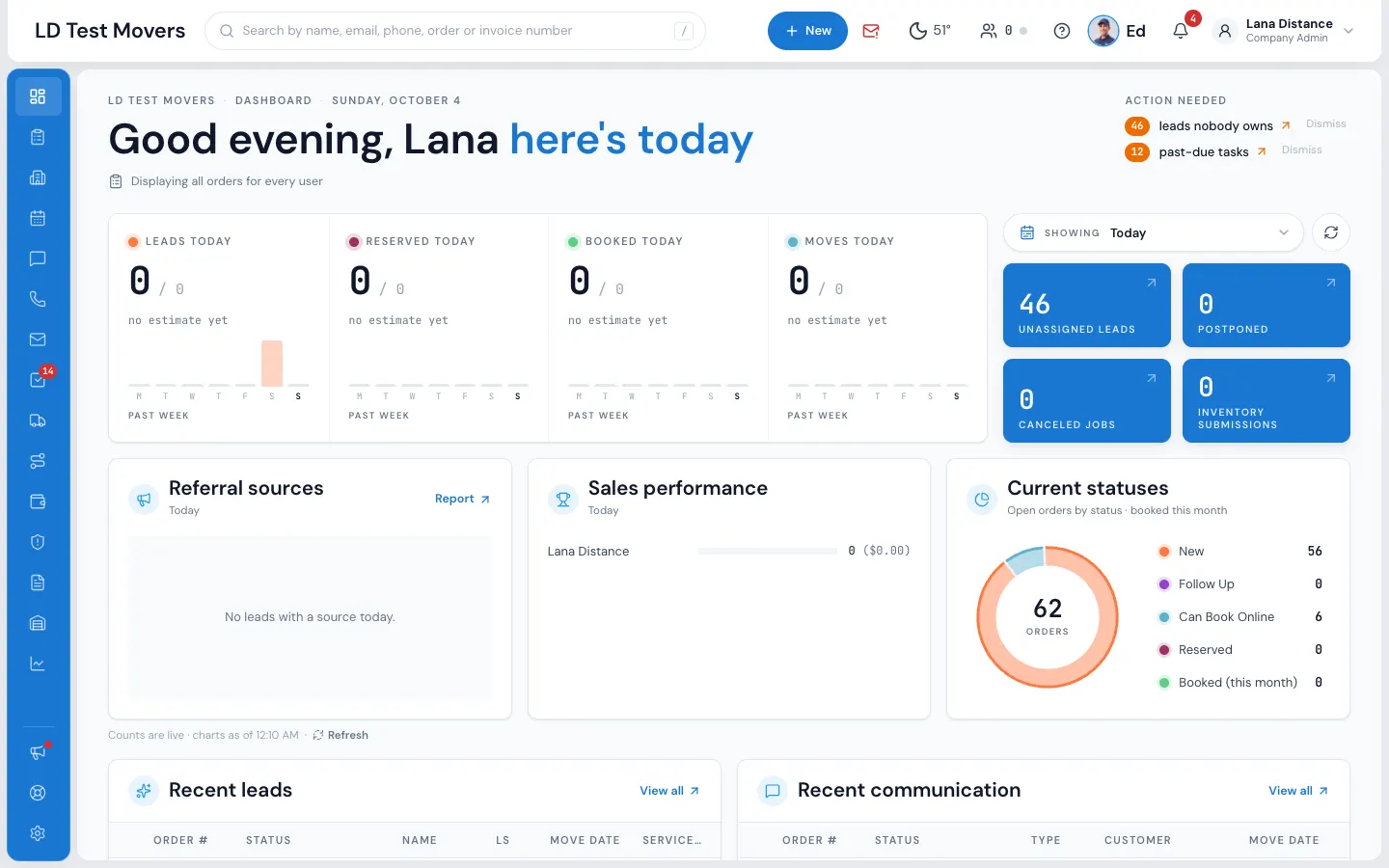
| Tile | What it counts |
|---|---|
| Leads | Orders created in the days shown |
| Reserved | Orders that became Reserved in those days |
| Booked | Orders booked in those days |
| Moves | Booked moves taking place in those days |
Each tile's name carries the days shown (Leads today, Booked this week…). The big number is now; the small "/ number" next to it is the same days last year. Under it, est. total is what those orders are worth by their estimates. The bars are the Past week.
Press the number to see those orders in a pop-up; press the bars to see the past week's orders.
The blue cards
Unassigned leads (open leads with no salesperson), Postponed (with how many were rebooked or cancelled in the days shown), Canceled jobs (cancelled in the days shown) and Inventory submissions (inventories customers submitted in the days shown). Press a card to see the orders.
Change the days
Press Showing to pick Today, Yesterday, This week (Mon – today), Last week (Mon – Sun), This month, Last month, or Custom dates (a From and a To date). Each is measured against the same days last year.
The round arrow next to it is Refresh the numbers.
Further down
- Referral sources — where the leads came from, received and booked. Press Report to open the full report (if you can see Reports).
- Sales performance — each salesperson's booked figures. Everyone sees this card. A person only appears once they're set to show in sales performance on their user.
- Current statuses — open orders by status, and booked this month. Press a status to open that list.
- Recent leads and Recent communication — the newest orders and conversations. The dot shows a customer who has their portal open. View all opens the full list.
- The week ahead — the next seven days: jobs, crew, trucks and value per day. Press a day to open it, or The whole month for the calendar.
- The month so far (for example October so far; only with access to Reports) — Leads in, Booked, Booked revenue, Collected and Jobs on the road.
Under the charts: "Counts are live · charts as of …", with a Refresh link. The tiles' and cards' numbers are counted live; the charts were last worked out at the time shown. A new lead updates the dashboard by itself the moment it comes in.
Related guides
- Getting startedYour first day in MoveBoardA ten-minute tour of the screens you'll use every day — the menu, the top bar, the dashboard and order windows.
- Leads & salesThe Orders listFind any lead or job — the five workflow stages, the full list with its filters, the columns, and opening an order.
- Leads & salesLead and order statusesWhat each status means, which ones MoveBoard sets on its own, and which changes need an admin.
- Leads & salesAssign a lead to a salespersonGive a lead to a salesperson from the order, from the Orders list, or for many orders at once.
- Leads & salesFollow up on leadsKeep every lead moving with tasks and reminders, the Follow Up status, and automatic follow-up messages.
Still stuck? A person will help.
Open a ticket from Support inside MoveBoard, or email us — we usually reply within one business day.