
Getting started
Find anything with search
Find an order, account, storage tenant, invoice or payment by name, phone, email or number — from the top bar or the full search page.
- 2 min read
- Checked against MoveBoard
- For owners & admins, sales, dispatchers
On this page
Search looks through orders, accounts, storage tenants, invoices, storage bills and payments at once, and answers as you type.
Search from the top bar
- Press the search box in the top bar, or press / anywhere you're not typing.
- Type at least two characters: a name, an email, a phone number, an order or invoice number.
- Press a result to open it. An order, storage tenant or invoice opens in its window; an account opens its page.
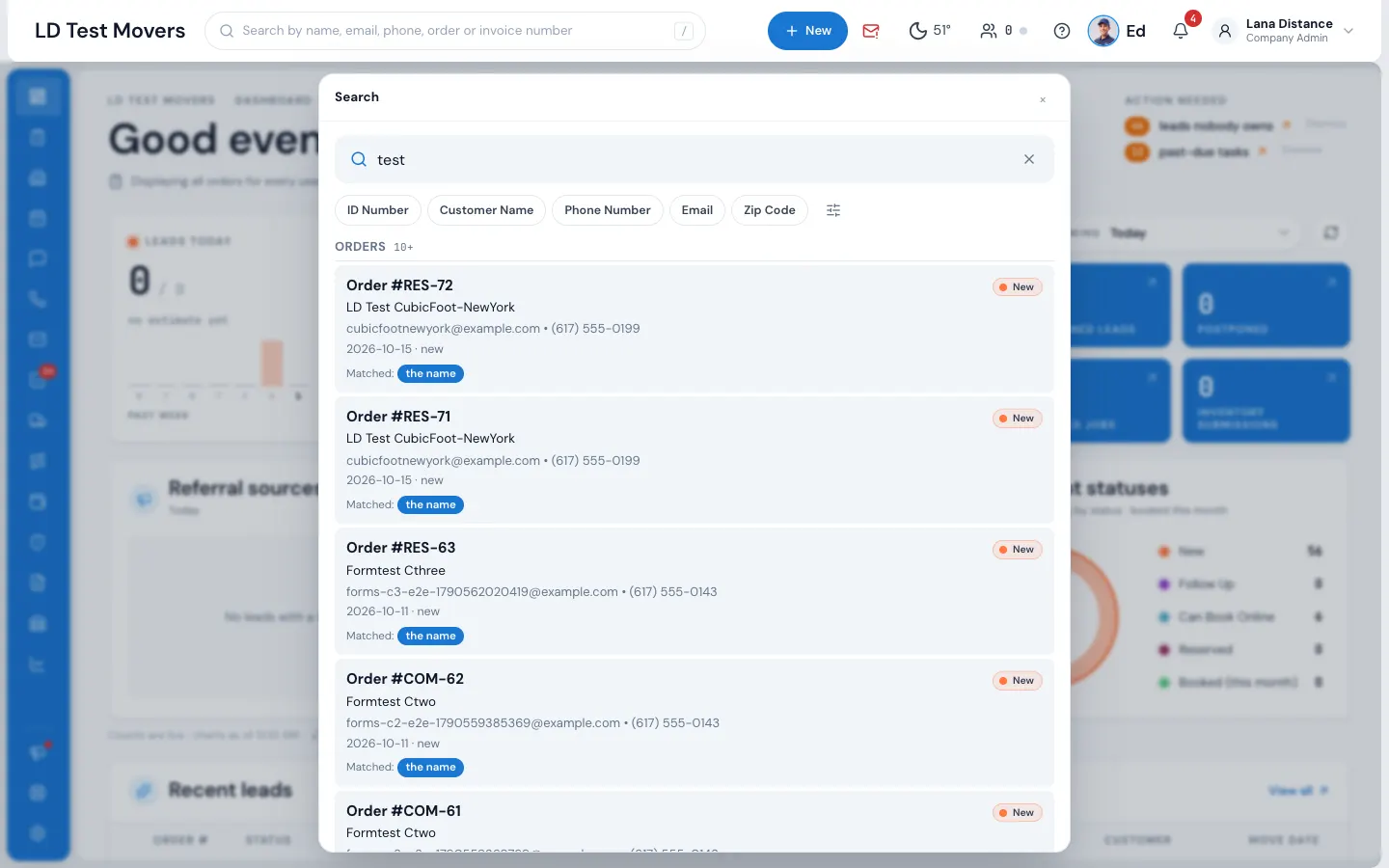
Results come in groups — Orders, Accounts, Storage Tenants, Invoices, Storage Bills, Payments — up to ten in each. Each row says which field matched. Use ↓ and ↑ to move through them.
Before you type, the pop-up shows your Recent Searches; press one to run it again.
Narrow the search
- One field. Press a chip — ID Number, Customer Name, Phone Number, Email or Zip Code — to search only that field. Press it again to search everything.
- Which groups. Press the settings icon (Advanced Search Options) for more chips: Accounts, Storage Tenants, Invoices, Storage Bill, CC Number (a card's last four digits) and Payment Amount. Tick any number of them; none ticked means everything.
- Archived (administrators only). Finds only archived orders, with their payments and invoices. Archived orders never show in a normal search.
- Branch. With more than one branch, pick All or the branches to search.
- Clear chips puts everything back.
The full search page
At the bottom of the pop-up, Open the full search page shows the same search on a page of its own, with more room. The address keeps your search, so you can copy it to a teammate or come back to it.
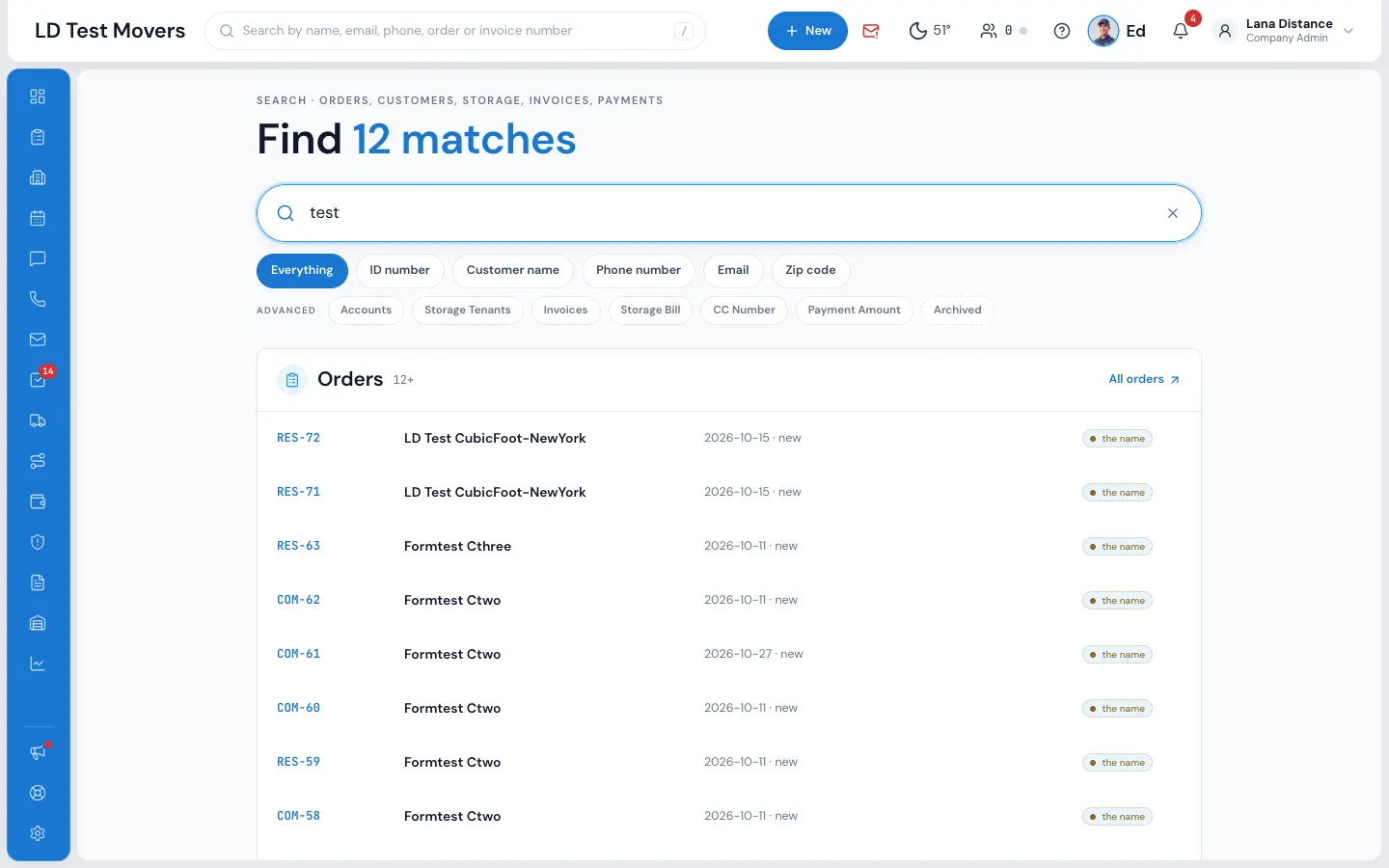
The groups here have an All … link to the full list (for example All orders). The field chips start with Everything.
What you can find
You only find what you're allowed to see: orders and accounts by your order permissions, storage tenants with access to Storage, and invoices with access to Invoices.
If nothing is found
- Nothing was found... (pop-up) or Nothing matches "…" (page) — try fewer letters or another spelling.
- "It was read as a number" — what you typed looked like a number, so it wasn't searched as a name.
- "Only one field was searched; try Everything." — a field chip is on.
- Search term cannot exceed 128 characters — shorten it.
Related guides
- Getting startedThe top barWhat every button across the top of the screen does — search, + New, the phone, weather, customers online, Ed, the bell and the menu under your name.
- Getting startedOrder, storage, invoice and trip windowsOpen several orders at once, put them away into the dock along the bottom, move them, and close them without losing unsaved work.
- Leads & salesThe Orders listFind any lead or job — the five workflow stages, the full list with its filters, the columns, and opening an order.
- Getting startedShortcutsThe keys and clicks that save time in MoveBoard — open Ed, search, put a window away, and open rows.
Still stuck? A person will help.
Open a ticket from Support inside MoveBoard, or email us — we usually reply within one business day.