
Estimates & pricing
Valuation on the quote
Released value vs Full Value Protection — how the charge is worked out, how the office sets it, and what the customer can pick in their portal.
- 4 min read
- Checked against MoveBoard
- For sales, owners & admins
On this page
Valuation is the protection the customer has for their belongings. The Valuation row in Quote Details shows what the order carries: the basic option's name, a third option's name, or the cost of Full Value Protection.
The options
- Basic (released value) — free. Its name defaults to "60 cents per pound"; you can rename it.
- Full Value Protection — charged. The customer is covered up to an amount of liability, with a deductible they choose.
- A third option — your own, if you give it a title (for example, a third-party policy).
- Relocation Insurance (third party company) — offered when relocation insurance is turned on for your company. The customer buys it in their portal once the move is booked.
How Full Value Protection is priced
- Amount of liability = the move's weight in pounds × your Dollars per pound (Full Value Protection). The weight comes from the size of the move and your cubic-feet-to-pounds rate.
- MoveBoard finds the row of your plan table with the lowest Amount of Valuation that covers the liability.
- That row lists one charge per deductible. The customer (or the office) picks a deductible.
How the table's figures turn into a charge depends on the plan you pick:
| Plan | The charge is |
|---|---|
| By percent | The cell's percent of the liability |
| By fixed price | The cell's amount, as it is |
| By rate | The cell's rate × the liability ÷ your coefficient (for example, per $1,000) |
If the liability is more than the largest amount in your table, Full Value Protection can't be priced for that move.
Set it up
- Open Settings › Pricing & calculator › Valuation.
- Pick the move type, then Hourly or Long Distance. Each has its own settings and table.
- Under Show Valuation Protection On Account Page, tick what the customer may see: Released Value Protection, Full Value Protection and its three options, Title Third Option.
- Under Valuation Titles, write the names and explanations the customer reads.
- Under Show Valuation Options, choose which services show the choice on the customer's account and on the order for service.
- Type Dollars per pound (Full Value Protection).
- Pick By percent, By fixed price or By rate, and fill in the table. The table has its own Save; everything else saves with the page's Save.
Set it on an order
- Open the order and click Valuation in Quote Details.
- Pick an option. For Full Value Protection, check the Liability $ (the calculator button puts back the worked-out amount), then press Select on a deductible.
- Press Save in the pop-up, then SAVE on the order.
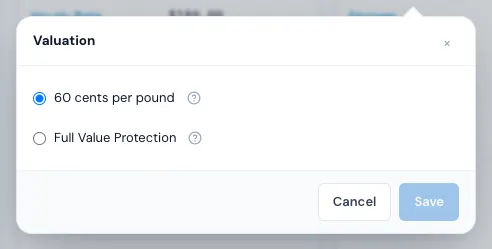
Once the job is completed, or the contract is signed and sales are locked, the pop-up only shows what was chosen.
What the customer sees
In their portal, Protection plan lists the options you show. What they can do depends on Allow a customer to select Full Value Protection:
- On — they pick Full Value Protection and a deductible and press Save. If Allow a customer to edit the Amount of Liability is on, they can change the amount too. The order is repriced and your sales team is notified.
- Off — they read your explanation and can press Request Full Value Protection. Nothing on the price changes; the order log notes the request and sales are notified so you can set it.
Once the move is booked, reserved or postponed, the customer's choice is read-only. While you keep the quote hidden, the page says their protection options come with their quote. See Hiding the price from customers.
If something goes wrong
These show in the pop-up:
- Liability amount exceeded — the liability is above the largest amount in your plan table.
- Plans not setup — the plan table for this move type and kind of move is empty.
- Plan has been changed — the order's deductible is no longer in the table. Pick a deductible again.
- Full value protection is not available for this amount. Please contact your administrator.
- Valuation option is a required field — press Select on a deductible.
Related guides
- Estimates & pricingHow MoveBoard prices a moveThe chain behind every hourly quote — size, crew, speed, labor time, travel, minimums, add-ons and taxes — with a worked example.
- Estimates & pricingHiding the price from customersDecide when a customer sees their price in the portal and on your website forms — and release it on one order.
- Estimates & pricingKilometres, cubic feet and poundsChoose miles or kilometres, cubic feet or pounds, and how many pounds a cubic foot weighs — and what changes when you switch.
- OrdersQuote Details cardEvery line of the price — deposit, charges, fees, discount, taxes, total, payments and balance — and how to change each one.
- Booking & paymentsOrder for Service and estimate signingThe documents a customer signs to book — which one fits which move, how to edit them, and where the signed copy goes.
Still stuck? A person will help.
Open a ticket from Support inside MoveBoard, or email us — we usually reply within one business day.