
Estimates & pricing
Peak, discount and blocked days
Mark days on the price calendar with a price level or minimum hours, block days customers can't book, and update the open orders on them.
- 2 min read
- Checked against MoveBoard
- For owners & admins, sales
On this page
The price calendar tells MoveBoard what each day is worth. A day's colour is its price level, which picks the row of your Rates grid; a small number in its corner is that day's minimum hours.
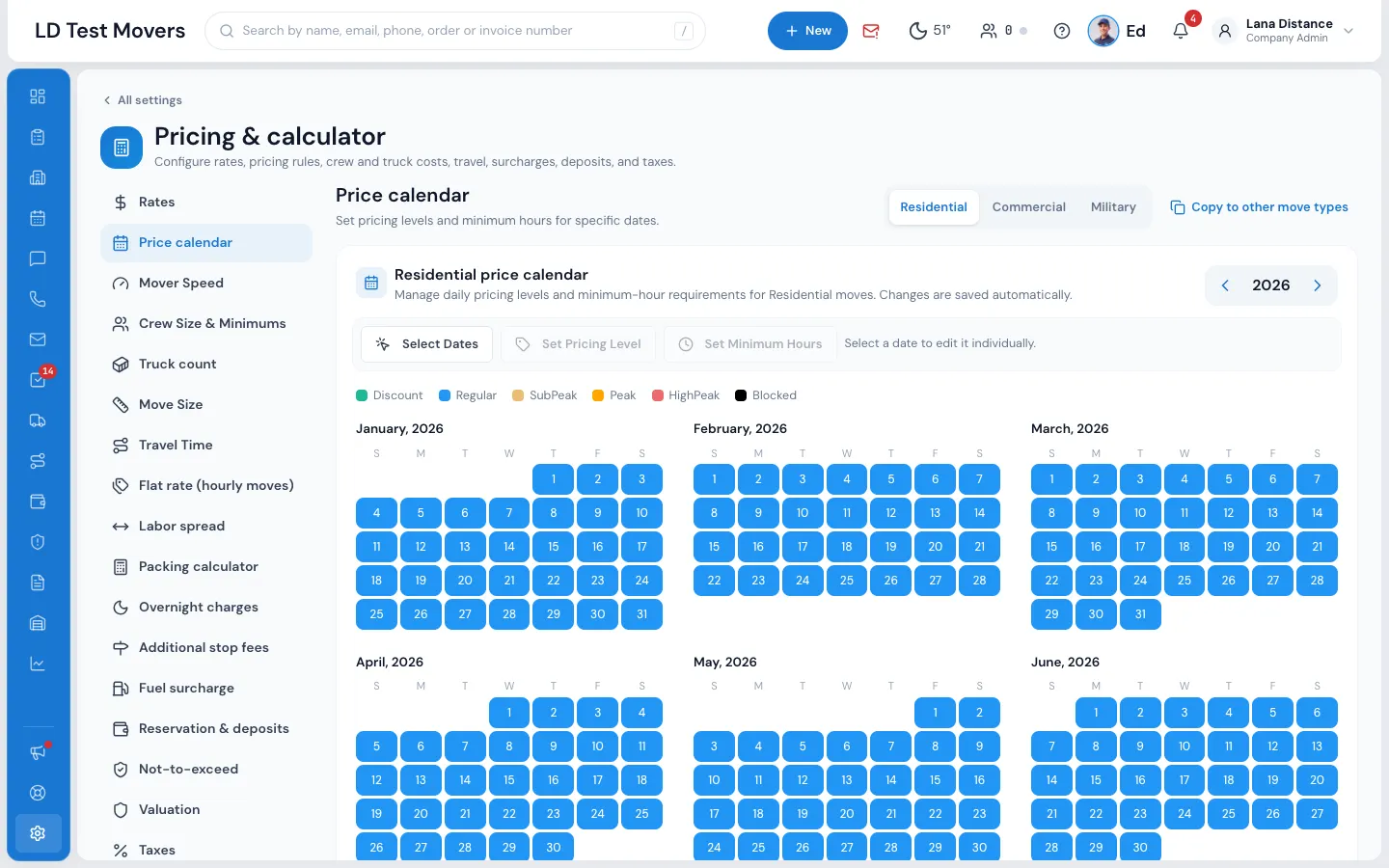
What a day can be
- Discount, Regular, Sub-Peak, Peak or High-Peak — the rates of that row. A day you never marked is Regular.
- Blocked — customers can't pick it. The date pickers in the customer portal and on your website forms show it black and refuse it ("That day is not available. Please pick another day."), and the AI receptionist won't offer it.
- Minimum hours — 1 to 5, or None. A day's minimum replaces the company minimum from Crew Size & Minimums for moves on that day.
Levels you switched off on the Rates page don't appear in the menu.
Mark one day
- Open Settings › Pricing & calculator › Price calendar.
- Pick the move type at the top if you have more than one.
- Click the day. A menu opens with the price levels.
- Pick a level — or press Set minimum hours… and pick the hours.
Mark many days at once
- Press Select Dates.
- Click every day you want. The bar counts them.
- Press Set Pricing Level or Set Minimum Hours and pick.
- Press Done to stop selecting.
The calendar saves each change at once — there's no Save button. If the server refuses a change, the days go back and a note says why.
Use the arrows beside the year to move between years. Past years are there to look at, not to change.
Update the open orders
Quotes already given keep their rates until you say otherwise. After you change days from today on, the bar shows … days changed · Update open orders…, and MoveBoard asks again when you leave the page:
> Update the open orders? You changed 3 days. Update the 5 open orders on those days to the new rates? Reserved and Booked orders won't change.
- Update them reprices those orders in the background; a banner counts how many are done.
- Keep them as they are leaves them alone.
Reserved and Booked orders never change: the customer already agreed to their price.
Copy to other move types
Copy to other move types asks first, then copies this move type's whole calendar over the others, replacing what they have. This saves at once.
Related guides
- Estimates & pricingHourly rates and price levelsSet what an hour costs for each crew and truck combination at each price level, and how the day's level picks the rate.
- Estimates & pricingHow many moversHow MoveBoard picks the crew size from the size of the move and the entrances, and how minimum crew, minimum hours and single-item moves work.
- Estimates & pricingHow MoveBoard prices a moveThe chain behind every hourly quote — size, crew, speed, labor time, travel, minimums, add-ons and taxes — with a worked example.
Still stuck? A person will help.
Open a ticket from Support inside MoveBoard, or email us — we usually reply within one business day.