
Estimates & pricing
Typed values vs calculated values
What the red figures and the ↺ arrow on an order mean, which values you can set by hand, and how to hand them back to the calculator.
- 3 min read
- Checked against MoveBoard
- For sales
On this page
The calculator is always on: it works out the crew, trucks, rate, labor time and travel time from your settings. You can set any of them by hand. A figure you set, that differs from what the calculator says, is drawn in red with a ↺ beside it. Hover the ↺ to see "The calculator says … Press to put it back."
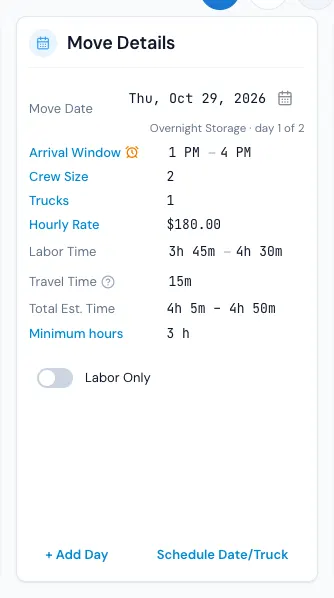
What you can set on the Move Details card
| Row | How | What a typed value does |
|---|---|---|
| Crew Size | Press it, pick a number | The rate follows the new crew; the hours re-run at the new crew's speed |
| Trucks | Press it, pick a number | The rate follows the trucks; the hours don't change |
| Hourly Rate | Press it, type a New Rate ($) | Replaces the rate; optional Rate Expires date |
| Labor Time | Pick a time in either list | Takes the hours over from the calculator for that day |
| Estimated Travel Time | Pick a time | Replaces the travel time |
| Minimum hours | Press it, pick from New | Replaces the minimum; optional Expires date |
Your change is a draft until you press SAVE.
Labor time
Picking a labor time is you taking the hours over for that day. From then on a new size, crew, stop or date no longer moves the hours — they stay what you picked. Press ↺ to give them back: the calculator works them out again from the day as it stands now, and they follow your settings again.
Crew size and trucks
A crew or truck count you picked stays when the size changes; only the calculator's own count would have moved. A changed inventory sends the counts back to the calculator. The ↺ (or Back to what the crew calls for in the Trucks pop-up) puts the calculator's count back.
Hourly rate
A typed rate is shown with the calculated rate struck through beside it — handy for a discount. If your travel rates are the same as your labor rates, the travel rate follows. Remove Discount in the pop-up clears it. Past its Rate Expires date the calculated rate is used again. A new move date moves the calculated rate underneath; a typed rate stays.
Minimum hours
A changed minimum isn't red; a small ↺ (Back to the calculated minimum) sits beside it instead. Past its Expires date the calculated minimum comes back.
Travel time
A travel time you picked stays, even when your Travel Time settings change. On an open order, a calculated travel time follows new settings — you'll see a note "Updated to … from the current travel settings (was …) — Save to keep".
When the red isn't shown
On the closing side of a job, figures are what the job was charged: no red, no ↺.
If something goes wrong
- "The number of trucks may not exceed the number of movers. …" — the crew can't be fewer than the trucks; change one first.
Related guides
- Estimates & pricingHow MoveBoard prices a moveThe chain behind every hourly quote — size, crew, speed, labor time, travel, minimums, add-ons and taxes — with a worked example.
- Estimates & pricingHow many moversHow MoveBoard picks the crew size from the size of the move and the entrances, and how minimum crew, minimum hours and single-item moves work.
- Estimates & pricingHow many trucksSet how many trucks a quote needs for the size of the move, and change the trucks on one order.
- Estimates & pricingHourly rates and price levelsSet what an hour costs for each crew and truck combination at each price level, and how the day's level picks the rate.
- Estimates & pricingTravel time and truck speedHow MoveBoard measures the trip to and from a move, charges it, and adjusts Google's drive times for a truck — with every Travel Time setting explained.
- OrdersThe order window, card by cardEverything on an order in one window — the top bar, the status, the truck schedule, the four cards, the addresses, the conversation — and how SAVE works.
Still stuck? A person will help.
Open a ticket from Support inside MoveBoard, or email us — we usually reply within one business day.