
Mover's Portal
Sign in to the Mover's Portal
Sign in on your phone with your Company ID, username and password, reset a forgotten password, and put the Mover's Portal on your home screen.
- 2 min read
- Checked against MoveBoard
- For foremen, movers
On this page
The Mover's Portal is MoveBoard for the crew. It opens in your phone's browser — there's nothing to install. The address is in the texts the office sends you about your jobs; ask the office if you don't have it.
Sign in
- Open the Mover's Portal address on your phone.
- Type your Company ID — the number your company was given. Your phone remembers it after the first time, and shows Signing in to with your company's name.
- Type your Email or username and your Password (the eye shows what you typed).
- Press Sign in.
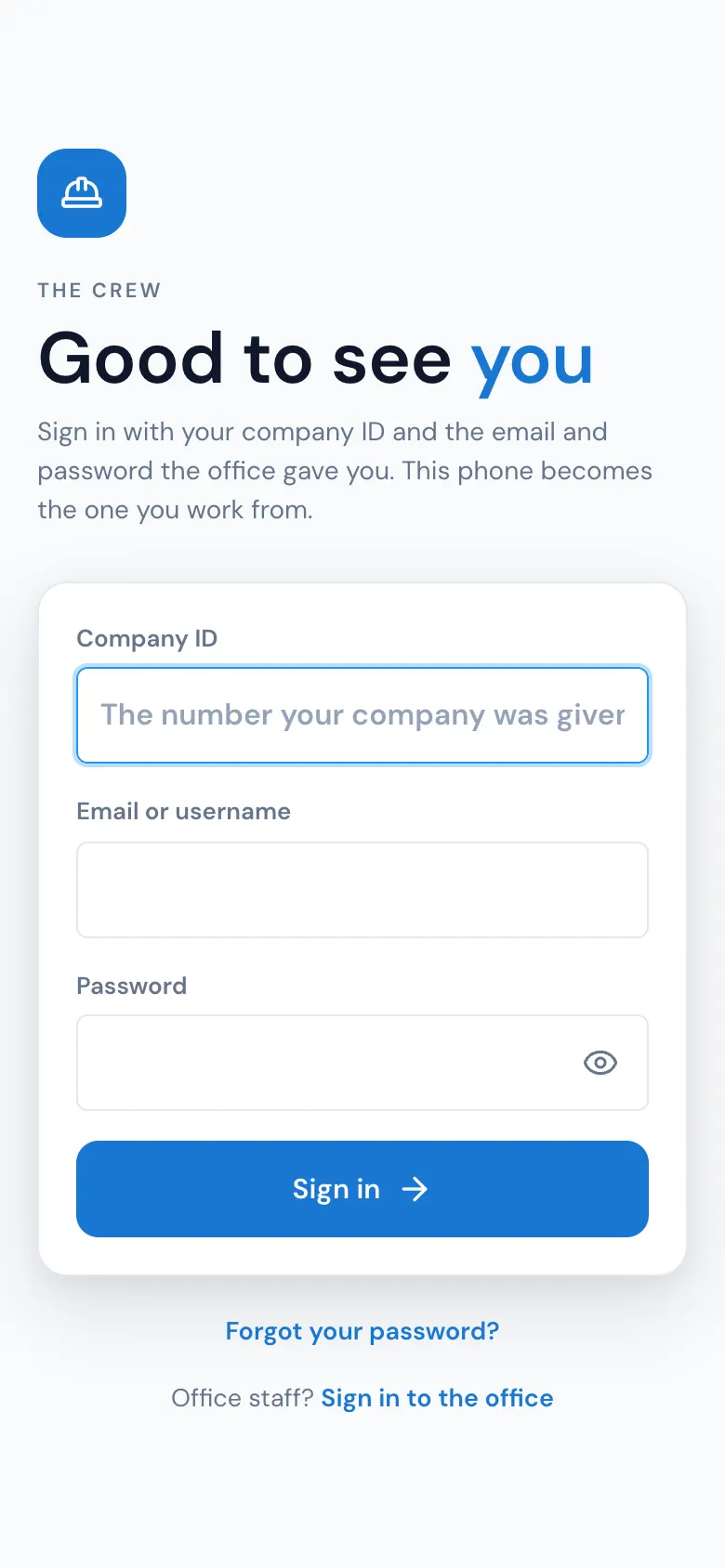
Your phone stays signed in, so you won't have to do this every day. To sign in to a different company, press the pencil next to its name.
One phone at a time
You can be signed in on one phone at a time. If you sign in on a second phone, MoveBoard shows Active Session: press Continue to sign out the other phone and use this one, or Cancel to leave things as they are. The other phone is sent back to the sign-in page the next time it's used.
Forgot your password?
- On the sign-in page, press Forgot your password?
- Type your Email and Company ID, then press Send the link.
- Open the email and follow its link.
- Type a New password, type it again, and press Change password.
- Press Back to sign in.
Change your password
Signed in, open the menu (top right) and press Edit Profile. Under Change your password, type your old password and the new one twice, then press Save.
Put it on your home screen
Open the Mover's Portal in your browser and use the browser's share or menu button: Add to Home Screen (iPhone, Safari) or Install app / Add to Home screen (Android, Chrome). It then opens like an app.
Office staff?
Use Sign in to the office at the bottom of the page. If you also work in the office, you can switch from the Mover's Portal menu with The office.
If something goes wrong
- The information entered does not match our records. — check the Company ID, username and password.
- No connection. Try again when you have signal.
- Your access to the software was denied… — your account was switched off; call your office.
- The two passwords do not match. — when setting a new password.
Related guides
- Mover's PortalThe Mover's Portal homeWhat foremen and movers see when they open MoveBoard on their phone — the jobs waiting for an answer, today's jobs, and where everything else is.
- Mover's PortalYour jobsThe Jobs tab lists every job you're the foreman on — New ones soonest first, and Past ones if your company allows — each opening right where your crew left off.
- Mover's PortalWorking with no signalWhat the Mover's Portal keeps on your phone when the signal drops — today's jobs to read, and every change on the bill of lading, sent safely when you're back online.
- Dispatch & schedulingTexts the crew getsWhich texts or emails your movers get when you build crews, put them on jobs, take them off, change the report time or cancel a job — and how to change the words.
Still stuck? A person will help.
Open a ticket from Support inside MoveBoard, or email us — we usually reply within one business day.