
Mover's Portal
Your jobs
The Jobs tab lists every job you're the foreman on — New ones soonest first, and Past ones if your company allows — each opening right where your crew left off.
- 2 min read
- Checked against MoveBoard
- For foremen
The Jobs tab is the foreman's list. It shows every booked job where you're the foreman.
Open your jobs
- Press Jobs at the bottom of the screen.
- New lists jobs not finished yet, soonest first. Past lists finished jobs, latest first — it's there only if your company lets foremen see past jobs.
- Press Refresh (top right) to read the list again.
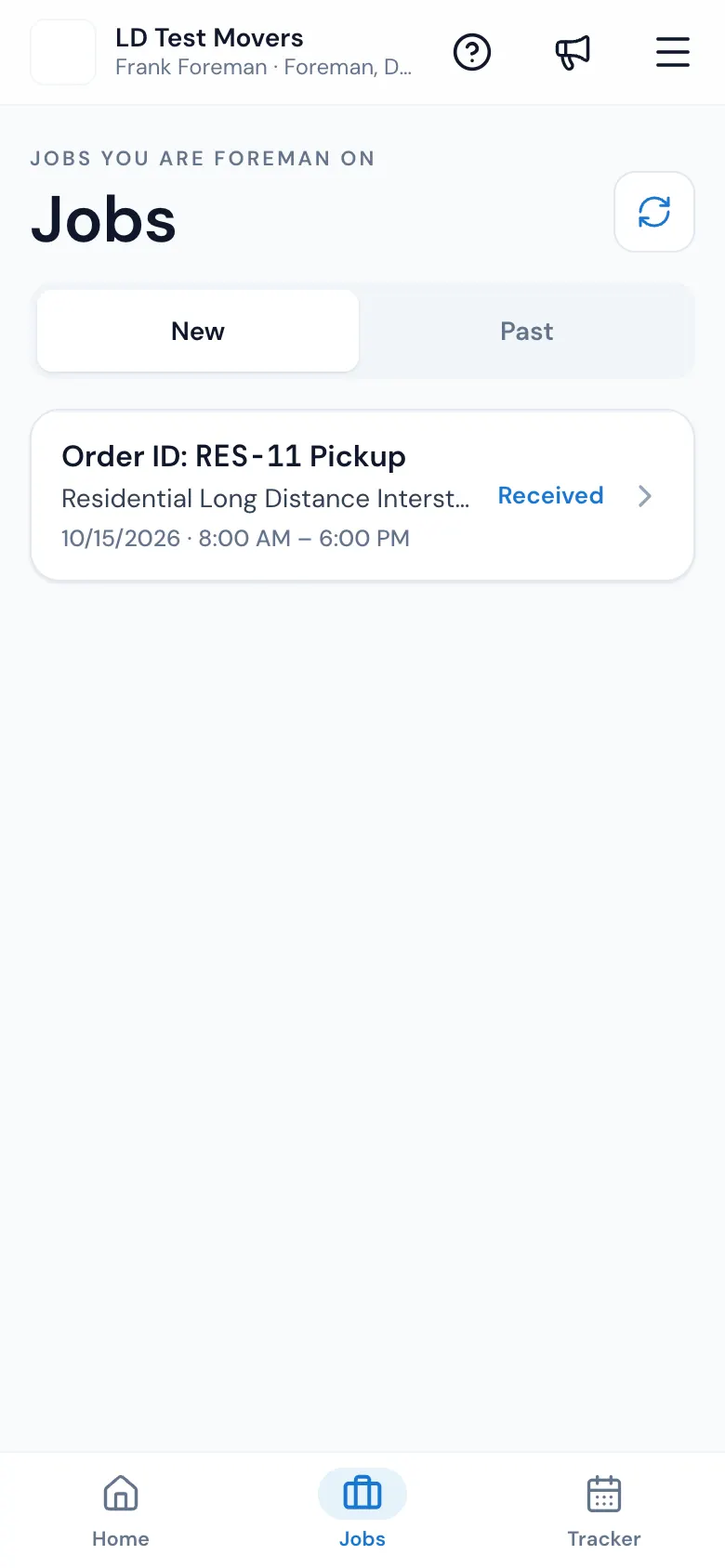
The list shows 30 jobs a page (50 for Past); More and Newer move between pages.
Reading a row
- Order ID and the number — with Pickup or Delivery on a long-distance job, which has a row for each leg.
- The move type and service.
- The date and arrival window.
- Ready offline when the job is saved on your phone for no signal (and Not saved offline while you're offline on one that isn't) — see Working with no signal.
- Company: — when you work for more than one branch.
- The job's status at the right, such as Assigned, En Route or Completed.
Where a job opens
Tap a row. It opens where your crew left off:
- not left yet — Job Details, with the EN ROUTE button;
- on the way — the move details with ARRIVED;
- arrived or later — the job screen with its tiles.
On the Home screen
Foremen also see three counts on Home: Today, Assigned (opens New) and Completed (opens Past), and up to three of Today's Jobs. No job assigned means nothing for today.
No jobs?
No jobs currently assigned. means dispatch hasn't made you foreman on a booked job yet. Check that you confirmed your day (see Confirm or decline a schedule), or ask the office.
Related guides
- Mover's PortalThe Mover's Portal homeWhat foremen and movers see when they open MoveBoard on their phone — the jobs waiting for an answer, today's jobs, and where everything else is.
- Mover's PortalThe job screenOnce you've arrived, a job opens on its tiles — Bill of Lading, Order for Service, details, photos, notes, forms and agreements — with the status chain across the top.
- Mover's PortalConfirm or decline a scheduleWhen the office puts you on a crew, answer from your phone — CONFIRM (or DECLINE, if your company allows it) — and the office sees it right away.
- Mover's PortalWorking with no signalWhat the Mover's Portal keeps on your phone when the signal drops — today's jobs to read, and every change on the bill of lading, sent safely when you're back online.
Still stuck? A person will help.
Open a ticket from Support inside MoveBoard, or email us — we usually reply within one business day.