
Mover's Portal
The job screen
Once you've arrived, a job opens on its tiles — Bill of Lading, Order for Service, details, photos, notes, forms and agreements — with the status chain across the top.
- 3 min read
- Checked against MoveBoard
- For foremen
After you press ARRIVED, the job opens on its tiles. It's your home base for the rest of the job — come back to it with Back from any tile.
The top
- Order and its number (with Delivery on a long-distance delivery), the move type, and the customer's name.
- You are foreman — when it's your job.
- The status chain — the job's steps as numbered circles, with the time each was reached. TAP under On The Way and Unloading means you may tap those yourself (between loading and payment). Payment turns into a green Paid once nothing is owed.
The tiles
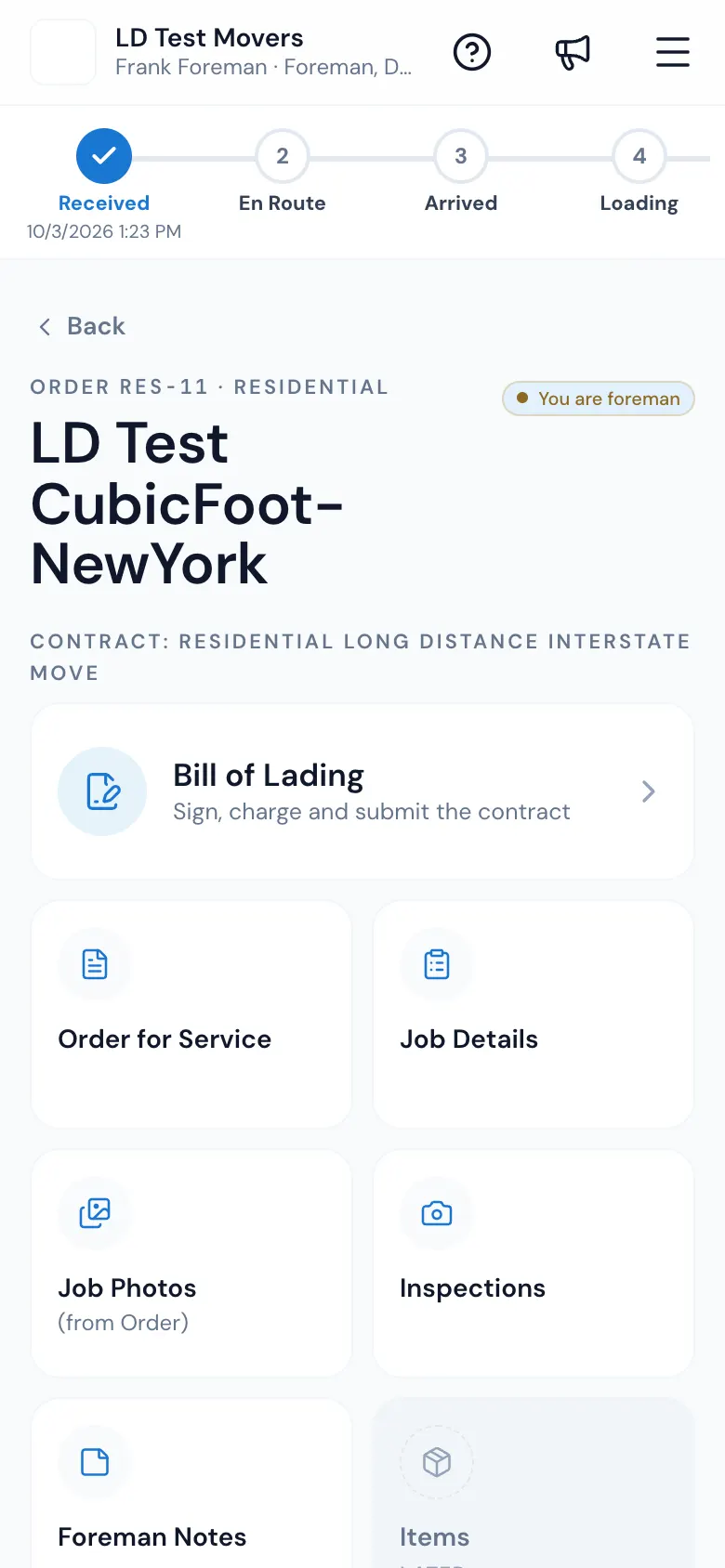
Under Contract: and the move type and service, the Bill of Lading comes first as a wide tile — "Sign, charge and submit the contract" — then the rest:
| Tile | What it's for |
|---|---|
| Bill of Lading | The contract: times, signatures, materials, services and payment — see Stop times and customer signatures. |
| Order for Service | The order for service the customer signed — see Order for Service on site. |
| Job Details | The customer, crew, trucks, addresses and office notes — see Job details and directions. |
| Job Photos (from Order) | Pictures the office shared with the crew. |
| Inspections | Your photos of the items and any damage — see Photos and inspections. |
| Foreman Notes | Your notes on the job — see Notes. |
| Items | The inventory on the job — greyed for now (Later). |
| Release Forms | Risky work the customer releases you from — see Release forms. |
| Storage Agreement | For jobs going into storage — see Storage agreement on site. |
| Change Order | When the job changes from the estimate — see Write a change order. |
| Customer Review | Greyed (Soon). |
A green edge and a ✓ mean the tile is done (signed, submitted or has photos). A number shows how many there are. A greyed tile says why in one word: Later, Soon, No access, Storage jobs or Turned off.
Coming to Storage
On a job with a storage agreement set up, the Storage Agreement tile has a Coming to Storage switch. Turn it on when the goods go into storage today; the tile then opens. Until then it may say Turn on Coming to Storage on BOL to use, or Storage exists for this customer on a different day.
A long-distance job
There's still one Bill of Lading tile. Depending on your company's choice it opens your company's bill or the long-distance bill of lading — see Long-distance bill of lading.
After it's submitted
A completed job shows Completion & the customer's copy: the signed bill of lading goes to the customer automatically once it's submitted.
Related guides
- Mover's PortalYour jobsThe Jobs tab lists every job you're the foreman on — New ones soonest first, and Past ones if your company allows — each opening right where your crew left off.
- Mover's PortalStop times and customer signaturesThe customer signs the start and end of the work — once for the job, or at every address — in order. Signed times lock, and the job moves along with each signature.
- Mover's PortalJob details and directionsEverything about the job before you go — the move, the crew, the customer, the office's notes — and one tap to drive to each address.
- Mover's PortalPhotos and inspectionsPhotograph the items and any damage as an inspection — before, during or after the move — and see the photos the office shared with the crew.
- Mover's PortalRelease formsWhen the customer asks for something risky — hoisting, a tight stairway, items you'd rather not move — have them sign a release form on your phone.
- Mover's PortalWrite a change orderWhen the customer adds items or services, or the job isn't what was estimated, write a change order on your phone — the new price, then the customer's and your signatures.
Still stuck? A person will help.
Open a ticket from Support inside MoveBoard, or email us — we usually reply within one business day.